
Tasks for an enquiry
Open the client’s enquiry and select Tasks to see the work linked to that enquiry. Check the service and destination first, especially when the person has more than one enquiry.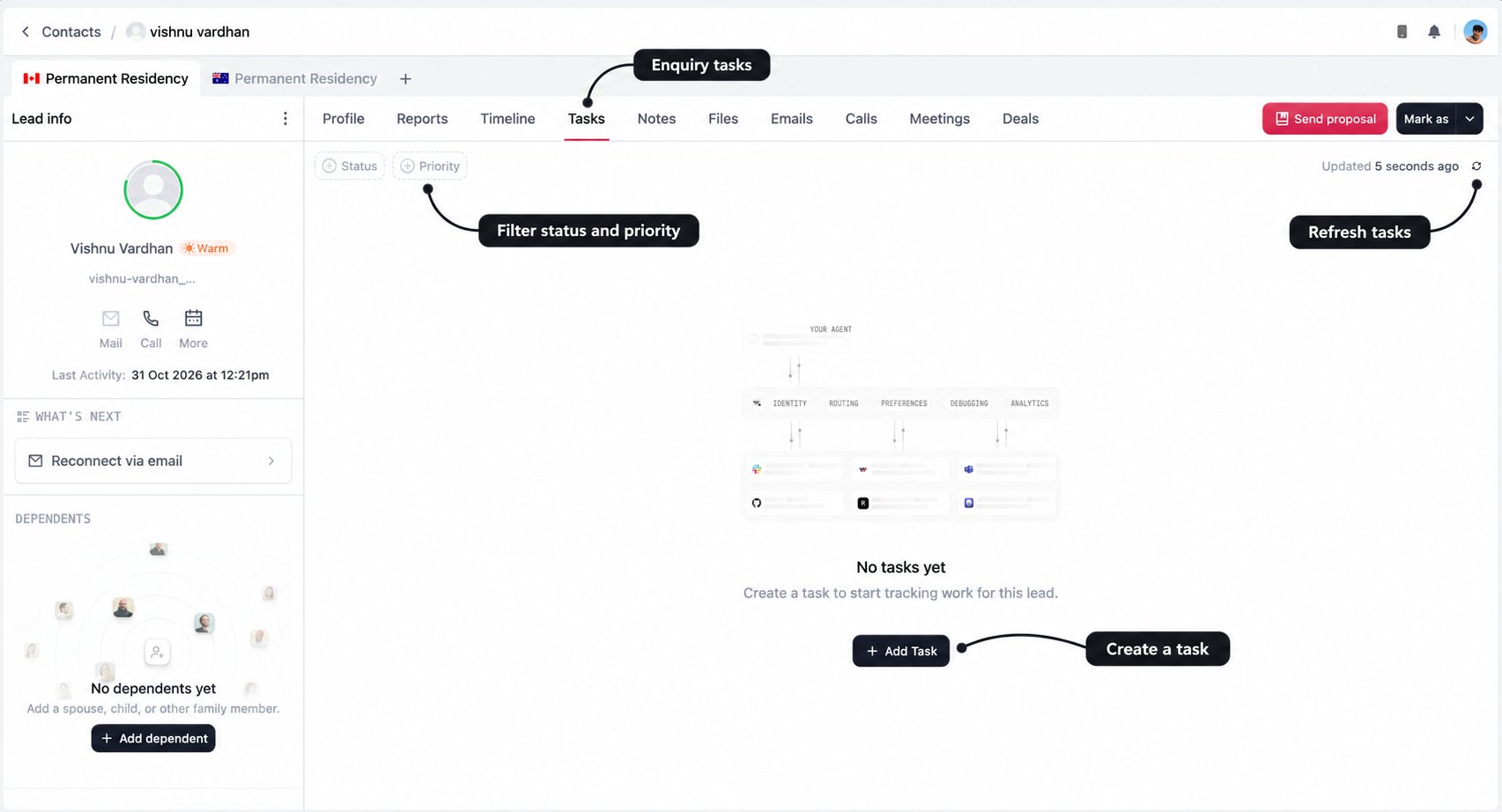
The enquiry’s Tasks tab and the main Tasks page provide different views of the same work. You do not need to create a second task to make an enquiry task appear in the wider list.
Create a task
A useful task tells you what to do without having to reopen every note. Use a title such as Call client to confirm missing employment dates rather than Follow up alone.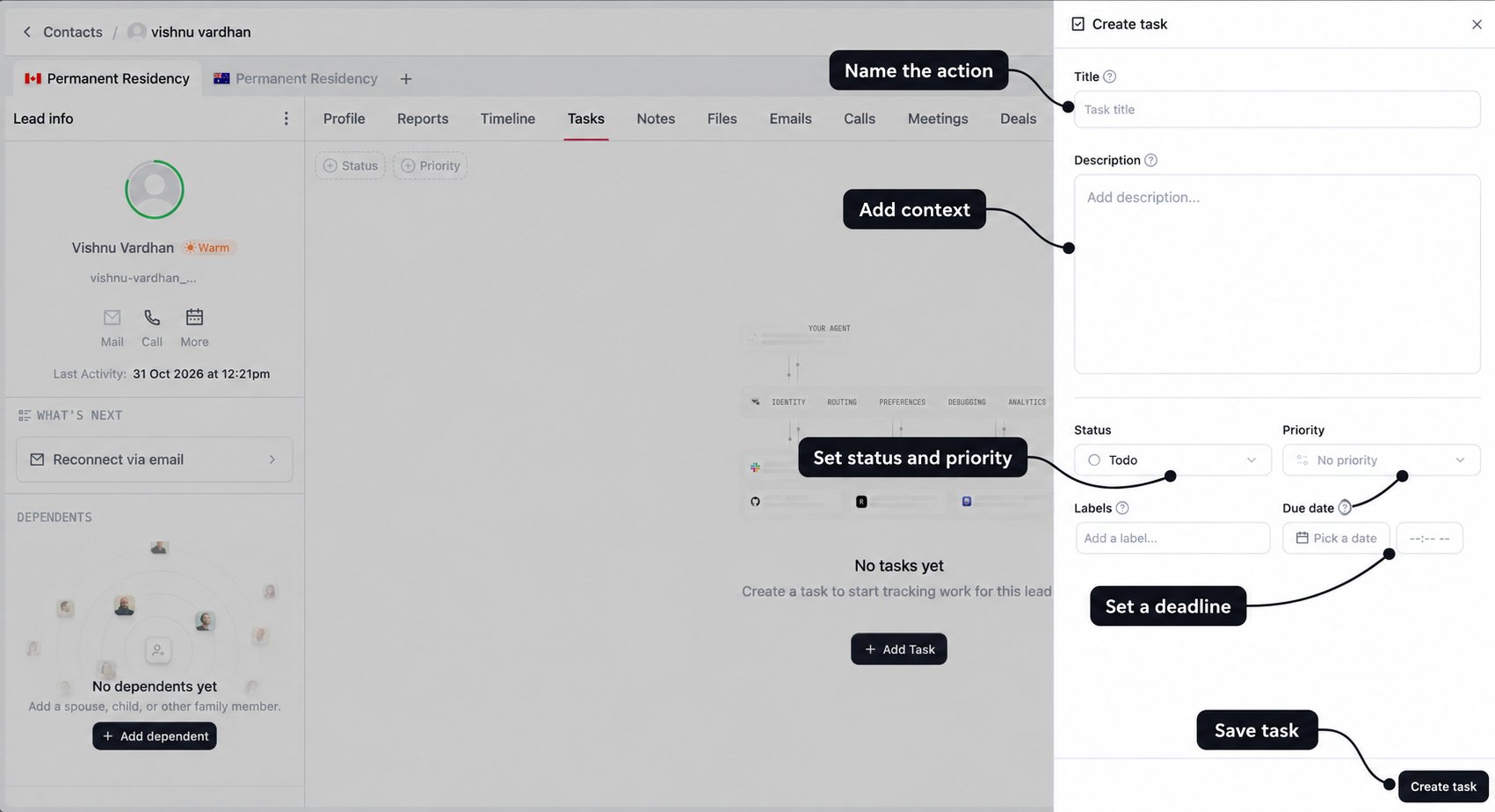
1
Name the action
Enter a Title. This is required and appears in the task list. Make the expected action clear.
2
Add the context
Use Description for the background, outstanding questions, and what a completed task should achieve. For example: “Confirm the start and end dates of the client’s previous role before preparing the assessment.”
3
Set status and priority
New tasks start as Todo with No priority, unless you choose otherwise. Select a status that reflects the actual work and a priority that helps the team decide what needs attention first.
4
Add labels and a deadline
Use Labels to categorise the work, such as call, email, or follow-up. Set the Due date and time when the work needs to be completed. A deadline is especially useful when you have agreed a callback with the client.
5
Create the task
Select Create task. From an enquiry, the task is linked to the client and enquiry you have open. Review the saved task to confirm the details.
Work from the main Tasks page
Open Tasks under Manage in the CRM sidebar when you want to review work across enquiries. This is the wider CRM task list, rather than the tasks for a single enquiry.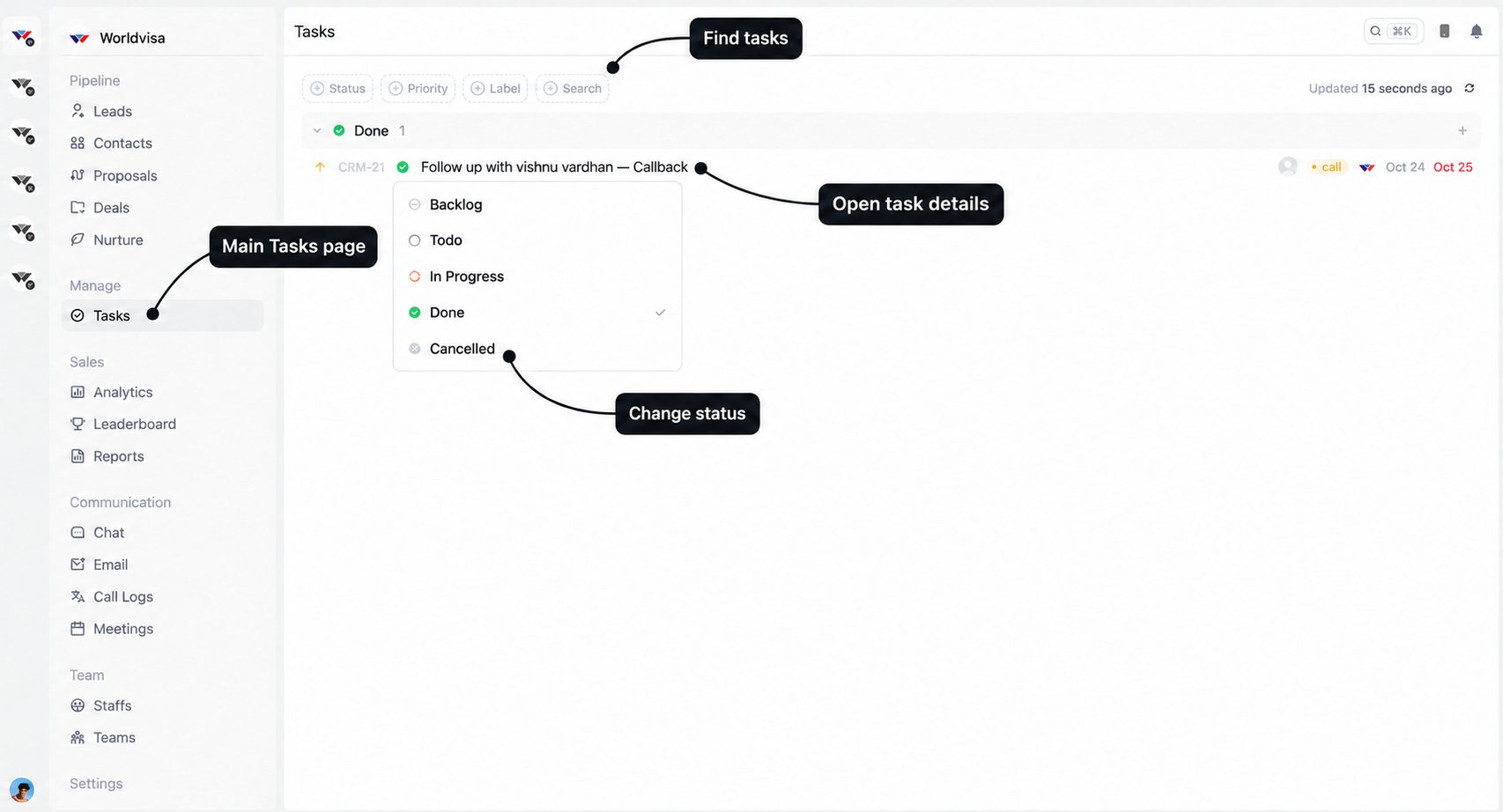
Keep the status accurate
Select the status icon beside a task to update its position in the workflow.
Mark a task Done after carrying out the action, not just after opening the client record. If a callback leads to another agreed action, record the outcome in Notes and create or update the next task as appropriate.
Set a useful priority
Priority expresses urgency; the due date tells you when the work is expected. Set both when the task has a specific deadline.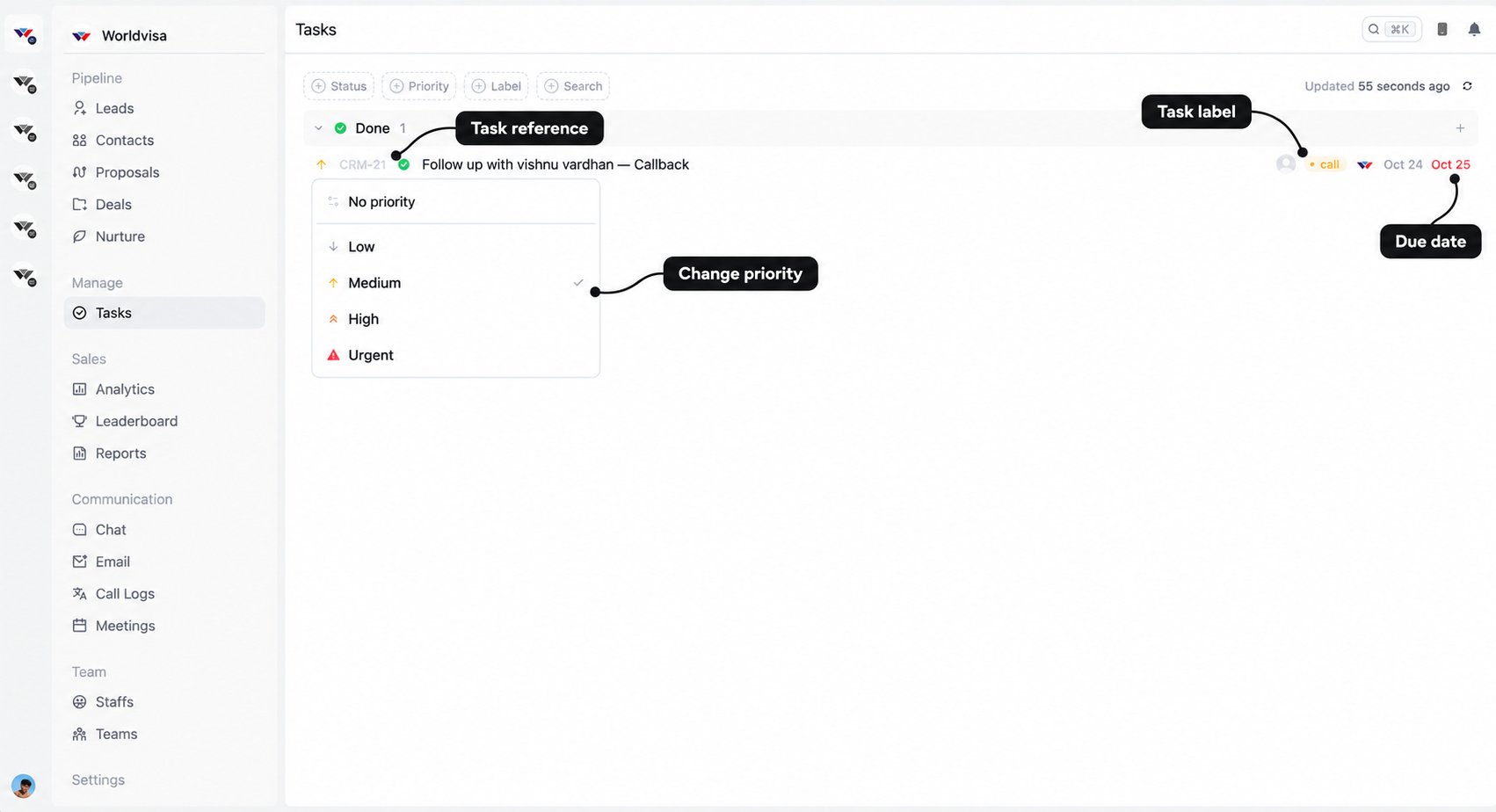
Tasks created automatically
Some CRM actions create a task for you. Check the enquiry’s task list or the main Tasks page before adding another reminder for the same action.
For linked call follow-ups, changing the follow-up details can update the existing task. Removing the follow-up date can remove that linked task, so review the current task rather than creating duplicates.
Automatic task creation supports the workflow, but it does not mean the work has been completed. Review the title, deadline, and current status, then act on the task.
Due reminders and overdue work
Assigned tasks in Todo or In Progress can receive reminders as their deadline approaches. Overdue tasks in these statuses can be moved into Backlog by the system for another review. If a task returns to Backlog, check its deadline and the work still outstanding. Complete it, set a realistic new deadline, or cancel it if the action is no longer needed. Do not assume that moving to Backlog means the work was completed.Make the next step easy to pick up
Before you finish a client interaction, ask: Is there something we have agreed to do later? If so, check whether a task already exists. If it does not, create one with enough detail to be useful tomorrow. For example:Title: Call client after reviewing the language test result Description: Client will share the result before the callback. Review the scores, confirm any missing information, and discuss the next assessment step. See the latest enquiry note for the conversation summary. Due: The date and time agreed with the client.