
Choose the right meeting
Open the correct enquiry and select Meetings. Use New meeting, or open More beneath the client’s name, to choose how you want to meet.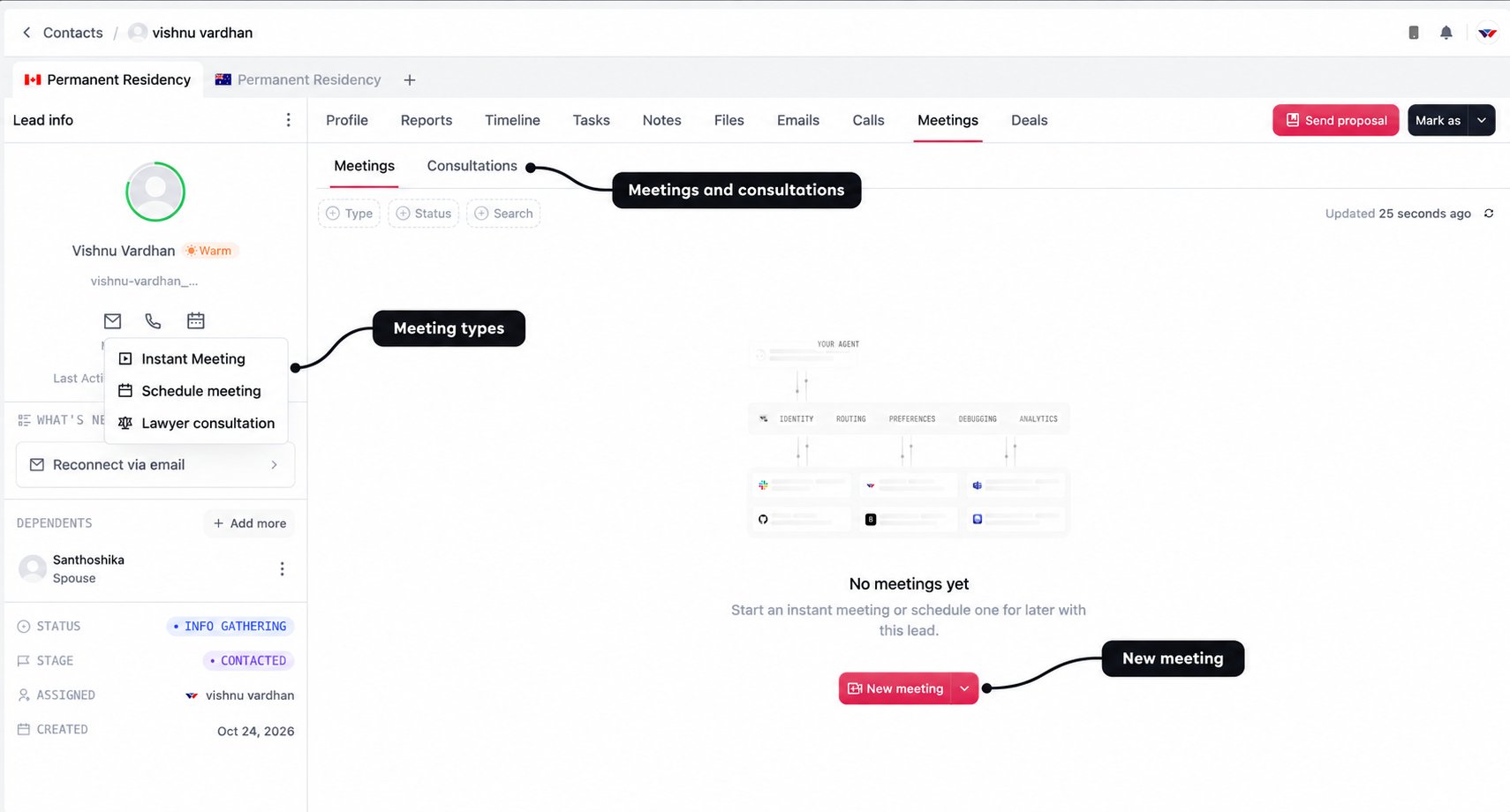
The Meetings subtab lets you review ordinary meetings. Consultations shows the consultation bookings and their payment or scheduling progress.
Start an instant meeting
Choose Instant Meeting when everyone is ready to join. Give the meeting a title that explains the discussion, such as Review the Australia proposal, rather than leaving colleagues to guess what it was about later.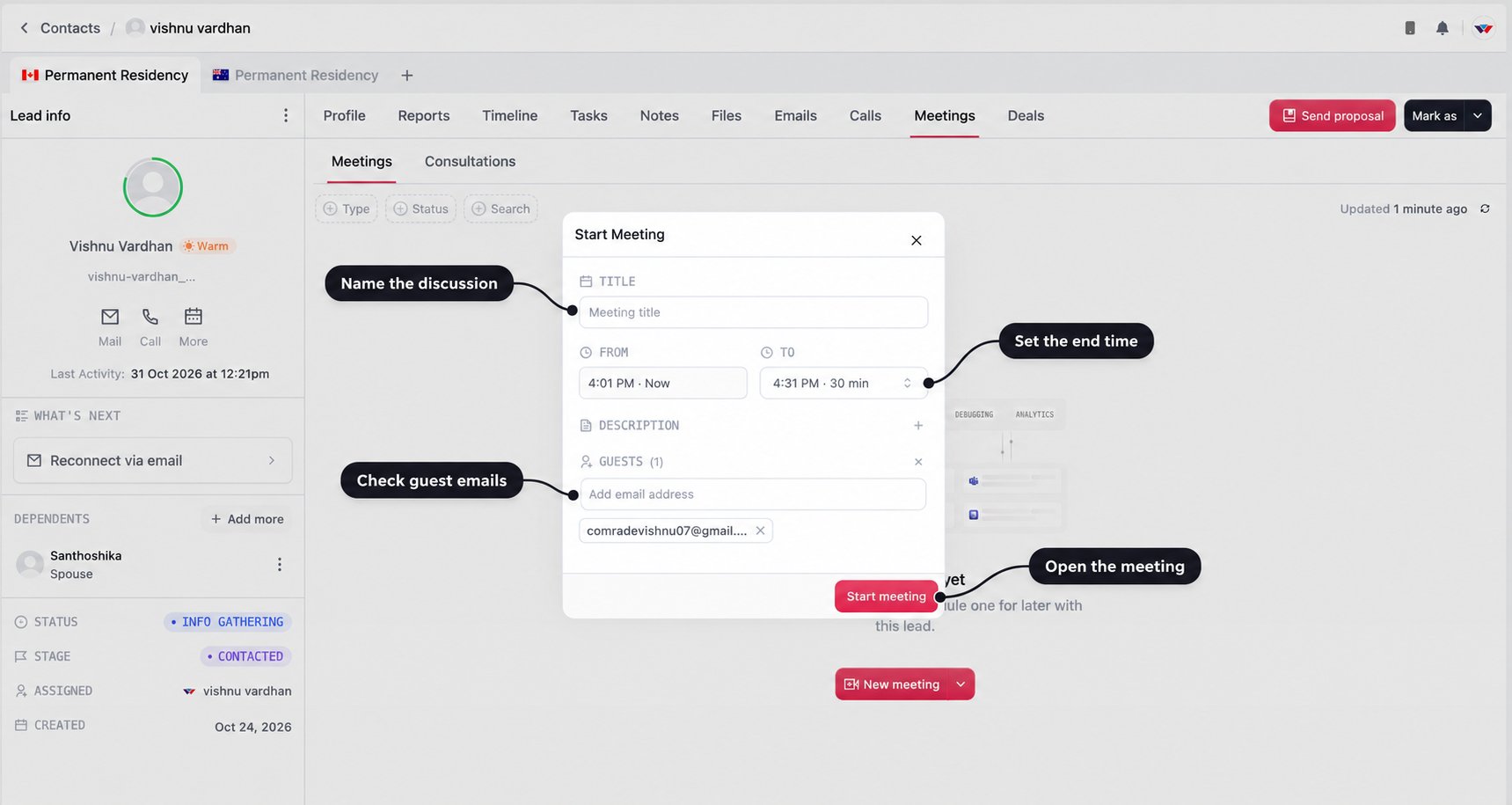
- Enter the Title.
- Check the To time or duration. The meeting starts now, so choose an end time that fits the conversation.
- Add a description if you need to share the purpose or preparation.
- Review Guests. The client’s email can be prefilled from the enquiry; confirm it and add anyone else who should be invited.
- Select Start meeting. WorldVisa Meet opens the meeting room in a new tab.
Schedule a meeting for later
Choose Schedule meeting after agreeing a suitable time with the client. Add a clear title and check the guest list before sending the invitation.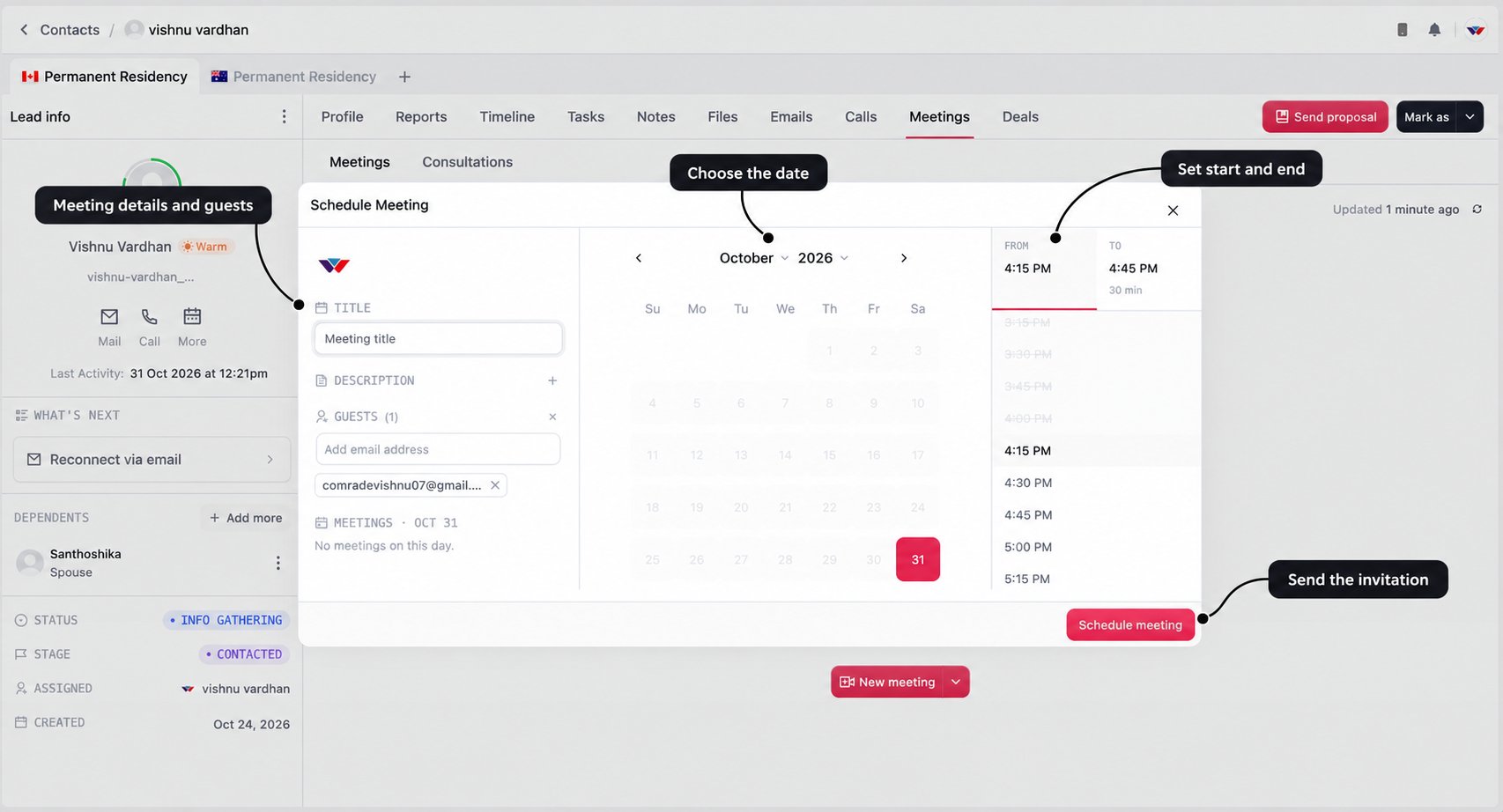
1
Add the purpose and guests
Enter the title and, where useful, a short description. Review the email addresses under Guests. Invitations depend on those addresses, so correct an outdated address before scheduling.
2
Choose a date
Select the day in the calendar. Review the meetings shown for that date so you understand your existing commitments.
3
Set the start and end
Choose From and To. Check the displayed duration and any overlap warning. Confirm the intended time zone with the client, especially when they are overseas.
4
Schedule and check
Select Schedule meeting and wait for confirmation. Review the saved meeting and ask the client to check their email invitation.
Book a lawyer consultation
Choose Lawyer consultation for the consultation service available for the enquiry’s destination. This is separate from scheduling an ordinary meeting: you select the service and lawyer, review their availability, and request payment before the meeting is confirmed.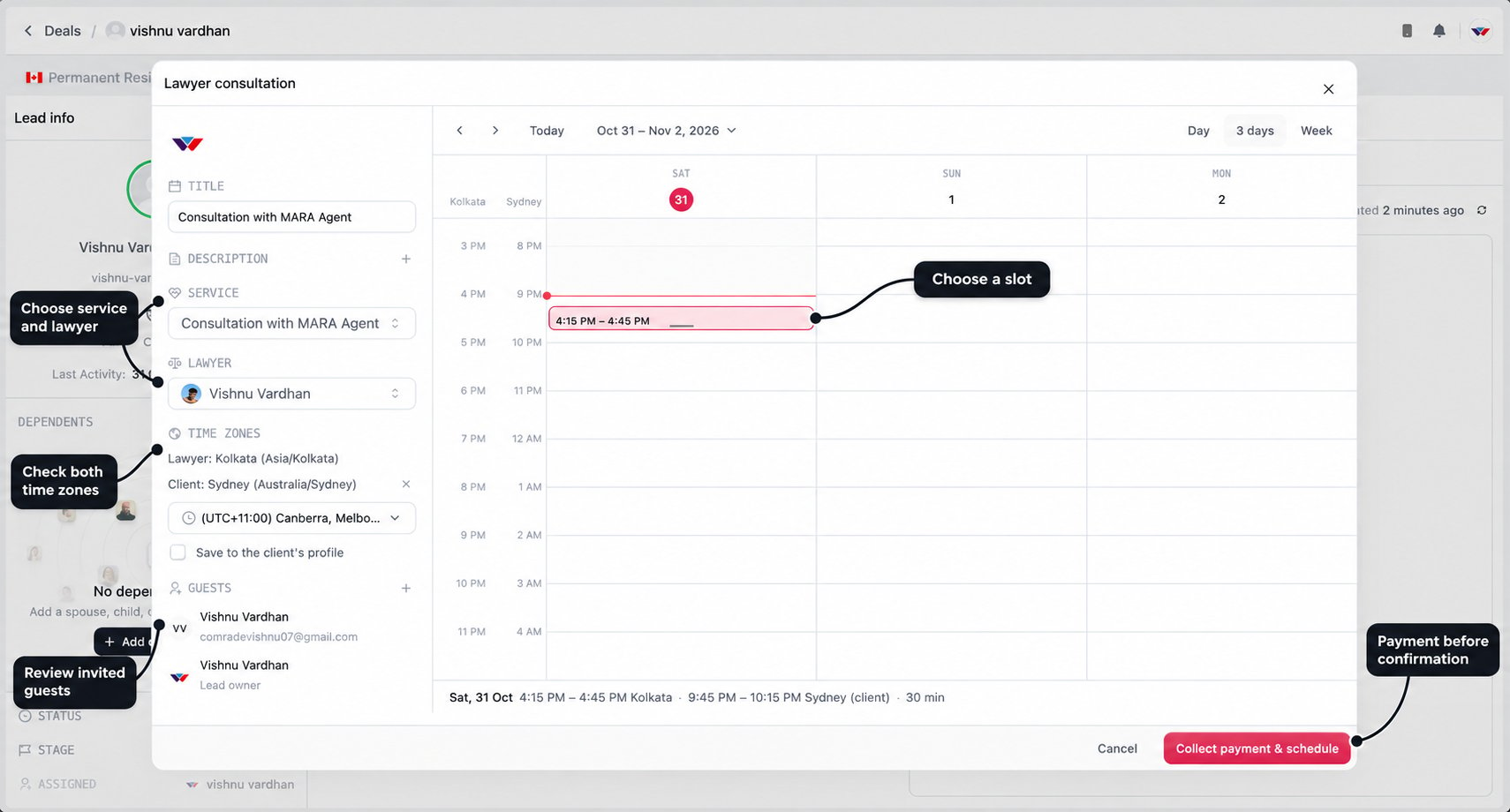
1
Choose the service and lawyer
Review the consultation Service and select the available Lawyer. Give the booking a useful title and add a description of what the client wants to discuss.
2
Check both time zones
Review the lawyer’s time zone and the client’s time zone. Choose the correct client zone rather than assuming the client is in India.Where offered, select Save to the client’s profile if the chosen zone should be retained for future use.
3
Choose an available slot
Use the calendar to select a start and end time. The calendar can show the lawyer’s and client’s time side by side. Check the slot summary beneath it, including both local times and the duration, before confirming with the client.Resolve any overlap warning before continuing.
4
Review the guests
The booking includes the client and lead owner as automatic guests, and the lawyer hosts the meeting. Add any extra guests who need to attend and check their email addresses.
5
Request payment
Select Collect payment & schedule. This requests the consultation and sends the payment link. Tell the client that the meeting is scheduled once payment is completed and the booking is confirmed.
6
Check the confirmed booking
Review the booking in Consultations after payment. Confirm its status and meeting details before telling the client everything is ready.If it shows that a new slot is needed, use the available Reschedule action and arrange another suitable time. Do not create a second purchase just because the original slot needs attention.
If no lawyer is available
You may see No lawyer available when nobody has been configured for the enquiry’s destination. Ask an admin to complete the lawyer setup, then return to the consultation flow.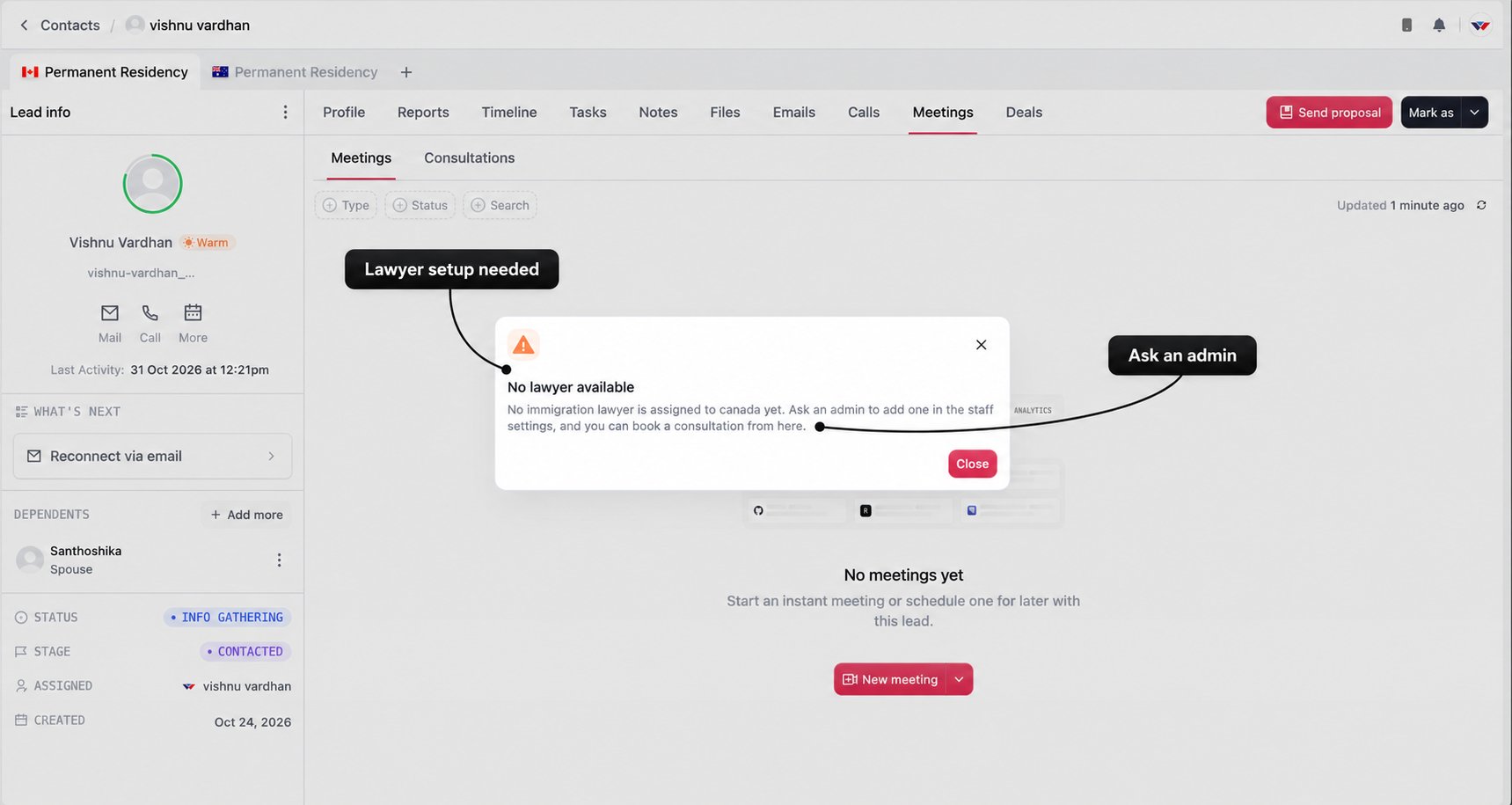
Email invitations and confirmation
WorldVisa sends meeting invitations to the invited participants. The email gives them the meeting title, scheduled time, and joining information. The confirmation example below also shows the calendar invitation option.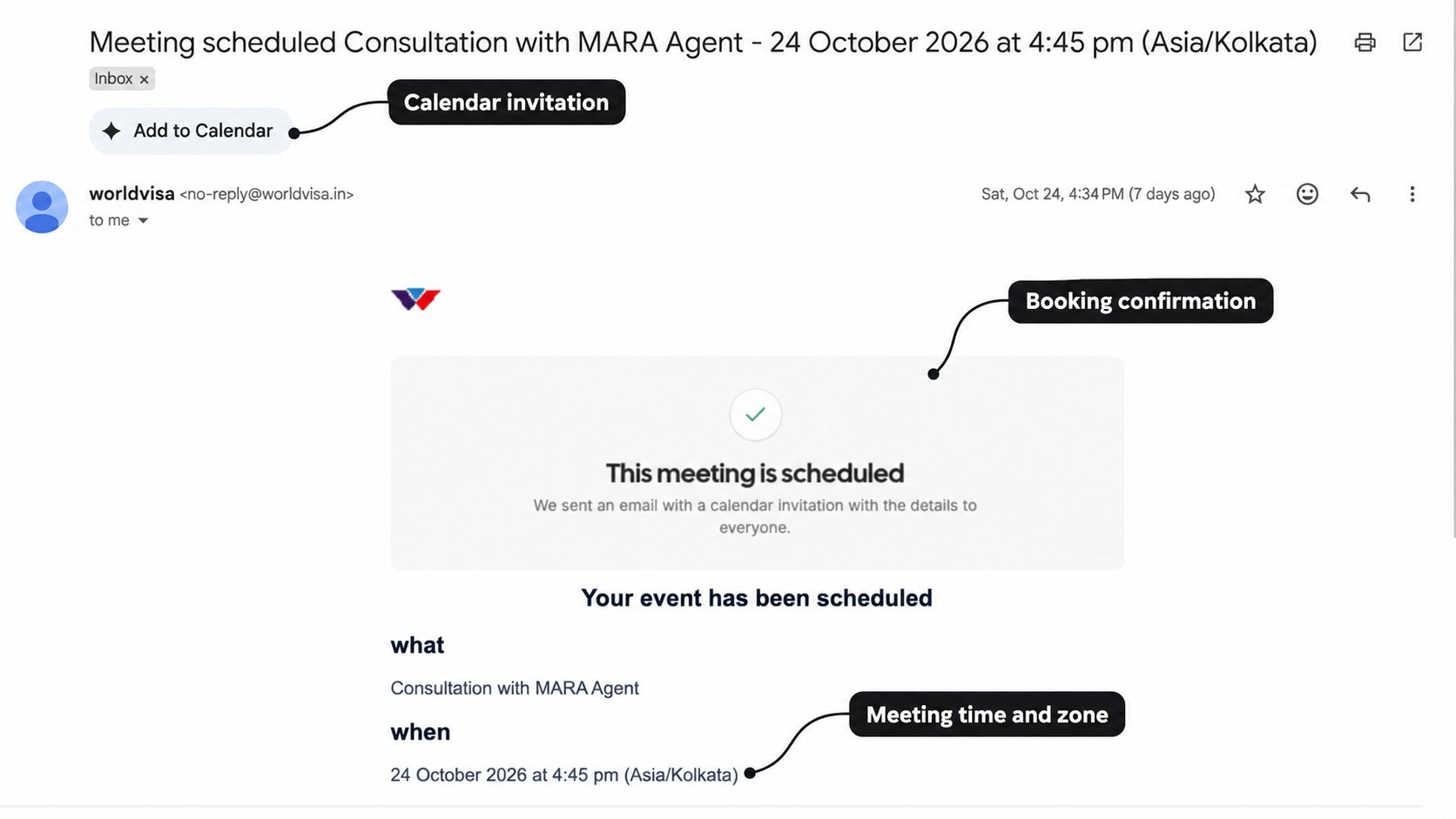
Join through WorldVisa Meet
Open WorldVisa Meet to join using a meeting link or code. Invited guests should use the link sent to their own email so they follow the intended guest-joining flow.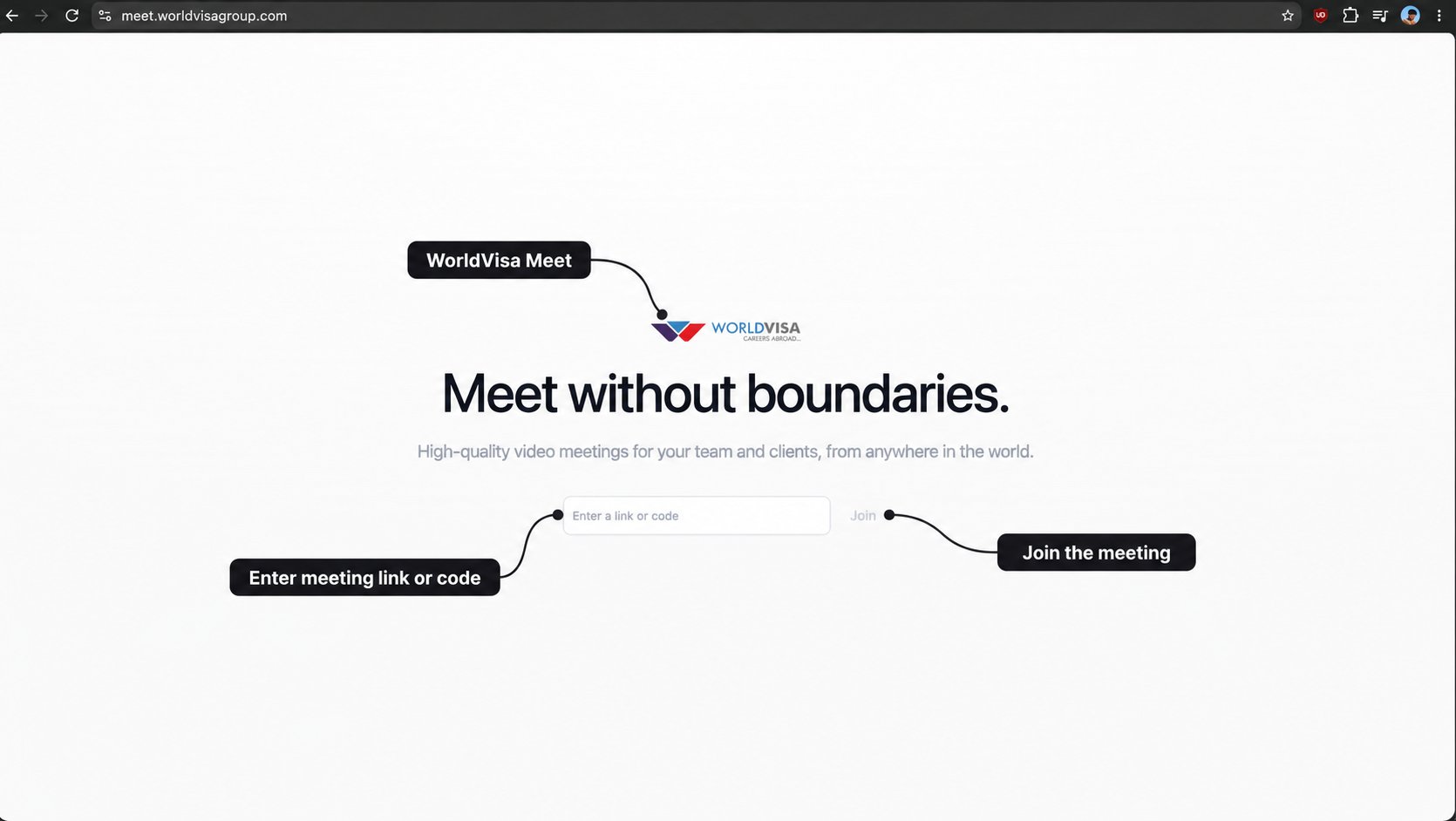
Review meetings, attendance, and recordings
Return to the enquiry’s Meetings tab to find the meeting afterwards. Use Type, Status, and Search to narrow the list, then select the meeting to review its details on the right.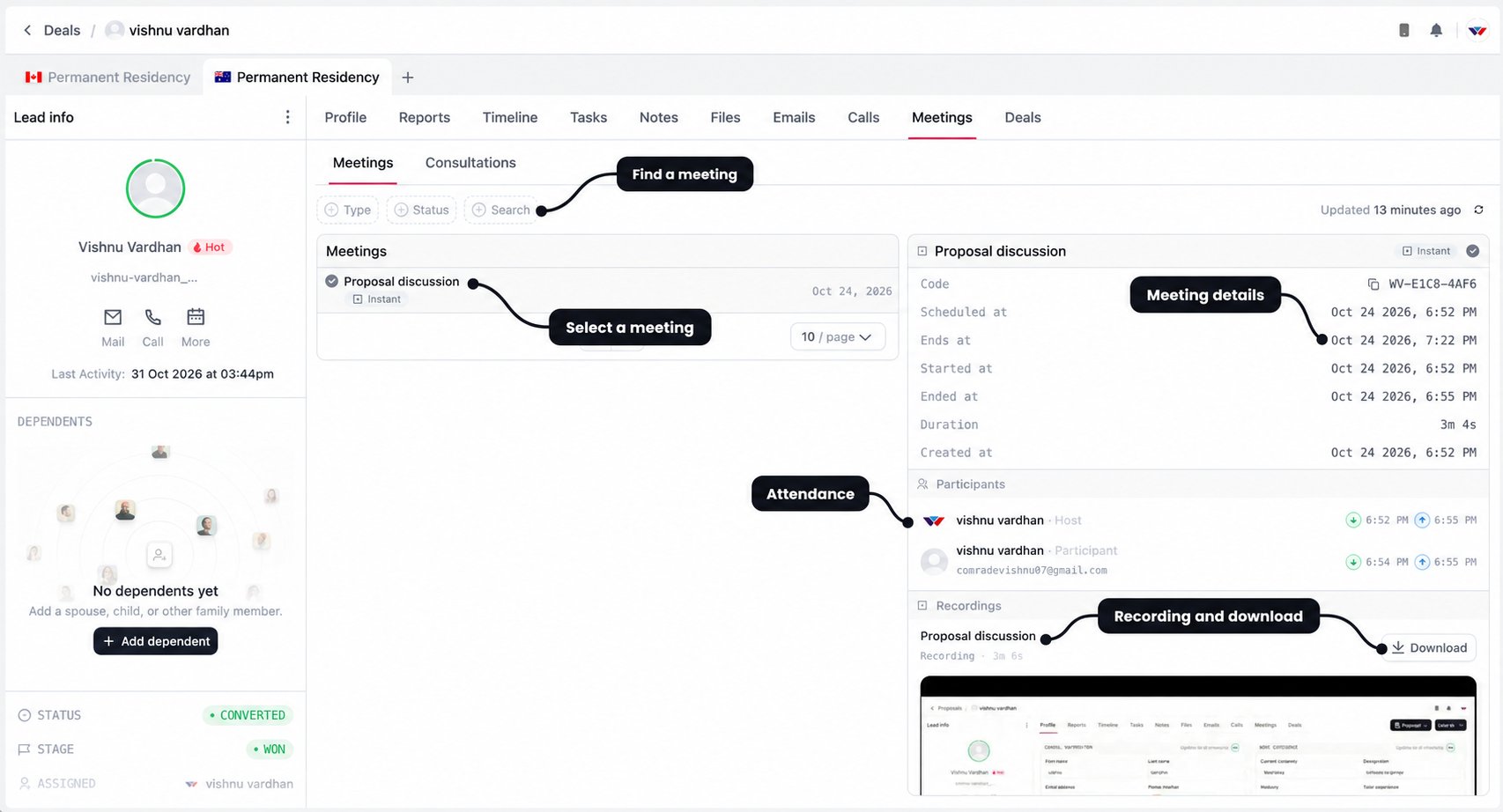
Use Consultations for the lawyer booking’s slot, payment status, and any rescheduling action. Once a consultation has a meeting, its detail view can also show participants and available recordings.
Where a cancellation action is available, review it before proceeding. Keep the client informed if plans change and check the current record before arranging a replacement.