
This is the normal path for an enquiry entering Deal. Follow the current record if it was already converted or has an approved exception.
Payment comes before the signing request
Sending an invoice does not send the agreement immediately. The payment must be confirmed in the system first. For a partial plan, the first confirmed payment can start this process; you do not need to collect every later instalment before the initial agreement is sent. The invoice must also be eligible to send an agreement, with a suitable template for its service and country. A linked secondary invoice does not send a separate agreement. If there is already an agreement covering the same enquiry, service, and country, later payments do not automatically create another signing request.What the client receives
After payment confirmation, the client can receive two separate emails: a payment receipt and an invitation from WorldVisa Sign to sign the service agreement.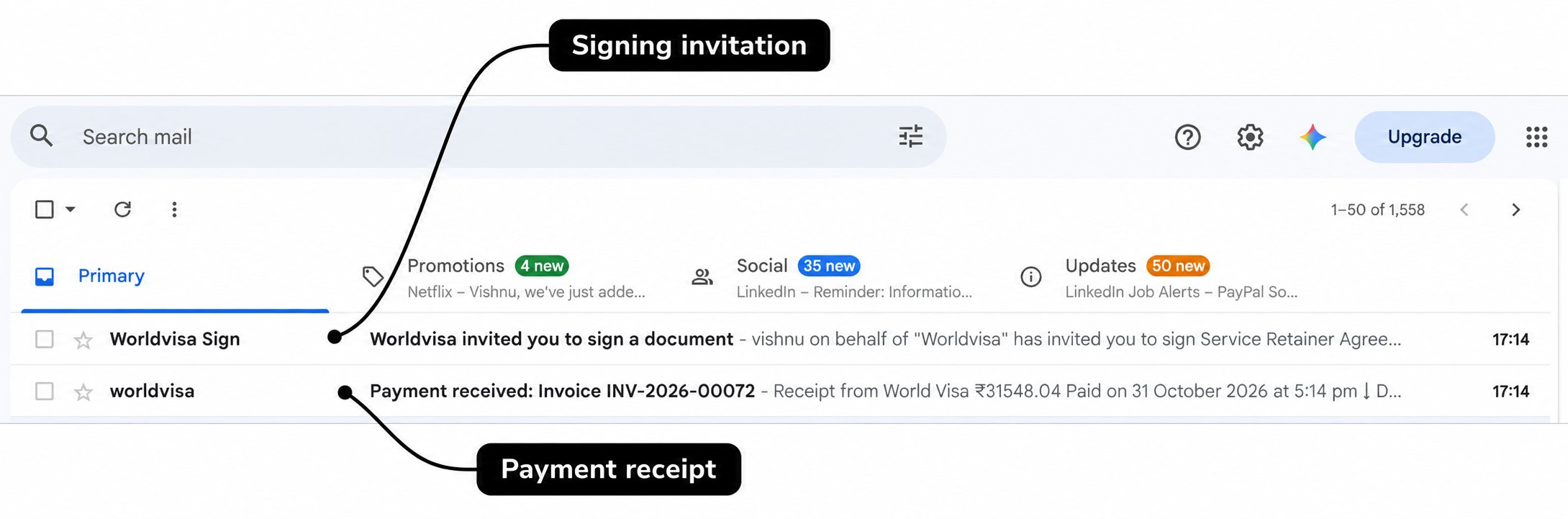
Check Agreement Pending in CRM
Open Timeline after payment. In the example below, CRM records the payment, sends the agreement, and changes the enquiry’s status from Awaiting Payment to Agreement Pending. Its stage remains Deal while the client completes signing.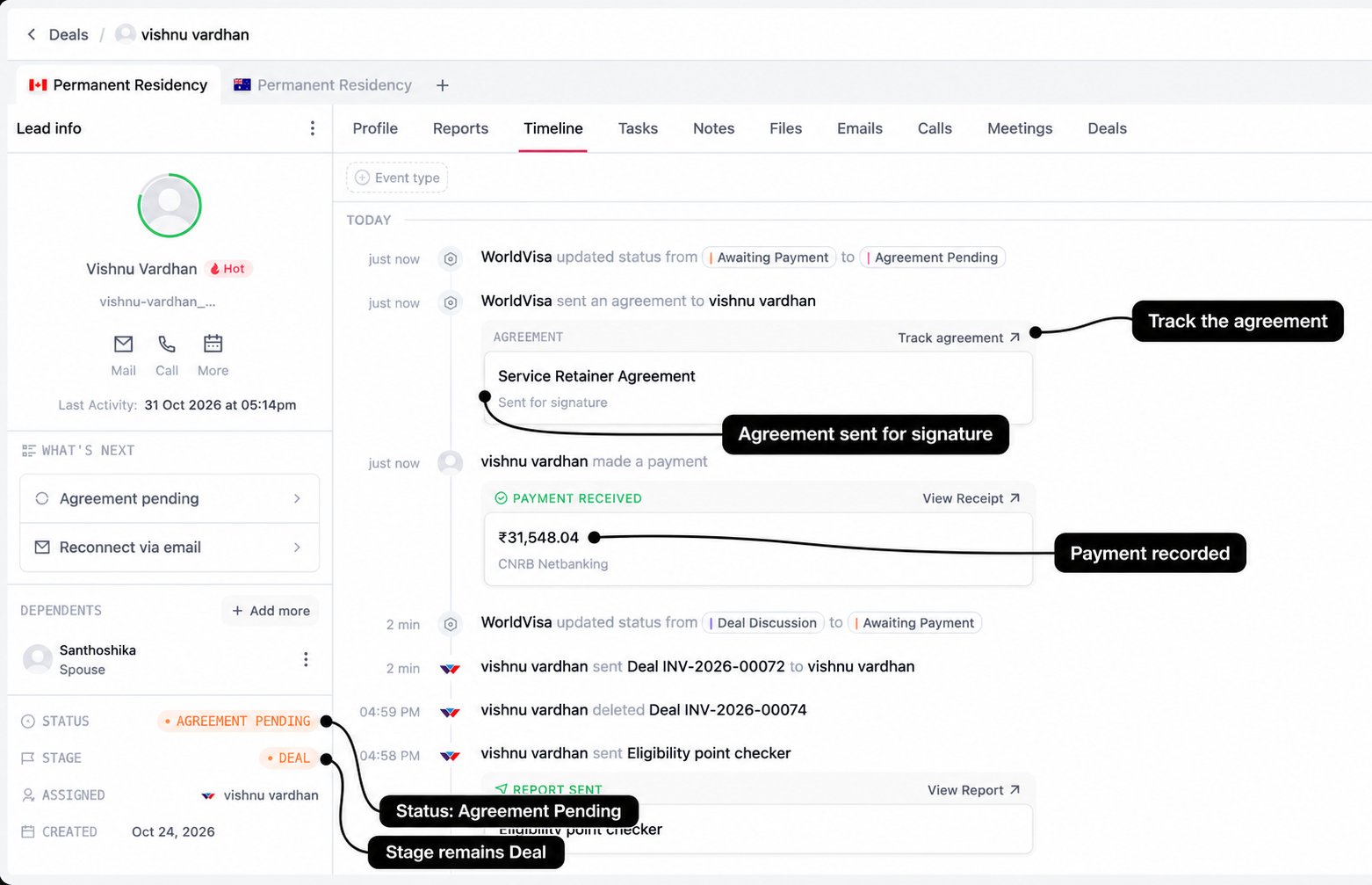
If payment is visible but the agreement is missing, check the primary invoice and raise it with the appropriate team. Avoid promising that signing is ready until you can see the agreement record.
Track signing progress
Select Track agreement on the Timeline card, or use the available agreement action in the workspace. The drawer shows its status, sent date, recipient details when available, and signing timeline. A completed record can also show the completion date and a signed-document preview.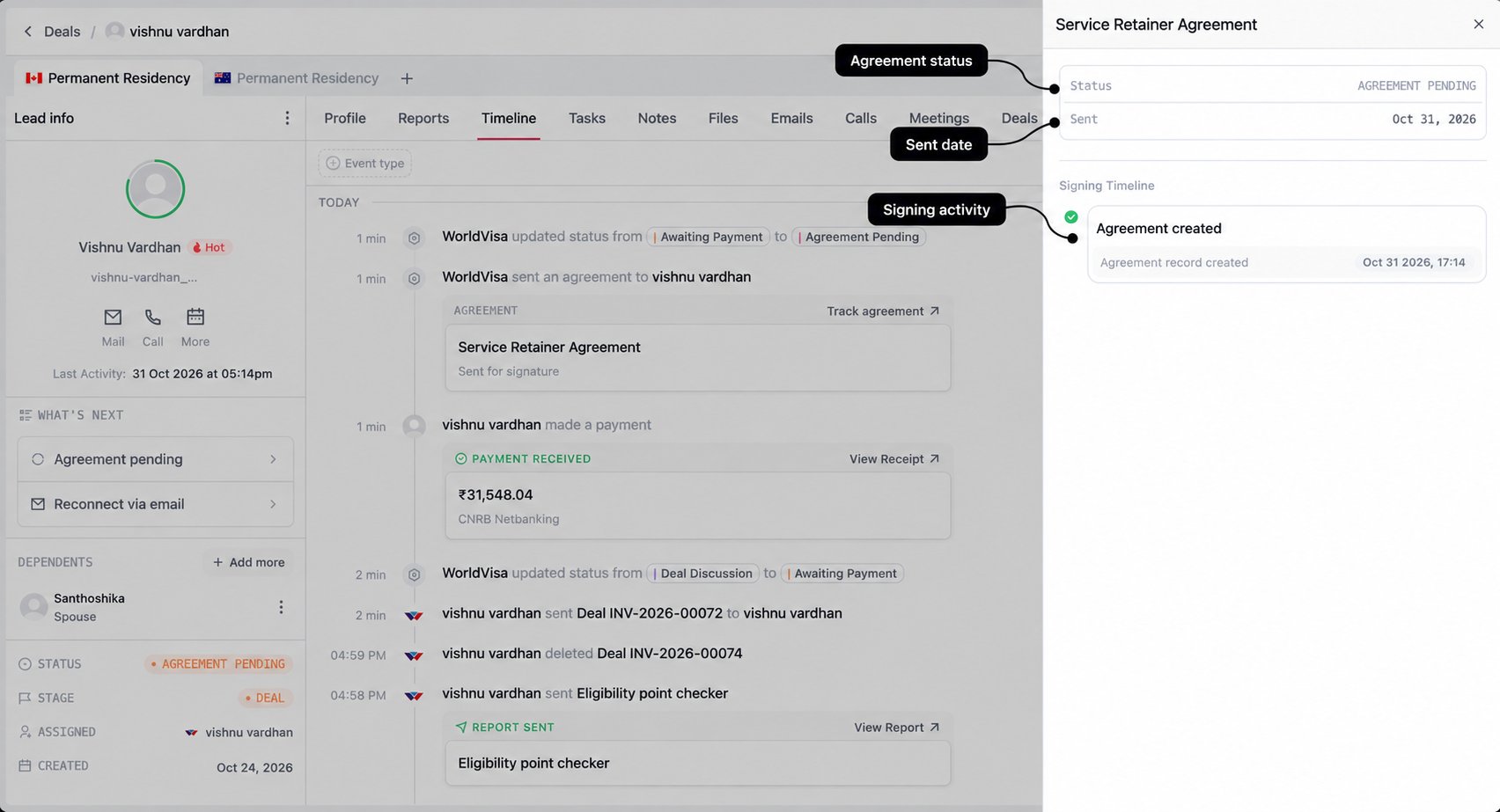
If signing does not complete
Check the actual status and the latest activity first. An agreement may be rejected or cancelled rather than simply waiting for the client. Where CRM offers Resend agreement for a rejected or cancelled agreement, review the request before confirming. It creates a new signing request; it is not the same as resending the proposal link. The current drawer does not offer this as a general reminder action for every pending agreement. Do not create duplicate signing requests while an existing agreement is still in progress. Use the status and available actions to decide the next step with the appropriate team.When the agreement is completed
CRM receives the signing completion update and records it in Timeline. In the standard flow shown below, the enquiry changes from Deal / Agreement Pending to Won / Converted. The application process is opened and the agreement update appears in the staff notification inbox.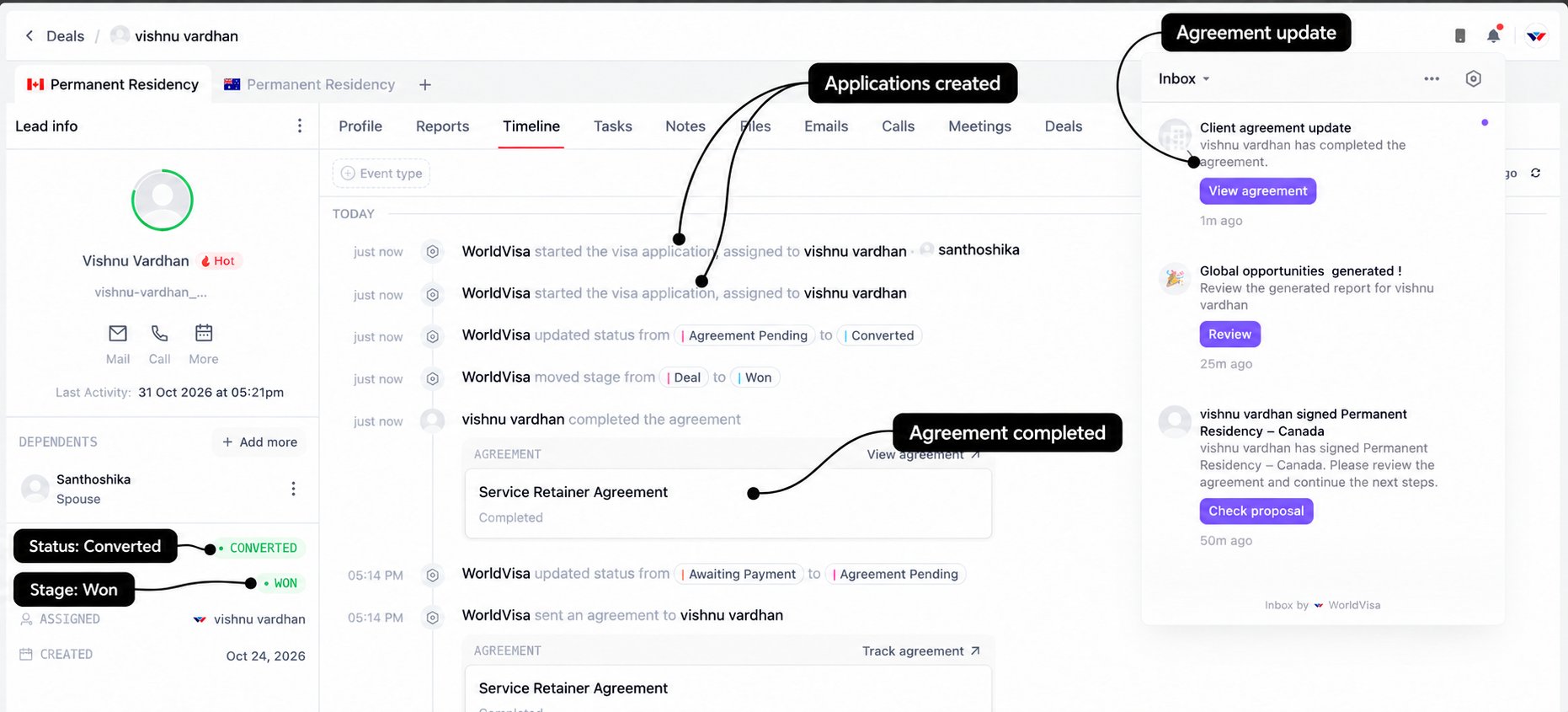
1
Check the completed agreement
Open the agreement from the notification or Timeline. Review its status and use the signed-document preview when available.
2
Check conversion and applications
Confirm that the enquiry shows Won / Converted and review the application-created events. Household members can be included in the application setup, so check that the main applicant and dependents are correct.
3
Prepare the handover
Make sure Profile, household details, Files, and Notes accurately reflect the client and the service sold. Record outstanding documents, agreed next steps, and anything the case officer needs to know.
4
Keep the payment plan in view
Conversion does not mean every instalment has been paid. Check the remaining schedule and explain the next payment or milestone to the client.