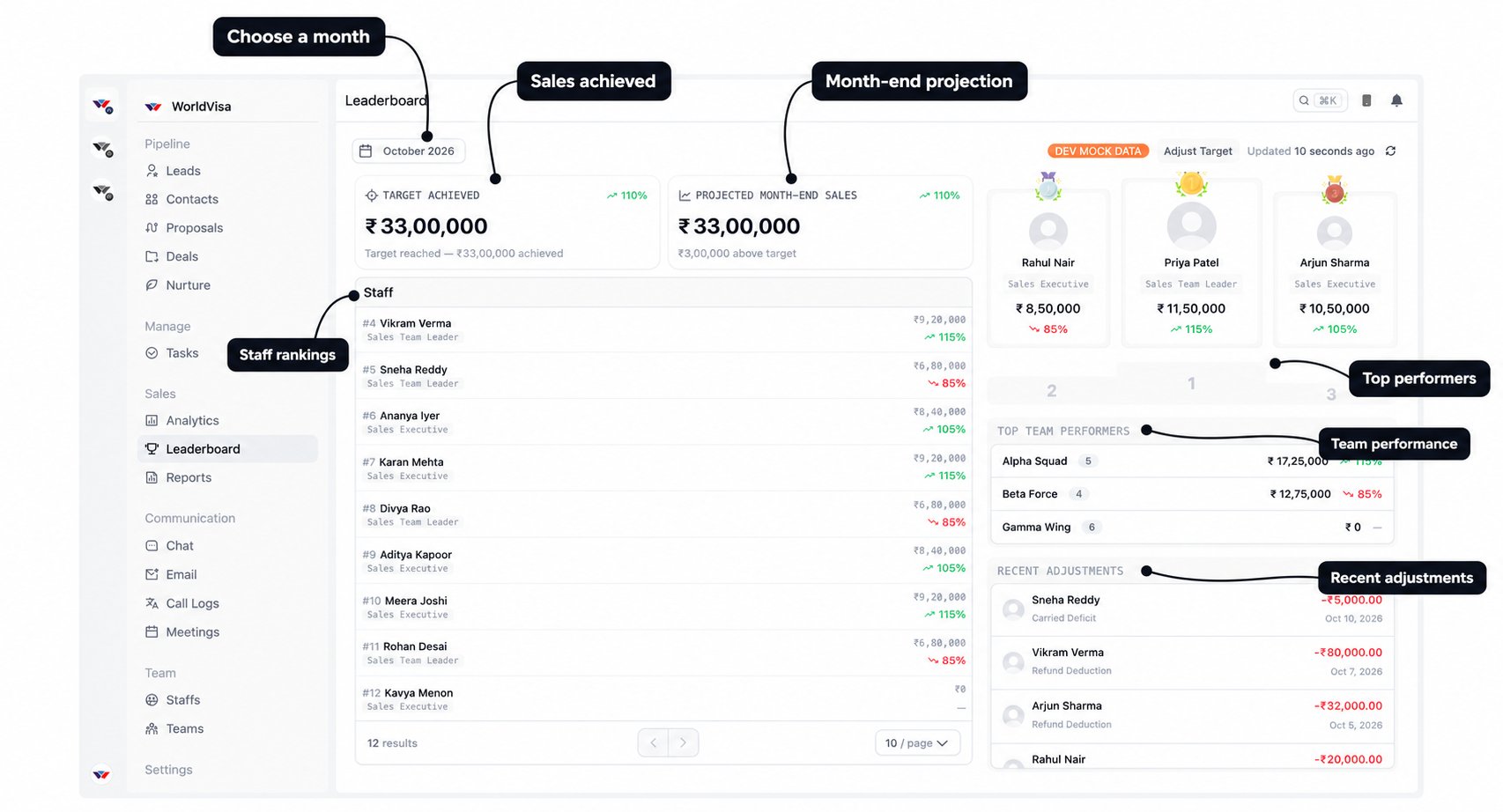
These screenshots use demonstration data. The names, amounts, and positions illustrate the layout; use the live figures in your portal when reviewing performance.
Read the monthly summary
The projection uses sales achieved so far, divided by the days elapsed, then extended across the full month. It needs at least three elapsed days and a positive sales total before it appears. Treat it as a guide for planning follow-ups and collections, rather than a confirmed result.
What counts towards sales achieved?
The system uses confirmed invoice payments attributed to the staff member in the selected month. It counts their discounted service value before tax and platform fees. For an instalment payment, it uses the corresponding part of the payment plan. Sending a proposal or raising an unpaid invoice does not itself add sales achieved. Refund deductions, carried deficits, and recorded adjustments can also change the net figure. This is why the amount on the leaderboard may differ from the total amount a client paid, which can include tax and fees.Understand your position
The staff leaderboard includes sales executives and sales team leaders. Individual positions are ordered by the percentage of each person’s target achieved. For example, ₹6 lakh against a ₹5 lakh target is 120%. ₹8 lakh against a ₹10 lakh target is 80%. The first person ranks higher by target completion, even though the second has a larger sales amount. The podium highlights the first three positions, with first place in the centre. The Staff list continues below those positions. Use the page controls at the bottom to see more staff or change how many rows appear.Percentages and trend colours
- 100% means the monthly target has been reached; a higher percentage means it has been exceeded.
- Green/upward means progress is at or ahead of the expected pace for the date.
- Red/downward means progress is behind that pace.
- A dash means there is no target percentage to calculate, such as when the target is zero.
Follow team performance
Top Team Performers shows each team’s sales achieved, progress against its target, and member count. Teams are ordered by sales achieved, so their ordering uses a different measure from the individual staff rankings. Use this alongside your own progress: a strong personal result is useful, and the team total shows how everyone is doing together.Check recent adjustments
The Recent Adjustments panel helps explain deductions affecting sales performance. Each entry identifies the staff member, adjustment type, amount, and date. Hover over its type to read the recorded reason.
If your sales total is negative, hover over the amount in the staff list to see the breakdown of new sales and adjustments. If something needs checking, share the selected month and the specific entry with your manager or Accounts.
View or adjust targets
Select Adjust Target to open the target drawer. If you can only view targets, the button reads View Targets and the Staff and Team controls are read-only. Changing the department target requires separate permission. Targets are organised into Department, Staff, and Team tabs. These are monthly allocations, so always check the month in the drawer title.Department target
The Department tab shows the overall sales target for the month. Authorised users can change the amount and select Save changes when the value has changed.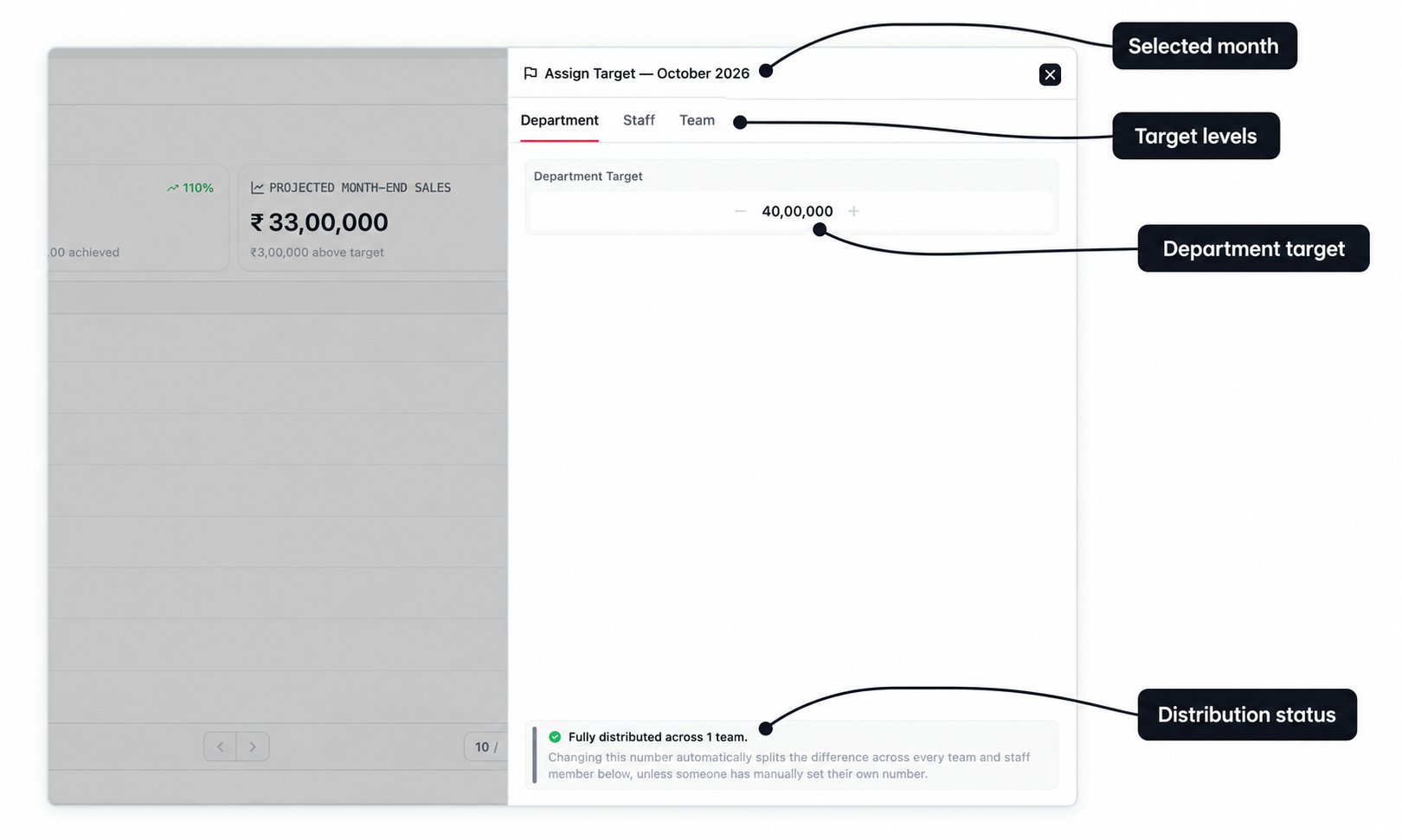
Staff targets
The Staff tab lists individual targets. Department Target and Current staff total help you check that the allocations add up.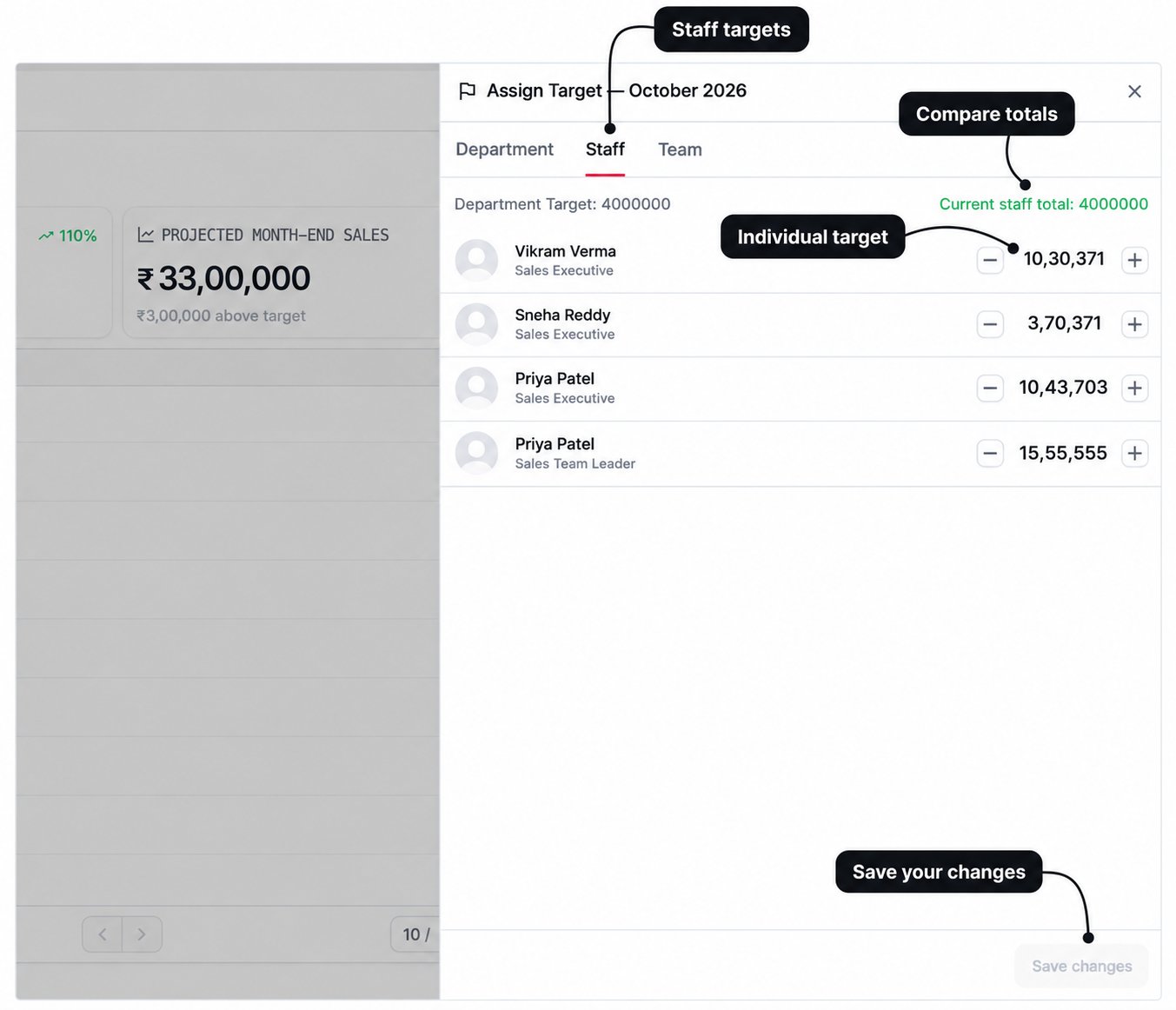
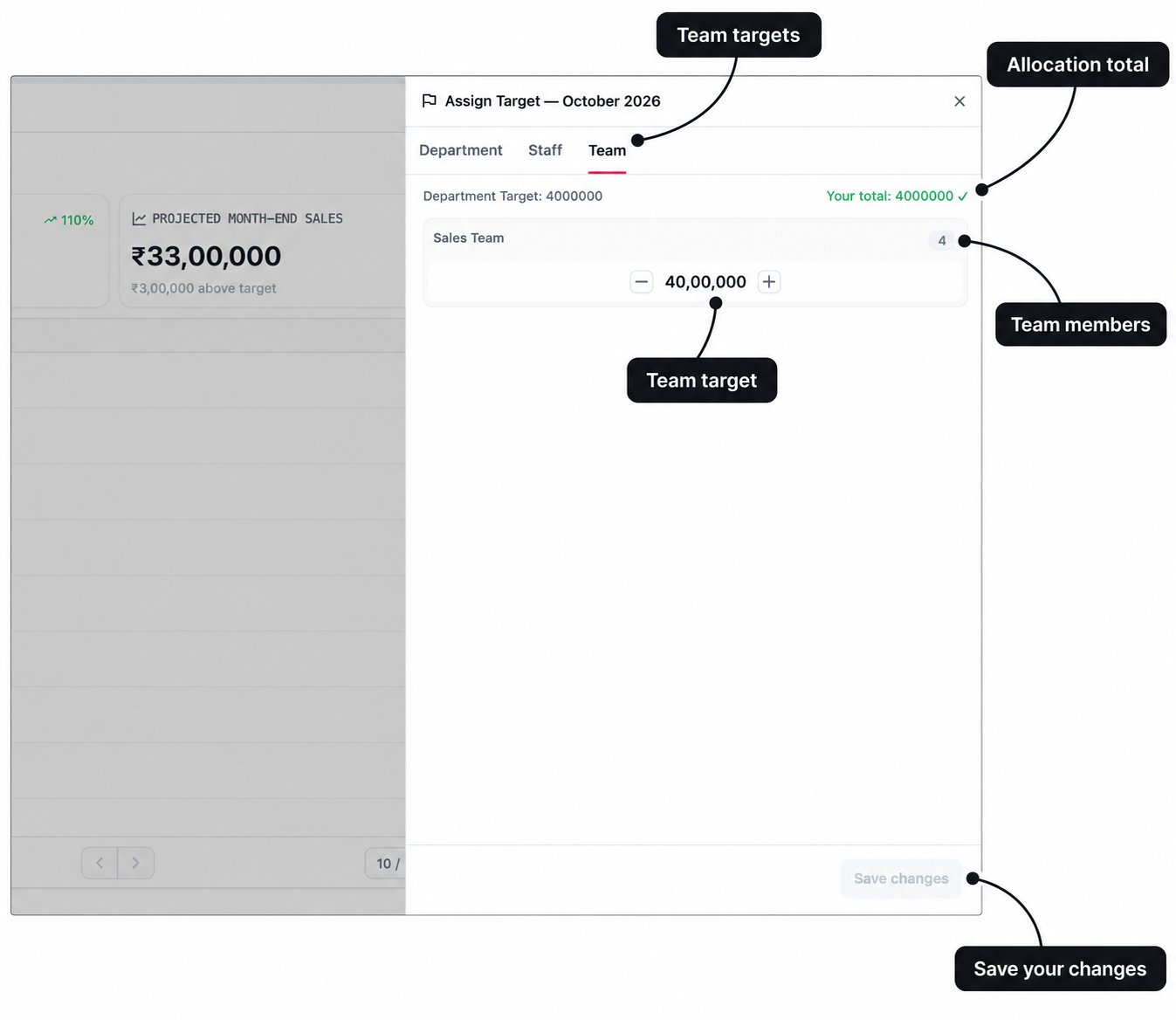
Team targets
The Team tab shows each team’s target and member count. Use it to redistribute the existing allocation between teams.