
Choose a report
Check that you have opened the right client’s enquiry, then select a report card. Selecting Generate Report on a card opens its workflow; it does not immediately generate or send a report.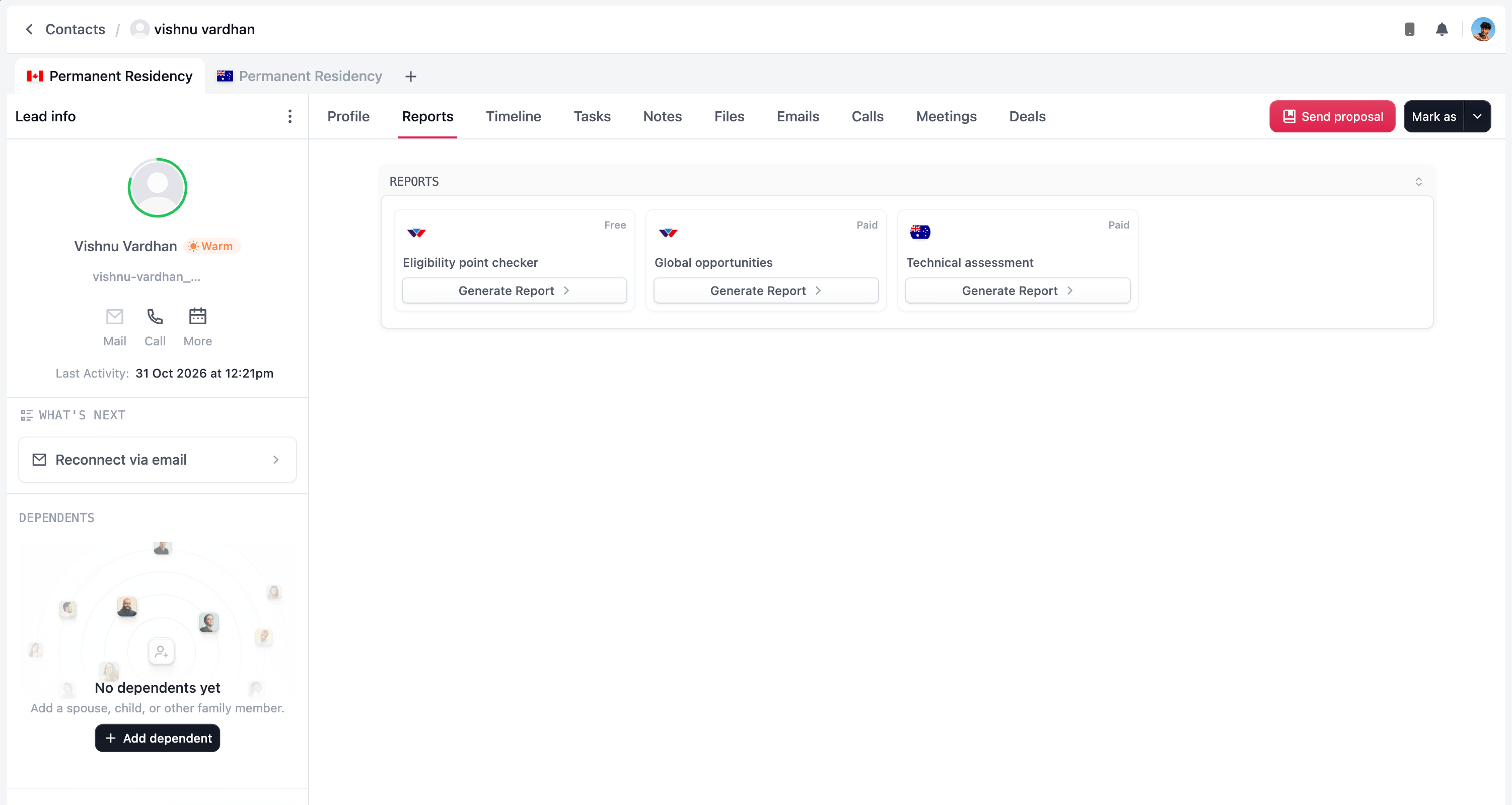
Check the current Free or Paid label on the card. For a paid report, review the invoice amount rather than relying on a price from a previous enquiry.
Eligibility point checker
Use this when you want to turn the profile’s quick eligibility check into a report you can review and share with the client. Start with the information recorded in Client profile, then select Eligibility point checker.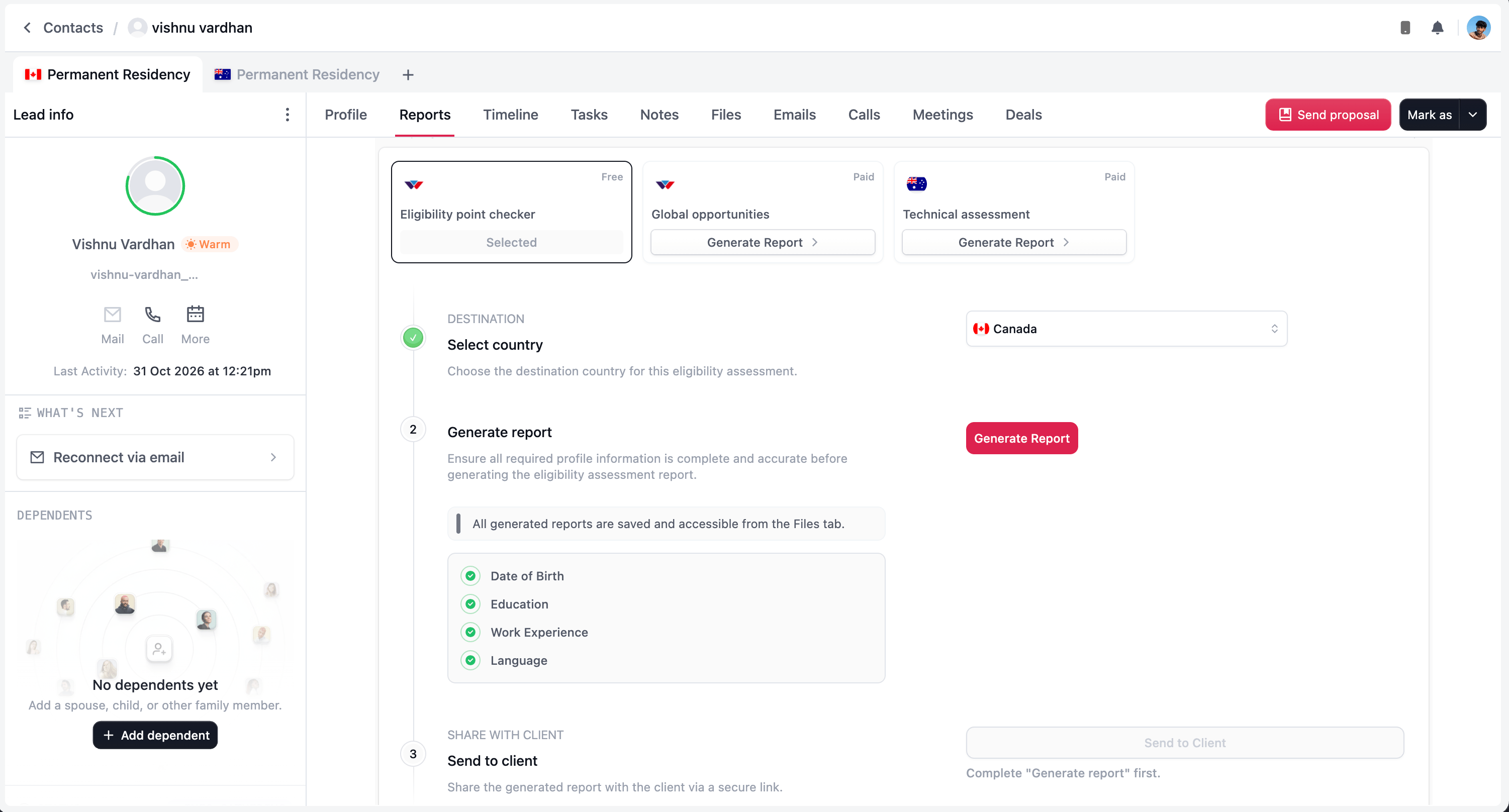
1
Select the country
Choose the destination you want the report to assess. Confirm the country before generating, especially if you are discussing more than one destination with the client.
2
Review deeming deduction for Australia
When Australia is selected, an additional Deeming deduction years step appears. Enter the applicable deduction and select Save if you change it. See deeming deduction years for how the CRM uses this value.For other countries, follow the steps shown without this Australia-specific step.
3
Check the profile information
Review the checklist beneath Generate report, including the date of birth, education, work experience, and language information shown. Return to Profile to complete or correct details before preparing the assessment.A completed checklist helps you review the recorded information. It does not verify the client’s answers for you.
4
Generate the report
Select Generate Report in the workflow and wait for generation to finish. If generation fails and Retry is offered, review the message before trying again.
5
Preview the result
Open the preview and check the client’s details and assessment result. If something needs correcting, update the source information and use Regenerate report, where available, before sharing.
6
Send to the client
Once the report is ready and you have reviewed it, select Send to Client to share its secure link.
Global opportunities
Have the client’s current résumé ready before beginning. This paid workflow lets you select the countries the report should cover, complete the purchase, and attach the résumé used to prepare the report.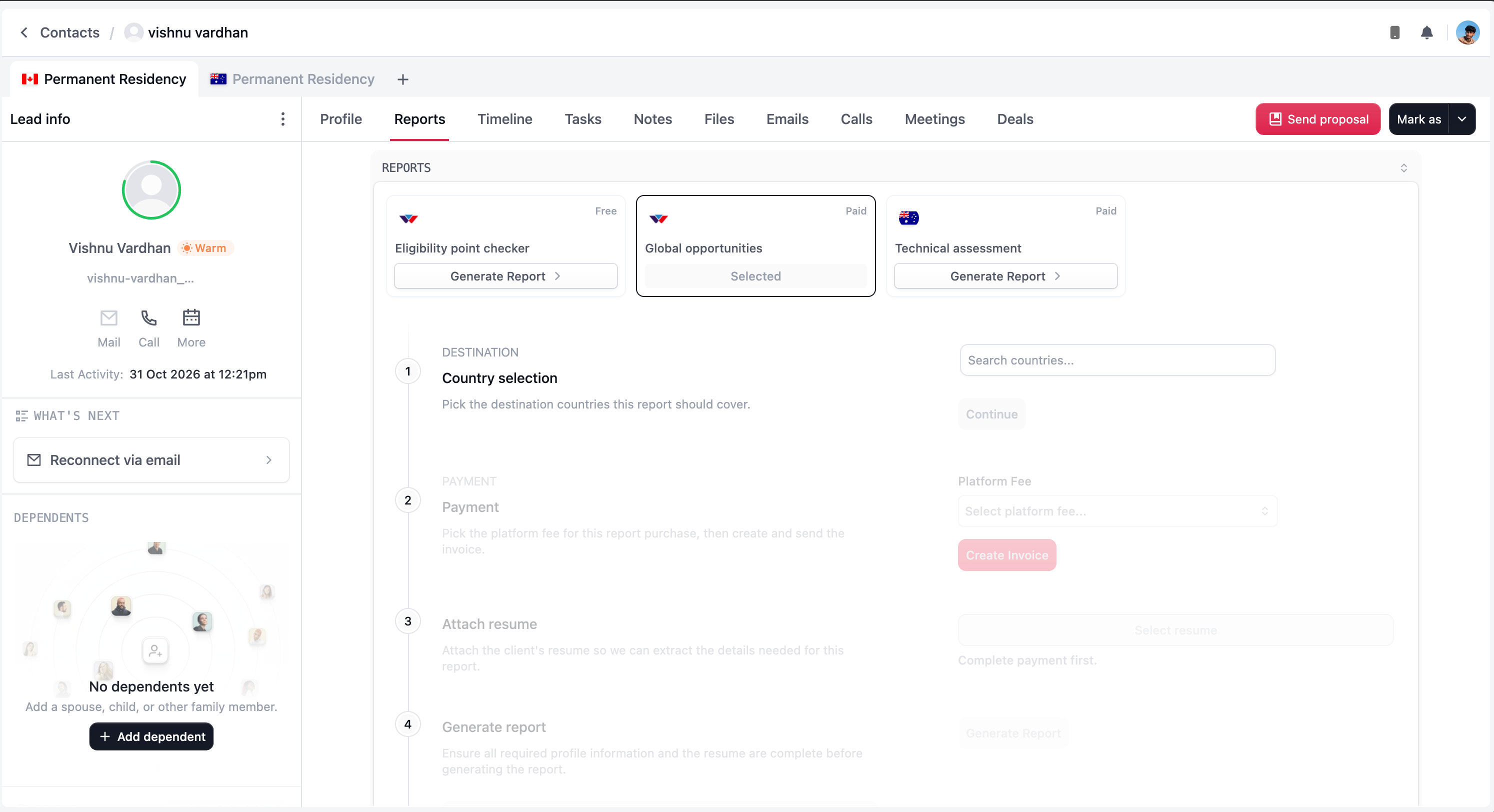
1
Choose the countries
Select the destination countries to include, then choose Continue. Review the selection with the client before moving to payment.
2
Choose the platform fee
Select the appropriate Platform Fee option under Payment. Review the options currently offered for this purchase.
3
Create and send the invoice
Select Create Invoice. If the system highlights missing information or another blocker, follow its message and complete the required details.Review the invoice and use the available send or payment action to continue.
4
Wait for payment confirmation
Sending an invoice does not complete payment. The workflow waits for the system to confirm payment before allowing the next step. Follow the payment status shown in the page.
5
Attach the résumé
Use Select resume to attach the client’s current résumé. Confirm that it belongs to the right person and contains the background you have discussed with them.
6
Review and generate
Review the profile checklist and attached résumé, then select Generate Report. Wait for the report to become ready.
7
Preview and send
Preview the finished report. Check the details before selecting Send to Client to share its secure link.
Technical assessment
Select Technical assessment to open its paid workflow. Start with payment, then review the client’s profile information before generating and sharing the report.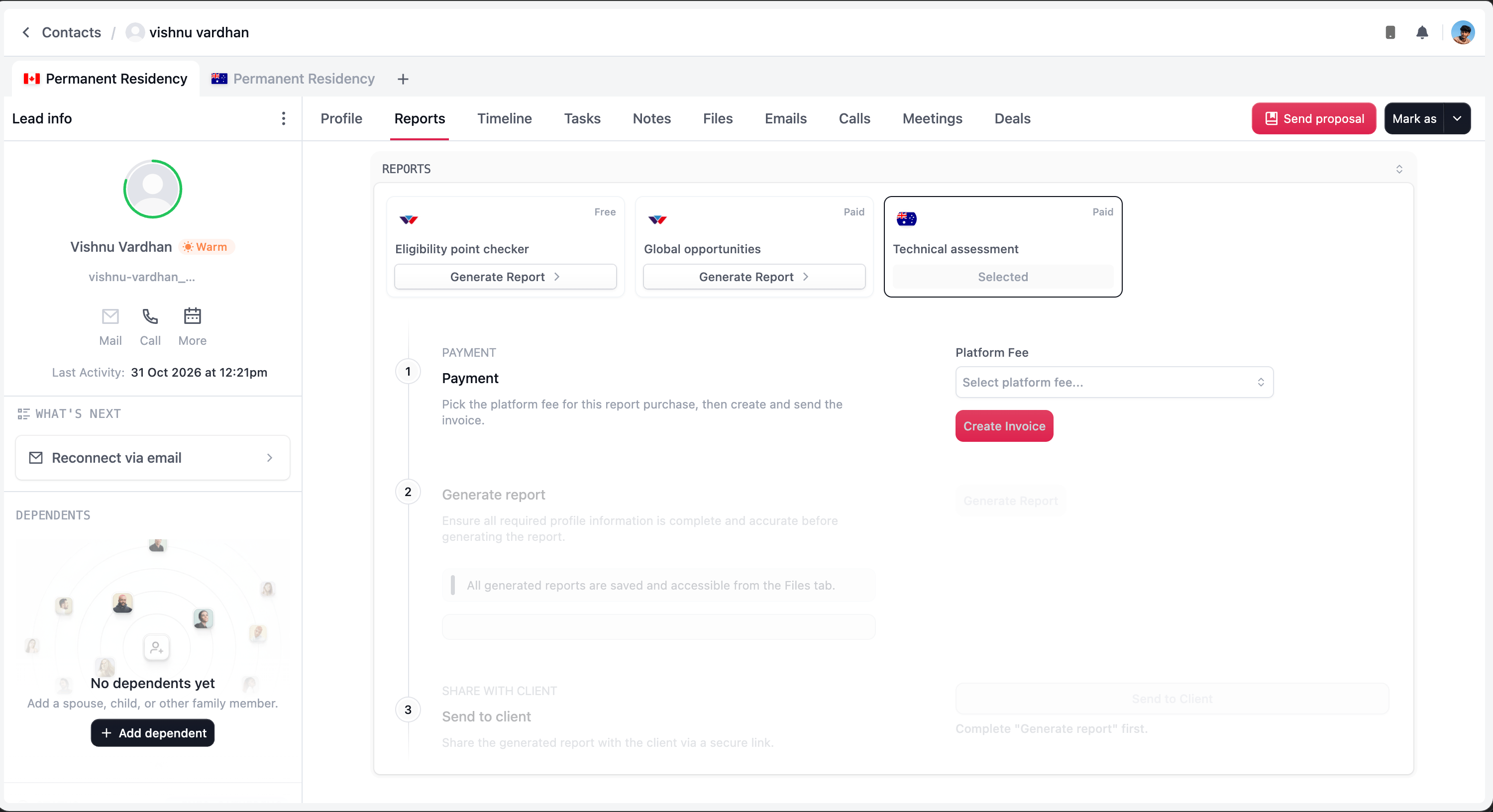
1
Choose the platform fee
Select the appropriate Platform Fee option under Payment.
2
Create and send the invoice
Select Create Invoice, resolve any information the system requests, and review the invoice. Use the available send or payment action to continue.
3
Wait for payment confirmation
Report generation remains unavailable until payment is confirmed. Check the status on the current workflow before taking another payment action.
4
Review the profile checklist
Confirm that the client’s required information is complete and accurate. Return to Profile for corrections before generating.
5
Generate the report
Select Generate Report and wait for it to become ready. Follow any message shown if generation needs attention.
6
Preview the result
Open the preview and review the assessment. If the source information needs correcting, update it and use Regenerate report, where available, before sending.
7
Send to the client
Select Send to Client after reviewing the report. This shares its secure link with the client.
Before you send
Generating a report and sending it are separate actions. Preview the report first, confirm the client and destination details, and check that it reflects the information you intended to use.Generated reports are saved and accessible from the Files tab. You do not need to create another purchase just to find a report you have already generated.
Understand unavailable steps
Faded steps or disabled buttons usually indicate that an earlier requirement is still outstanding. Read the message next to the step before restarting anything.
If payment or generation is still processing, continue from the existing workflow once its status updates. Avoid creating another invoice simply because a later step has not opened yet.