
Understand clients and enquiries
A lead starts when someone shows interest in a WorldVisa service. The CRM connects the person with what they need, using two records:- Client: The person you are helping, including their name and contact details. Having a client record does not mean they have already purchased a service.
- Enquiry: The service and destination they are interested in. This is the lead you follow up on and move through the pipeline.
Where leads come from
People find WorldVisa in different ways. The source on an enquiry helps you understand how the conversation started, whether someone filled out a form, called the office, or came through a referral.
Google Ads
Someone clicks a Google ad and submits an enquiry form on the page they visit, such as a campaign landing page or a blog page with a form.

Meta Ads
Someone responds to an ad on Instagram or Facebook. They might submit a Meta Instant Form or follow the ad to a landing page and fill out its enquiry form.

Website
Someone visits the WorldVisa website and asks to speak with the team. For example, they submit a contact form after reading about a visa service.
Blog
Someone reads a WorldVisa article and submits an enquiry through the blog. For example, a guide to moving to Canada prompts them to ask about their options.
PR Assessment
Someone completes a permanent residency assessment to explore their eligibility. Their enquiry gives you a starting point for discussing their plans.
Referral
Someone is introduced to WorldVisa by another person. For example, an existing client recommends the team to a friend who wants help with a visa.
Walk In
Someone visits the office to discuss a service. Record their details and what they are looking for so the conversation can continue in the CRM.

IVR
Someone reaches WorldVisa through the phone enquiry channel. For example, they call to ask about a destination or service and need a follow-up conversation.

Someone starts an enquiry through WhatsApp. For example, they message the team to ask about permanent residency or the documents they may need.
How assigned leads reach you
Most of the time, you do not need to enter an incoming lead yourself. The system handles incoming enquiries from connected channels and assigns them to staff. Once an enquiry is assigned to you, you can review it in your CRM. Assignment notifications help you find it quickly:- In-app: Open the notification bell in your workspace and select View lead on the assignment notification.
- Email: Open the assignment email and select its action button. In the example below, it is labelled Review application.
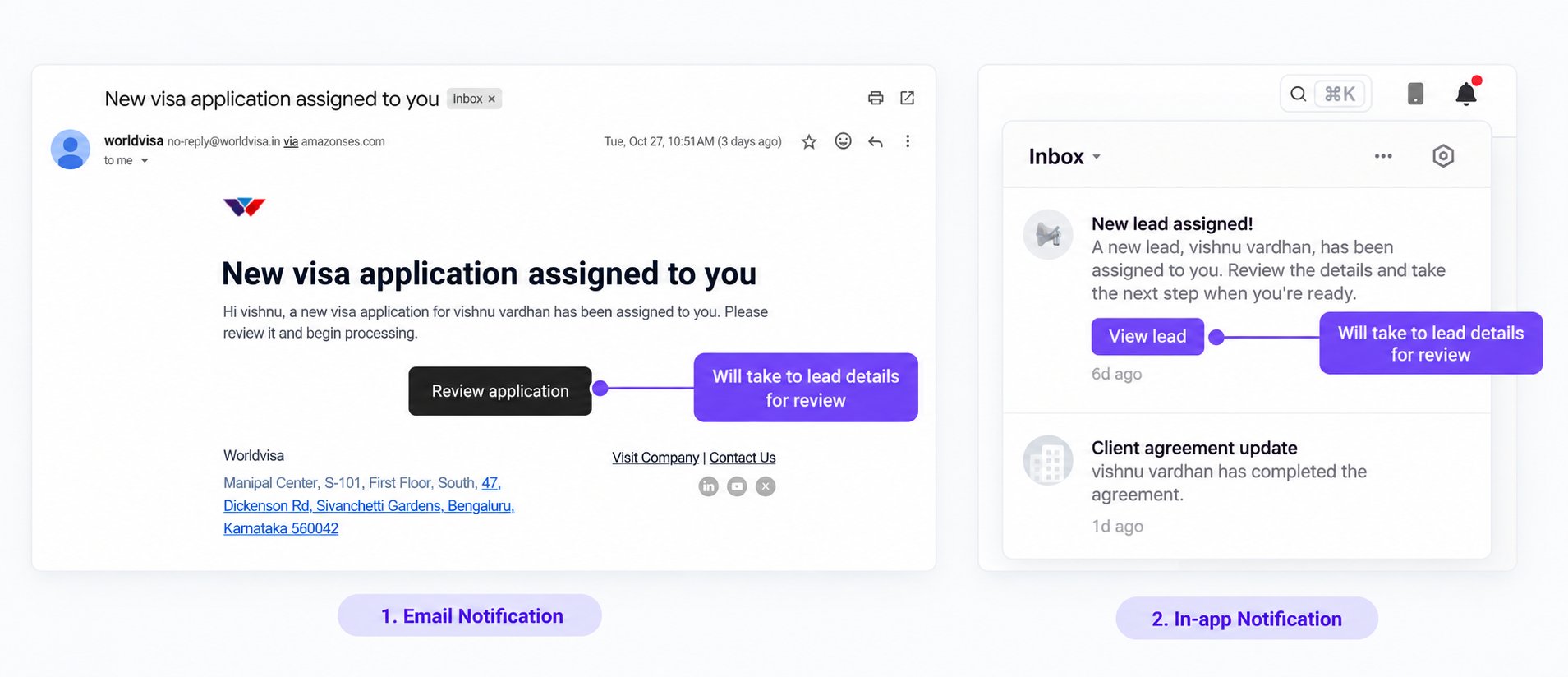
Open the assigned enquiry directly from an email or in-app notification.
Create a lead manually
You will usually create a lead manually when someone walks into the office. You can also use this form for a referral or another enquiry that has not already reached the CRM. Start from Leads and select Create lead to open the Add lead panel. Before filling out the rest of the form, ask for the person’s phone number or email address. Enter either one to check whether they are already a client.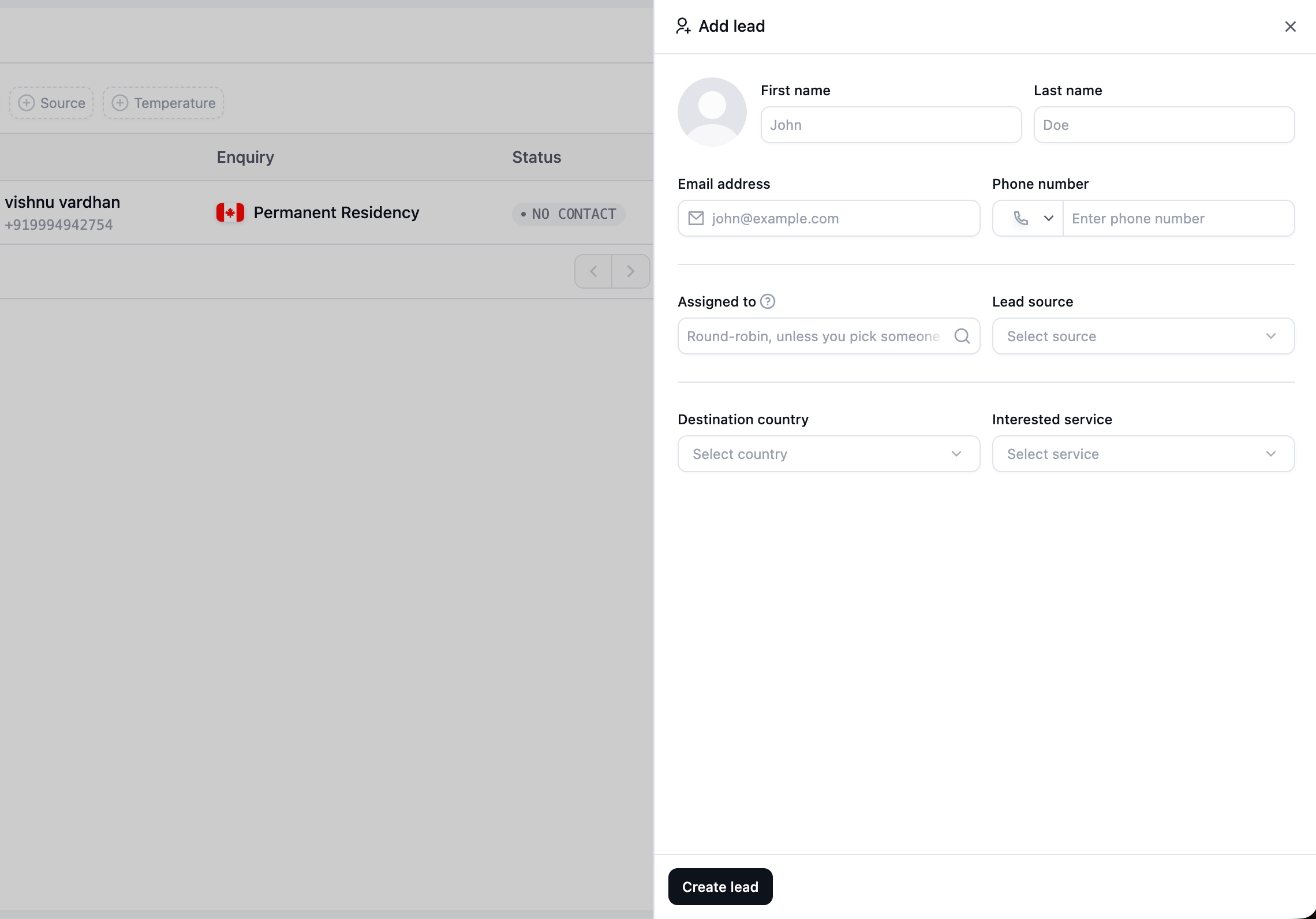
Enter the person's contact details, then choose the source, destination, and service.
Check for an existing client
Enter the person’s phone number or email address first, then wait for the check to finish. Either one can help the CRM find an existing client; you do not need to complete every field to run this check. Include the correct country code when entering a phone number. If the CRM finds a match, you will see the client’s name and any existing enquiries available to you beneath the contact fields. For a walk-in, this lets you check their previous enquiries before deciding what needs to be added. If no match appears, confirm the contact details with the person, then continue filling out the form.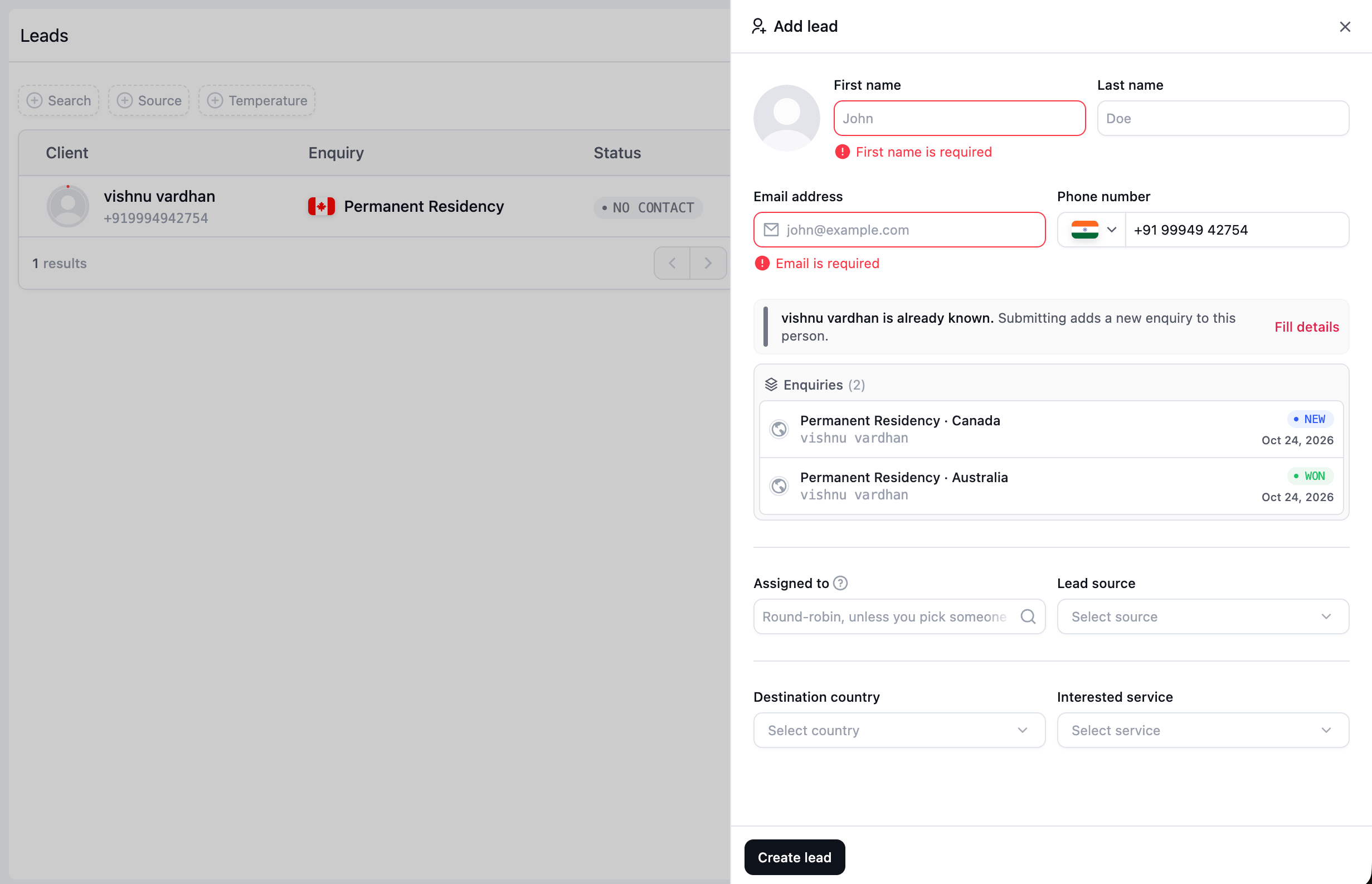
An existing client match shows their enquiries so you can check the history before continuing. This example also shows required-field messages.
- Confirm the person. Check that the matched client is the person you are speaking with.
- Review their enquiries. Check the service, destination, stage, and date. An owner is also shown when available.
- Use Fill details when offered. This brings the stored details into the form. If your contact details differ from those on file, the form asks you to use the stored details before continuing. Adding an enquiry does not replace the client’s saved contact details.
- Read the notice. Once you choose the destination and service, it explains what submitting will do.
If the email and phone number belong to different people, the form will stop you from submitting. Check the details with the client and correct them before continuing.
Complete the lead details
After checking for an existing client, complete the remaining fields. For a walk-in, select Walk In as the lead source. You can start the client check with either a phone number or an email address, but both are required to submit a standard lead:
Take a moment to check the email and phone number. The CRM uses these details to check whether the person is already known, so entering them correctly helps keep their enquiries together.
Choose who will follow up
Your role determines the assignment options you see:- Sales executives: Enquiries you create are assigned to you.
- Team leaders: You can assign to yourself or someone in your team. If you do not choose someone, the enquiry is assigned to you.
- Staff with wider assignment access: You can choose an eligible staff member or leave the selection empty for automatic round-robin assignment.