
Understand the lead info panel
Before you start work, check the selected enquiry and its owner. The client may have several enquiries, each with its own progress and follow-up work.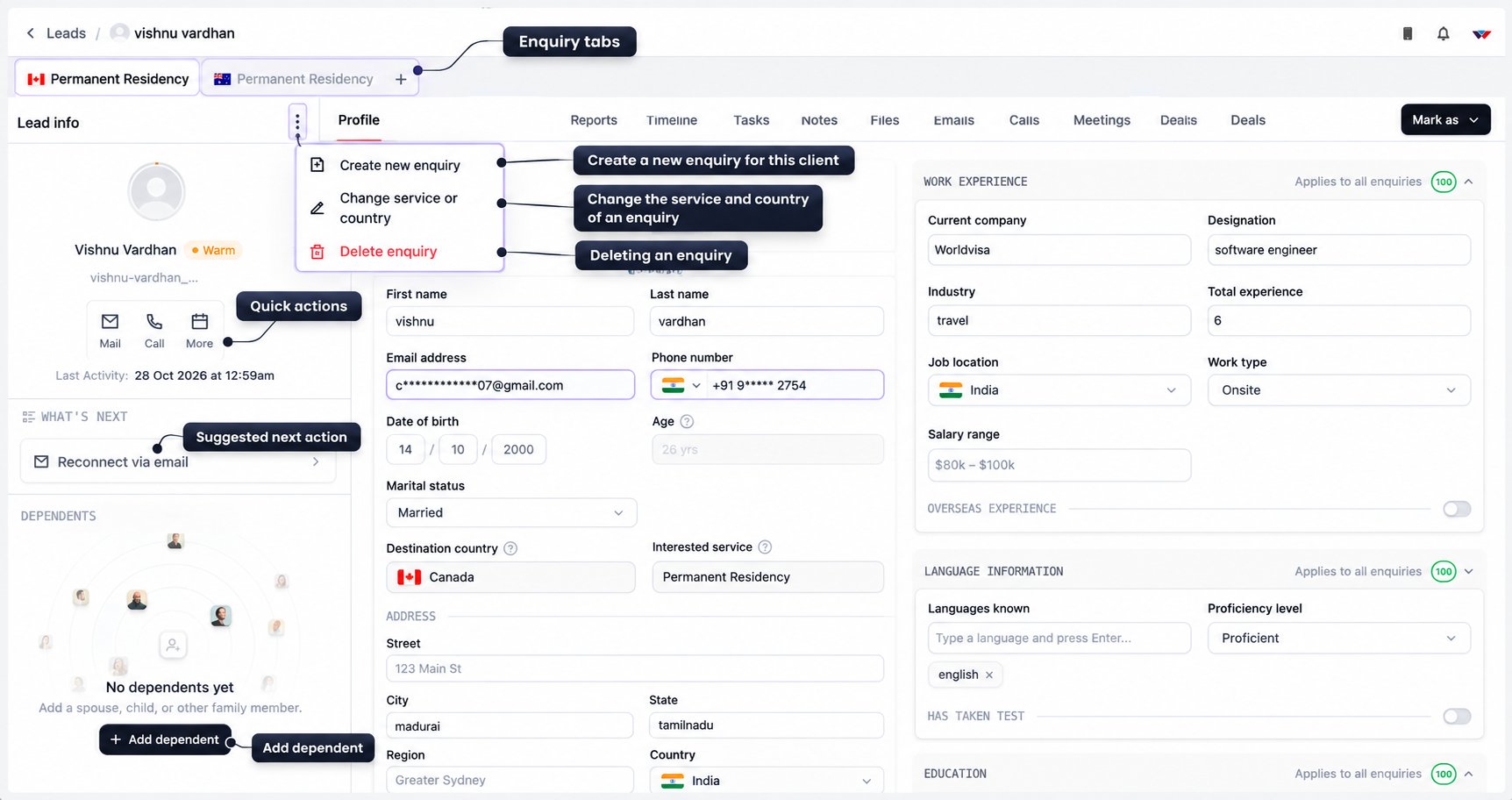
Contact the client
The shortcuts below the client’s name help you take action without leaving the workspace.Use What’s next
What’s next shows suggested actions for the enquiry. For example, you may see Reconnect via email. Select a suggestion to open the relevant panel or page, then review the details before taking action. The suggestions can change as the enquiry progresses. Use them alongside the client’s history and any outstanding tasks.Switch between enquiries
A client may be interested in more than one service or destination. When they have multiple enquiries, these appear as tabs above the workspace, with the service name and destination flag. Select a tab to open that enquiry. Before updating details, arranging a meeting, or taking the next step, check that you are working on the right service and country. For example, a client’s Canada Permanent Residency enquiry and Australia Permanent Residency enquiry are separate pieces of work, even though they belong to the same person.Create a new enquiry
If an existing client wants help with another service or destination, open the three-dot menu beside Lead info and select Create new enquiry. You can also use the + beside the enquiry tabs when the tab strip is visible.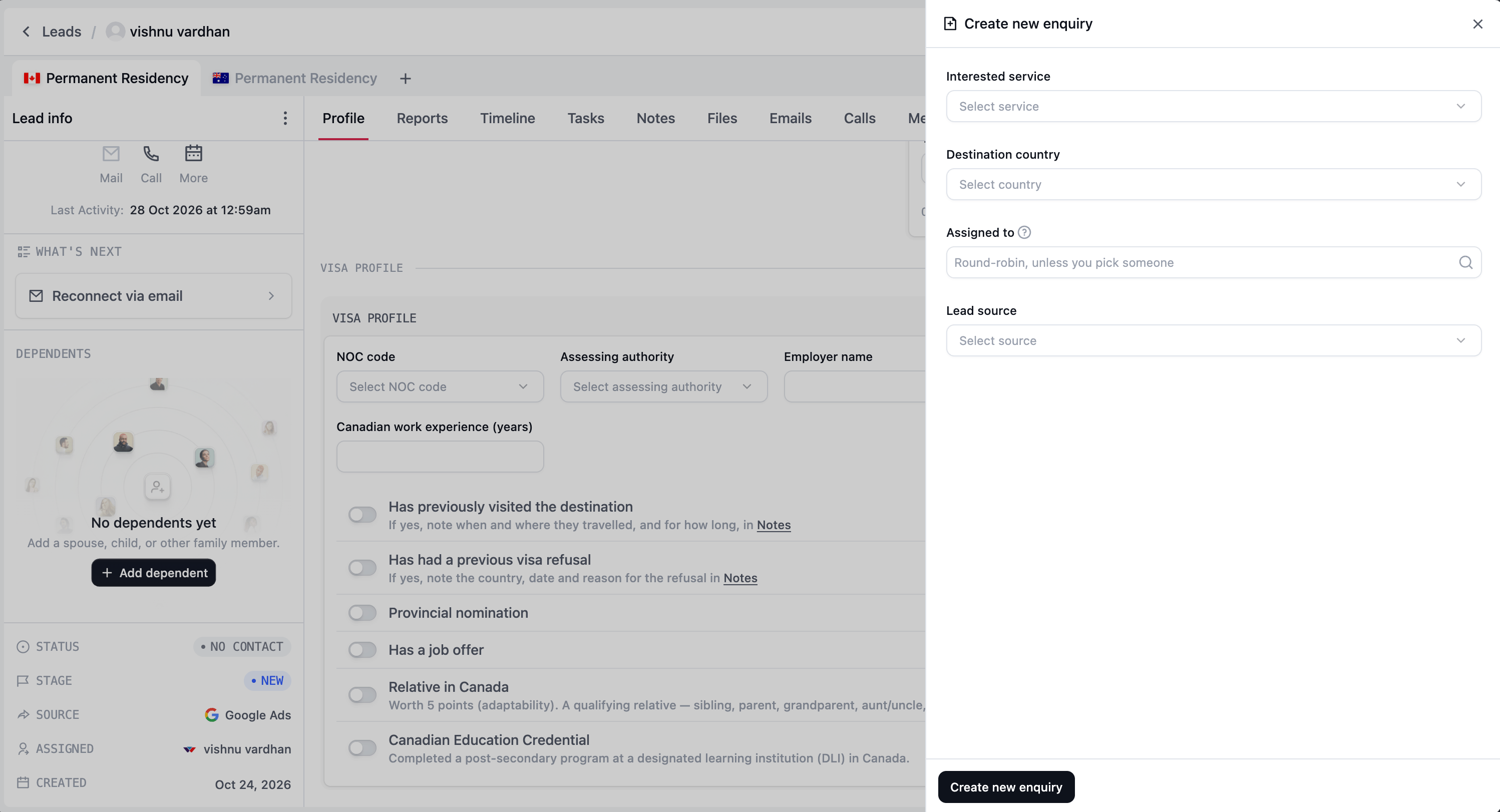
- Select the Interested service.
- Select the Destination country.
- Choose Assigned to, if this option is available for your role. The available staff and default assignment follow your access and the assignment rules described in Lead creation.
- Select the Lead source, if shown, to record where this enquiry came from.
- Select Create new enquiry.
Selecting the same service and country does not always create another enquiry. Depending on the existing enquiry’s state, the system may open it or reopen a previous enquiry instead. Review the enquiry that opens before continuing.
Change service or country
Use Change service or country when the selected enquiry needs correcting or the client’s plans have changed. For example, they may decide to pursue Australia instead of Canada. If the client wants to pursue both destinations, use Create new enquiry so each enquiry can be followed up separately. Open the three-dot menu beside Lead info, then select Change service or country.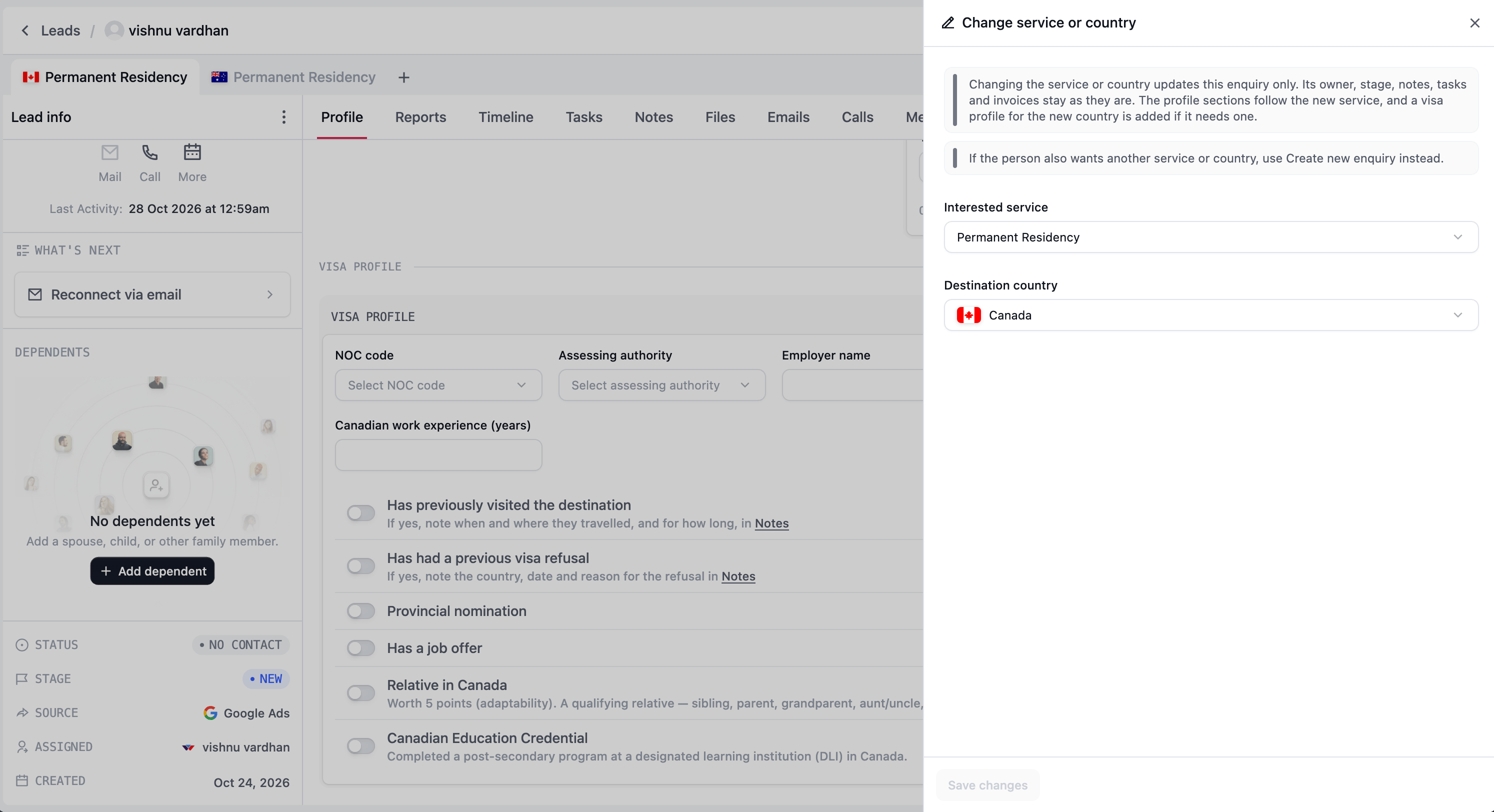
What stays with the enquiry
Changing the service or country updates the selected enquiry. Its owner, stage, notes, tasks, and invoices stay attached. The profile sections follow the new service, and a visa profile for the new country is added when needed. Other enquiries belonging to the client are not changed.Why a change may be blocked
Follow the reason shown in the drawer and speak with the responsible team before making invoice, payment, or applicant changes. Report invoices do not lock the service and country in the same way as service invoices.
Add a dependant
Use Add dependent to include a spouse, child, or another eligible family member who is applying with the main applicant on this enquiry. If dependants have already been added, use Add more.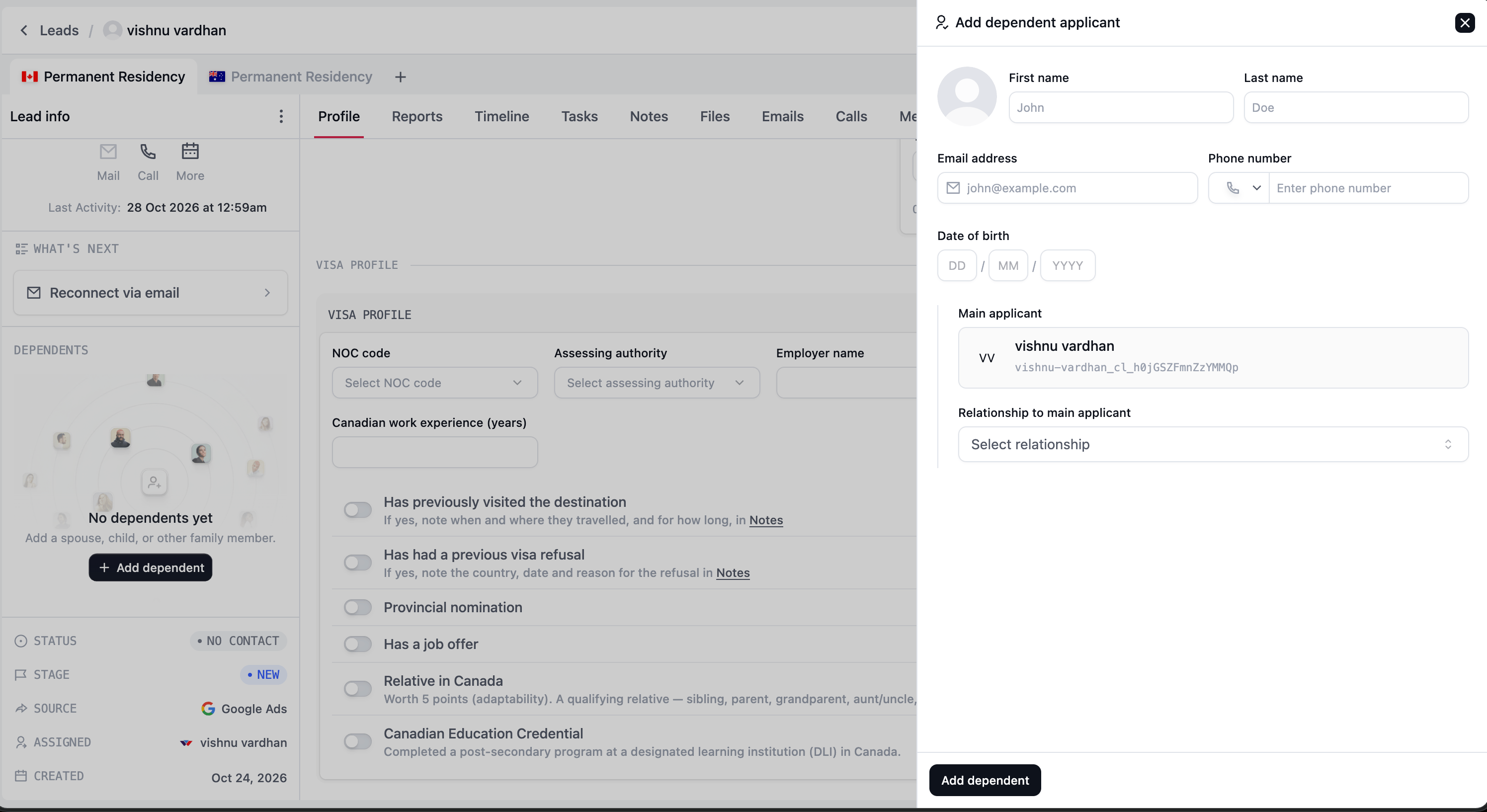
If you enter an email address or phone number that matches an existing client, review the existing-client information before submitting. This helps you use the person already known to WorldVisa instead of creating a duplicate.
Conditions to check
- The main applicant cannot be added as their own dependant.
- The same person cannot be added twice to the enquiry.
- Only one spouse or partner can be attached to an enquiry.
- The service and destination determine which relationships are allowed.
- Applicants are managed from the main applicant’s enquiry. If the panel names another person as the main applicant, applicant changes are unavailable from the enquiry you have opened.
- Once an application has finished or progressed beyond the permitted stage, applicant changes can be restricted. Follow the message shown by the system.
Manage an existing dependant
Where your access allows it, the menu beside a dependant provides two actions:
Review the confirmation before choosing either action. The same applicant-change restrictions can apply.