
Configure Pushpad with WorldVisa
Before you can send notifications, you need to connect your Pushpad project to WorldVisa by getting your credentials and adding them to your integration settings.Step 1: Get your Pushpad credentials
To configure the Pushpad integration, you need:- An active Pushpad account
- A Pushpad auth token (found in the account settings)
- Your Pushpad project ID (found in the project settings)
1
Log in to Pushpad
Open your Pushpad dashboard and sign in.
2
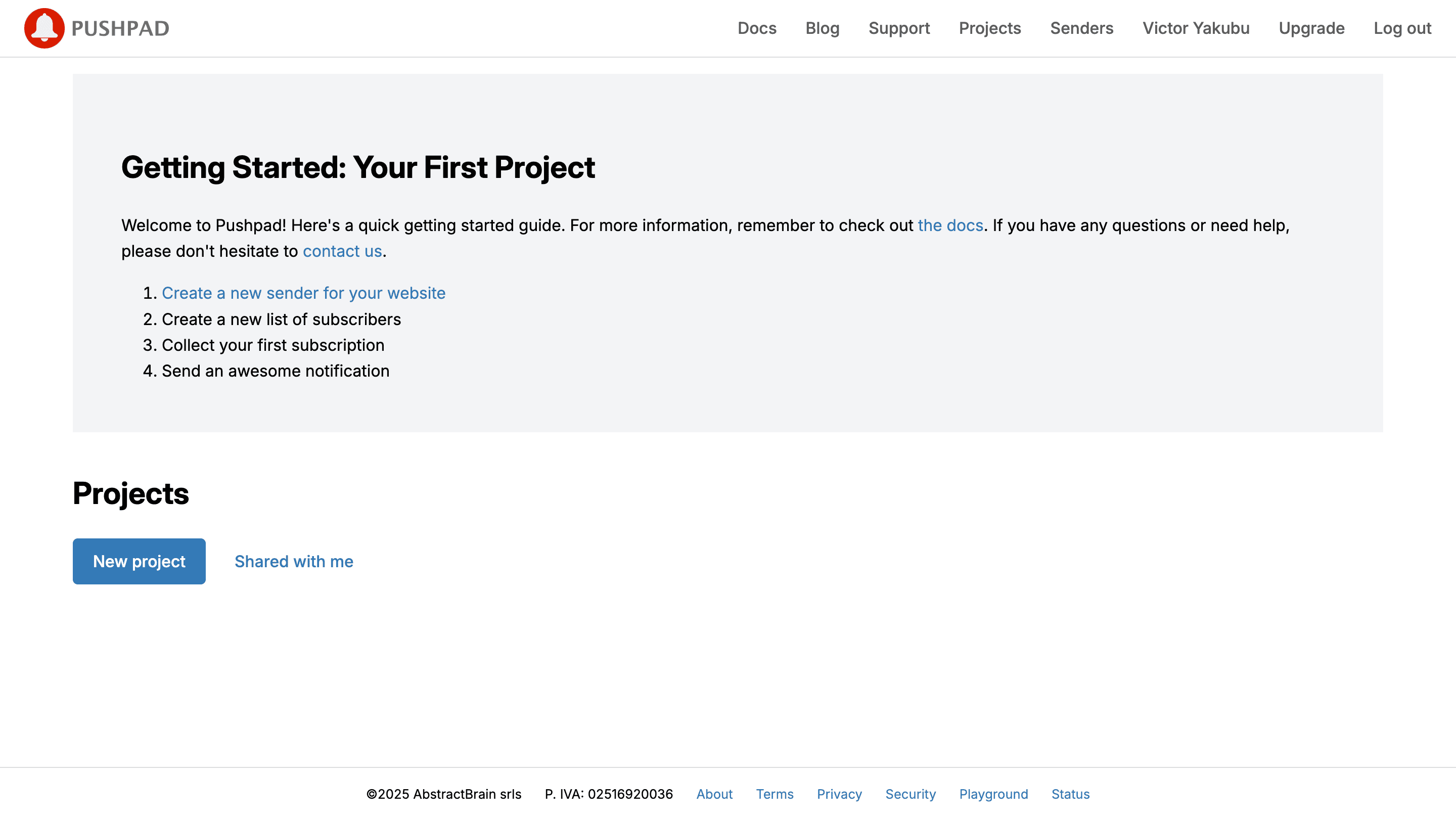
Create a project
3
Record the Project ID
Click Settings on the project page and record the Project ID. You need it to connect to WorldVisa.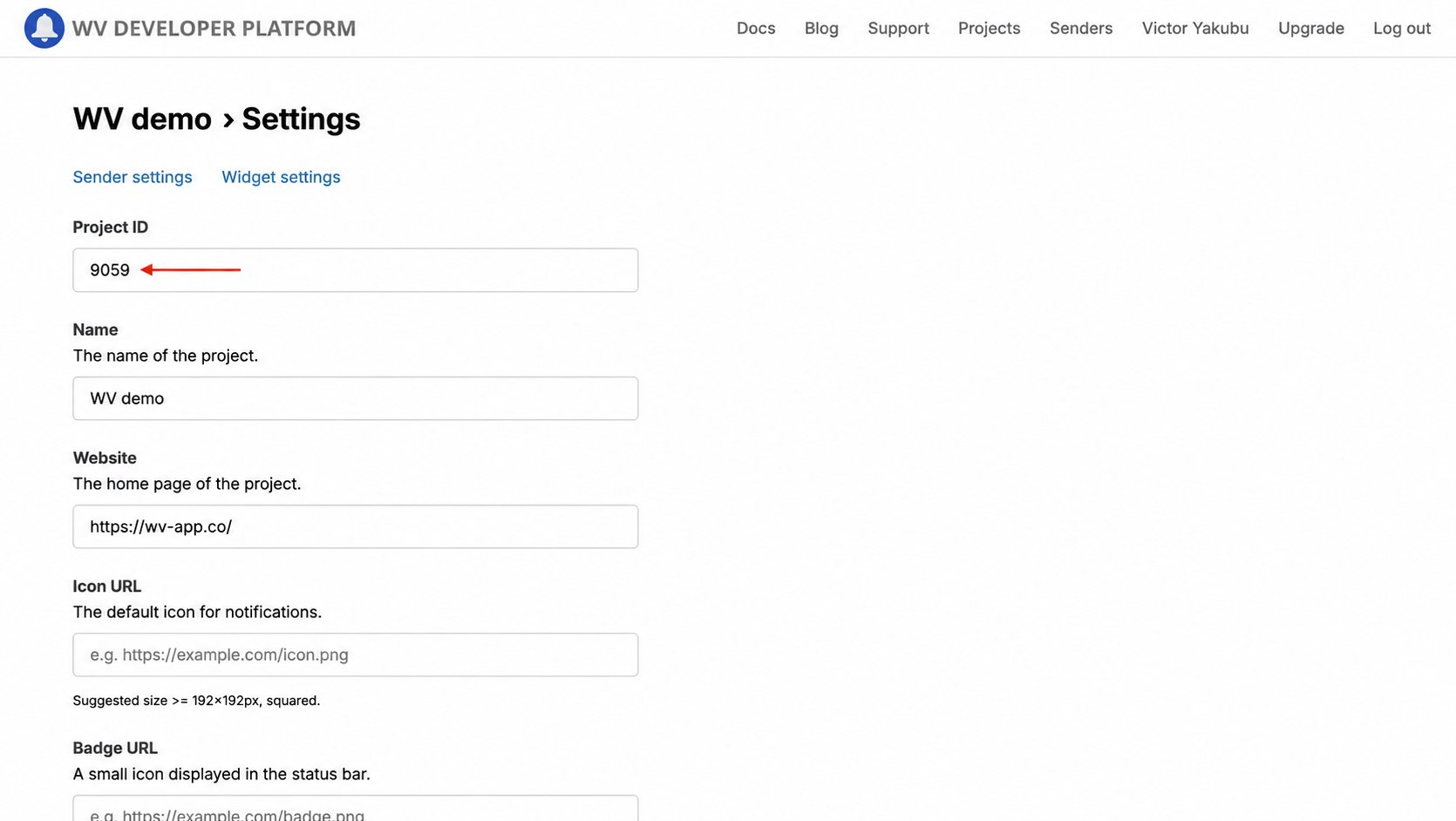
4
Open access tokens
Navigate to the access token page.
5
Add access token
Generate a token in Pushpad and paste it into the integration form.
6
Create the token
Fill in the required fields to create a new access token, or use your existing token if you already have one.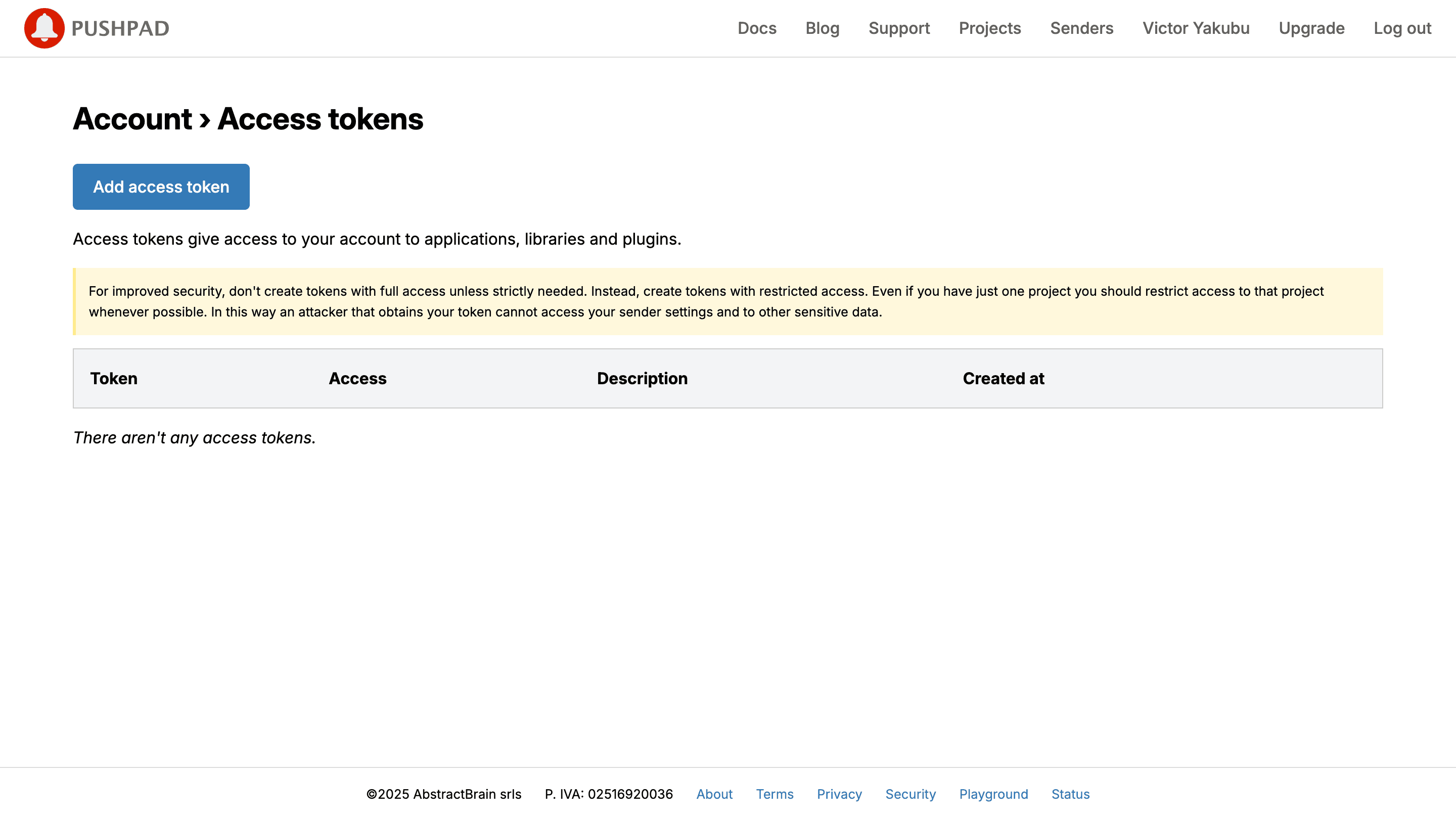
7
Copy the token
Copy the generated token. You need it to connect to WorldVisa.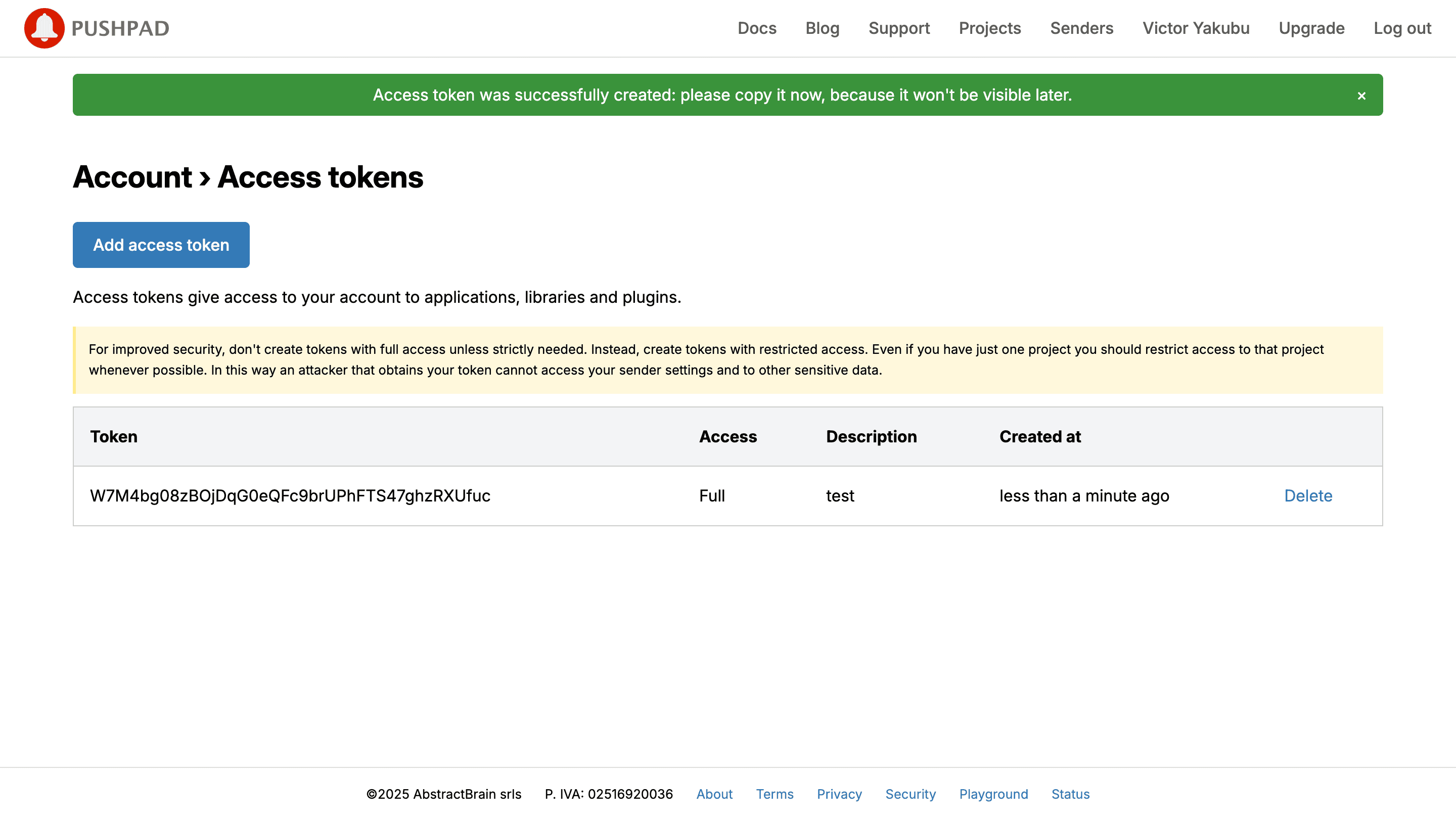
Step 2: Connect Pushpad to WorldVisa
Add these credentials to your Pushpad integration in the WorldVisa dashboard.1
Log in to the WorldVisa dashboard
Open the WorldVisa Dashboard.
2
Open Integration Store
On the WorldVisa dashboard, navigate to the Integration Store.
3
Connect a provider
In the Integration Store, click Connect provider to begin setup.
4
Select Push tab
Open the Push tab in the Integration Store.
5
Select Pushpad
In the Push tab, choose Pushpad from the provider list.
6
Paste credentials
In the Pushpad integration form, paste your access token and project ID from Step 1 into the corresponding fields.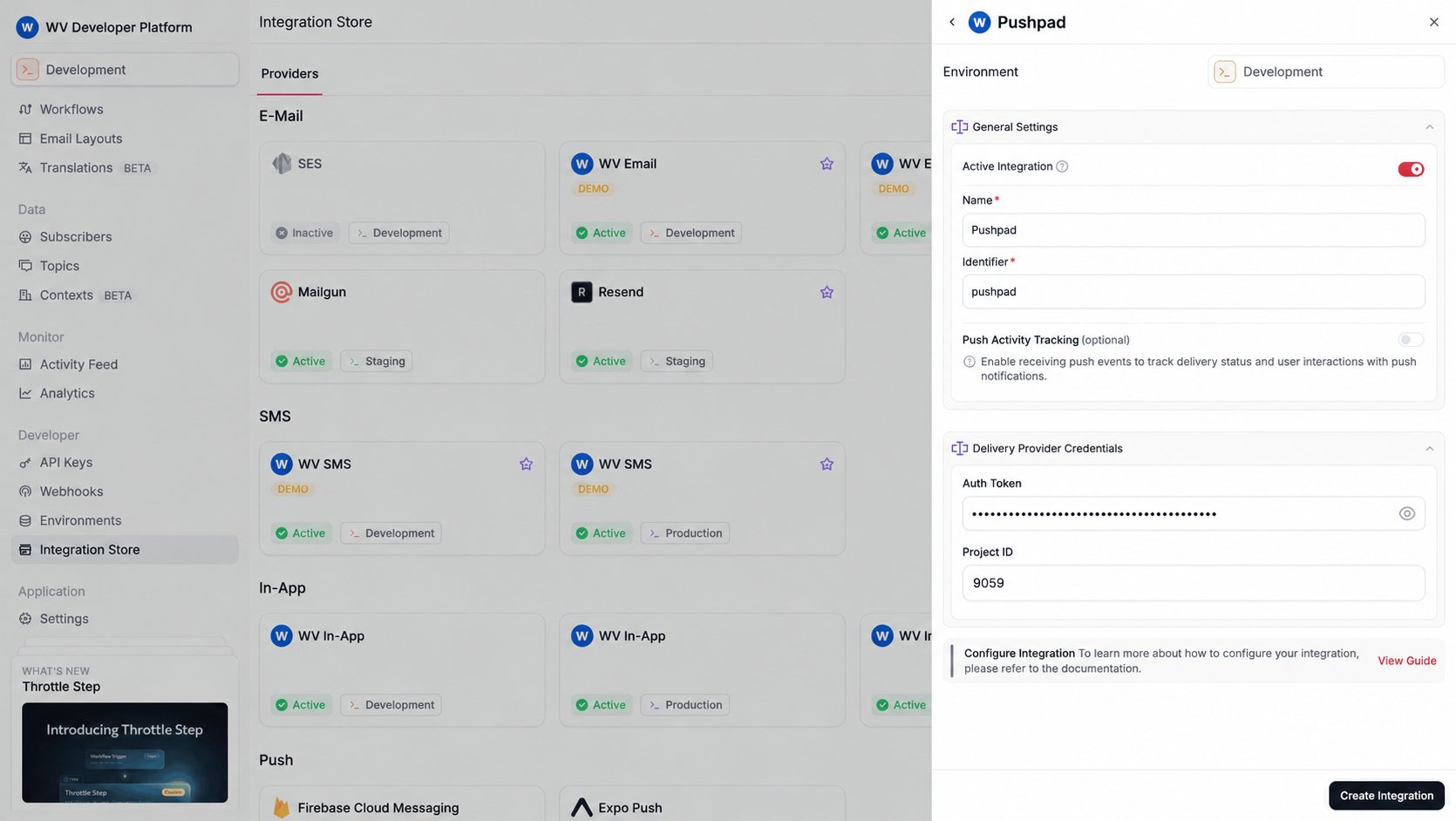
7
Create the integration
Review your credentials, then click Create Integration to save.
Activity tracking
Pushpad supports push activity tracking. Enable the Push Activity Tracking toggle on the Pushpad integration, then forward events from your site. WorldVisa sends the WorldVisa message id as Pushpadcustom_data. Pushpad passes that string only to action button callbacks. A tap on the notification body does not include it. Chrome is the only browser that shows action buttons, and it shows at most two.
Add a button whose action matches a function on self.notificationActions. Leave custom_data as the value WorldVisa sets. Replacing it removes the message id.
actions with a provider content override. In the service worker, customData is the message id:
delivered, opened, dismissed, and failed use the same eventId.
Using Pushpad with WorldVisa
Once your integration is configured, in other to send push notification using the PushPad provider, you must do the following:Step 1: Add subscriber device token
After setting up the Pushpad SDK on your website, you must assign a user ID (uid) to your users’ push subscriptions. Thisuid is the identifier WorldVisa uses to target a specific browser. For example, if you use pushpad('uid', 'user123'), then user123 is the ID you must register in WorldVisa.
You can do this by making an API call to update the subscriber’s credentials.
Step 2: Send a notification
Now you’re ready to send a push notification. Create a workflow with a Push step and then trigger it. WorldVisa sends the notification to theuids associated with the subscriber.
The example below demonstrates a simple trigger using WorldVisa’s SDK.