
Supported providers
The Push Activity Tracking toggle is available on these integrations: AppIO has no Push Activity Tracking toggle, and WorldVisa rejects activity events for an AppIO integration. AppIO delivers into the IO app, where you cannot run code, and its message API has no custom data field for the WorldVisa message id.How it works
The process involves a four-step data flow from your subscriber’s device to WorldVisa’s servers:- Client application listens: Your application listens for push notification interactions. For example, the user opens a notification.
- Event sent to your backend: When an event occurs, your application sends a payload containing the event details to an endpoint on your own server.
- Backend forwards to WorldVisa: Your server receives this data and uses the WorldVisa SDK to securely forward the event to WorldVisa’s API.
- Event appears in WorldVisa: WorldVisa processes the event and displays it in the Activity Feed, alongside events from your other channels.
Step 1: Enable push activity tracking in WorldVisa
Enable push activity tracking in your WorldVisa dashboard and get the necessary credentials.- Log in to the WorldVisa dashboard.
- Navigate to the Integration Store page, and then select your push provider.
- Enable the Push Activity Tracking toggle.
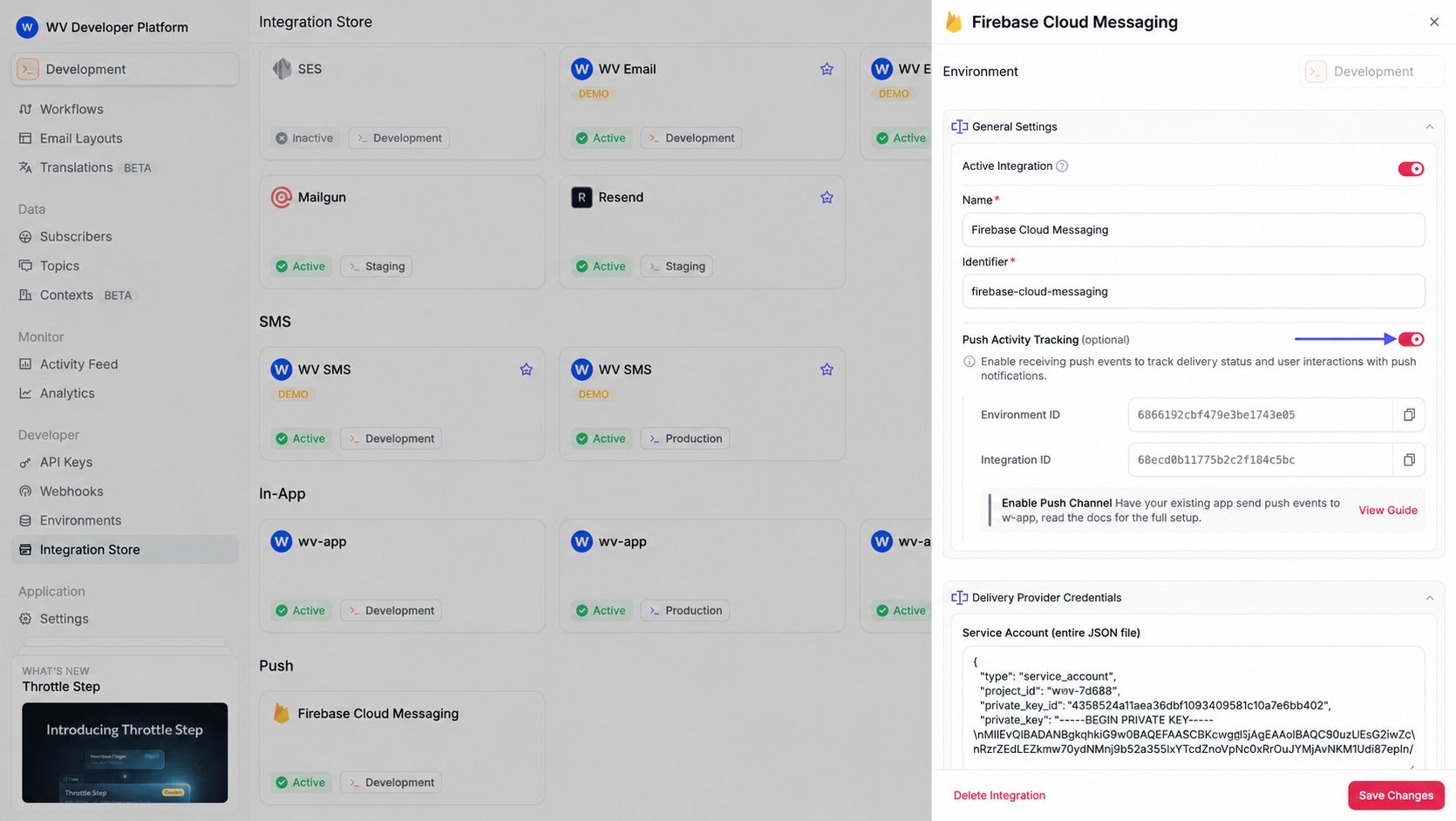
- Once enabled, your unique Environment ID and Integration ID are displayed. Copy and save both of these; you will need them for your backend code.
- Click Save Changes.
Step 2: Listen for push events in your application
When a push notification is delivered or the subscriber interacts with it, capture that event and forward it to your backend. The listener depends on the provider. Send these fields:eventType: One ofdelivered,opened,clicked,dismissed, orfailed. WorldVisa ignores any other value.eventId: The WorldVisa message id for that notification.
WorldVisa puts that message id on the notification before it is sent. Read it from the field for your provider and send it back as
eventId.
On a standard FCM notification,
data contains __nvMessageId and any data keys from your FCM override. The rest of the trigger payload is included only on a data-only message (overrides.providers.fcm.type set to data).
An APNs rawPayload override replaces the notification body. __nvMessageId is on the device only when that object contains it. A trigger-time rawPayload does not, because WorldVisa assigns the message id at send time.
- expo
- fcm
- onesignal
- pushpad
Step 3: Forward events to WorldVisa from your backend
Create an endpoint on your backend that receives the event data from your application and uses the WorldVisa SDK to forward it to WorldVisa.Both
Integration ID and Environment ID can be found in the push provider integration page after enabling Push Activity Tracking.