
Configure Onesignal with WorldVisa
Before you can send push notifications via OneSignal from WorldVisa, you need to connect your OneSignal credentials.Step 1: Get your OneSignal credentials
To configure the OneSignal integration, you need an active account that has credentials for APNS, FCM, or both, and have access to two values from OneSignal app’s settings:- App ID
- App API Key
App ID and App API key.
Step 2: Connect Onesignal to WorldVisa
Next, add these keys to your OneSignal integration in the WorldVisa dashboard.1
Log in to the WorldVisa dashboard
Open the WorldVisa Dashboard.
2
Open Integration Store
On the WorldVisa dashboard, navigate to the Integration Store.
3
Connect a provider
In the Integration Store, click Connect provider to begin setup.
4
Select Push tab
Open the Push tab in the Integration Store.
5
Select OneSignal
In the Push tab, choose OneSignal from the provider list.
6
Paste credentials
In the OneSignal integration form, paste your App ID and App API Key into the corresponding fields.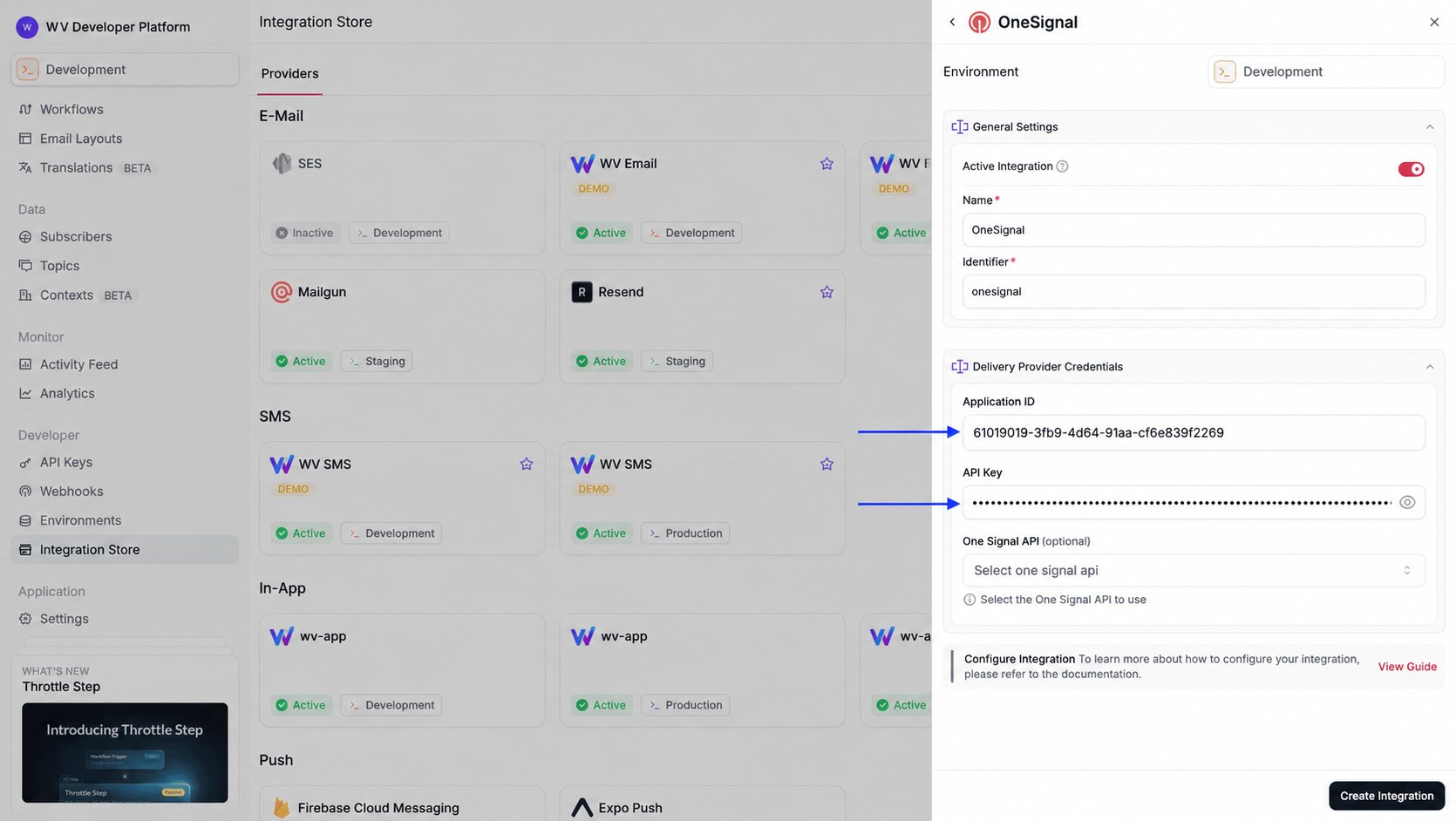
7
Create the integration
Review your credentials, then click Create Integration to save.
Using Onesignal with WorldVisa
Once your integration is configured, you can start sending push notifications by registering your subscribers’player_id tokens and triggering a workflow.
Step 1: Add subscriber device token
When you set up the OneSignal SDK in your application, your users are automatically assigned a unique OneSignalplayer_id. This ID is used to target the user for push notifications.
To target a OneSignal user from WorldVisa, you must register their player_id as the deviceToken for their WorldVisa subscriber profile.
You can do this by making an API call to update the subscriber’s credentials.
Step 2: Send a notification
Using overrides to customize notifications
To customize a single notification, send OneSignal fields underoverrides.providers['one-signal'] when you trigger the workflow. WorldVisa deep-merges that object into the Create notification request body it builds from the Push step’s Subject and Body, so the fields you send win over the generated ones.
The override is an unvalidated passthrough, so copy field names from OneSignal’s API reference. WorldVisa snake-cases the keys before sending, so androidChannelId also arrives as android_channel_id.
WorldVisa only reads provider fields under
overrides.providers. Keys at the root of overrides are ignored. channelId, categoryId, icon, and sound are not OneSignal fields, so they do nothing under providers either — use android_channel_id, ios_category, large_icon, and ios_sound / android_sound instead, and send subtitle as a language map such as { "en": "Order #12345" }.Using external user ID
By default, WorldVisa usesplayer_id to send notifications, but you can select the External ID option in the OneSignal integration settings in WorldVisa. If External ID option is selected, then deviceTokens stored in subscriber credentials for the OneSignal provider, are used as external user IDs.
By default, WorldVisa uses player IDs to send notifications. If your OneSignal integration uses external user IDs, then you can switch this behavior in the OneSignal integration settings in WorldVisa.
Once enabled, the deviceTokens stored in subscriber credentials are treated as external user IDs instead of player IDs.
Activity tracking
OneSignal supports push activity tracking. Enable the Push Activity Tracking toggle on the OneSignal integration. Your app reads the WorldVisa message id from the notification and forwards it aseventId.
WorldVisa sends the trigger payload as OneSignal data and adds __nvMessageId. The OneSignal SDK exposes that object as additionalData. A data override is merged into it. Leave __nvMessageId in place.
delivered, opened, dismissed, or failed the same way when your app observes those events. Your backend then calls WorldVisa’s activity endpoint.