
Configure Push Webhook with WorldVisa
To configure Push Webhook, you must provide an endpoint URL for WorldVisa to call and a secret HMAC key to verify the request’s authenticity.Step 1: Get your webhook URL and secret key
Before connecting to WorldVisa, you need two things:- Webhook URL: This is your own API endpoint that will receive the
POSTrequest from WorldVisa. For quick testing, you can use a service like webhook.site. - Secret HMAC Key: This is a self-generated secret string. WorldVisa will use it to encrypt the payload using the
HMAC SHA256algorithm and send the hash in thex-wv-signatureheader. This lets you verify that the request is genuinely from WorldVisa. See how to generate a HMAC key.
Your webhook URL endpoint must be able to accept
POST requests.Step 2: Connect Push Webhook to WorldVisa
Next, add these keys to your Push Webhook integration in the WorldVisa dashboard:1
Log in to the WorldVisa dashboard
Open the WorldVisa Dashboard.
2
Open Integration Store
On the WorldVisa dashboard, navigate to the Integration Store.
3
Connect a provider
In the Integration Store, click Connect provider to begin setup.
4
Select Push Webhook
In the Push tab, choose Push Webhook from the provider list.
5
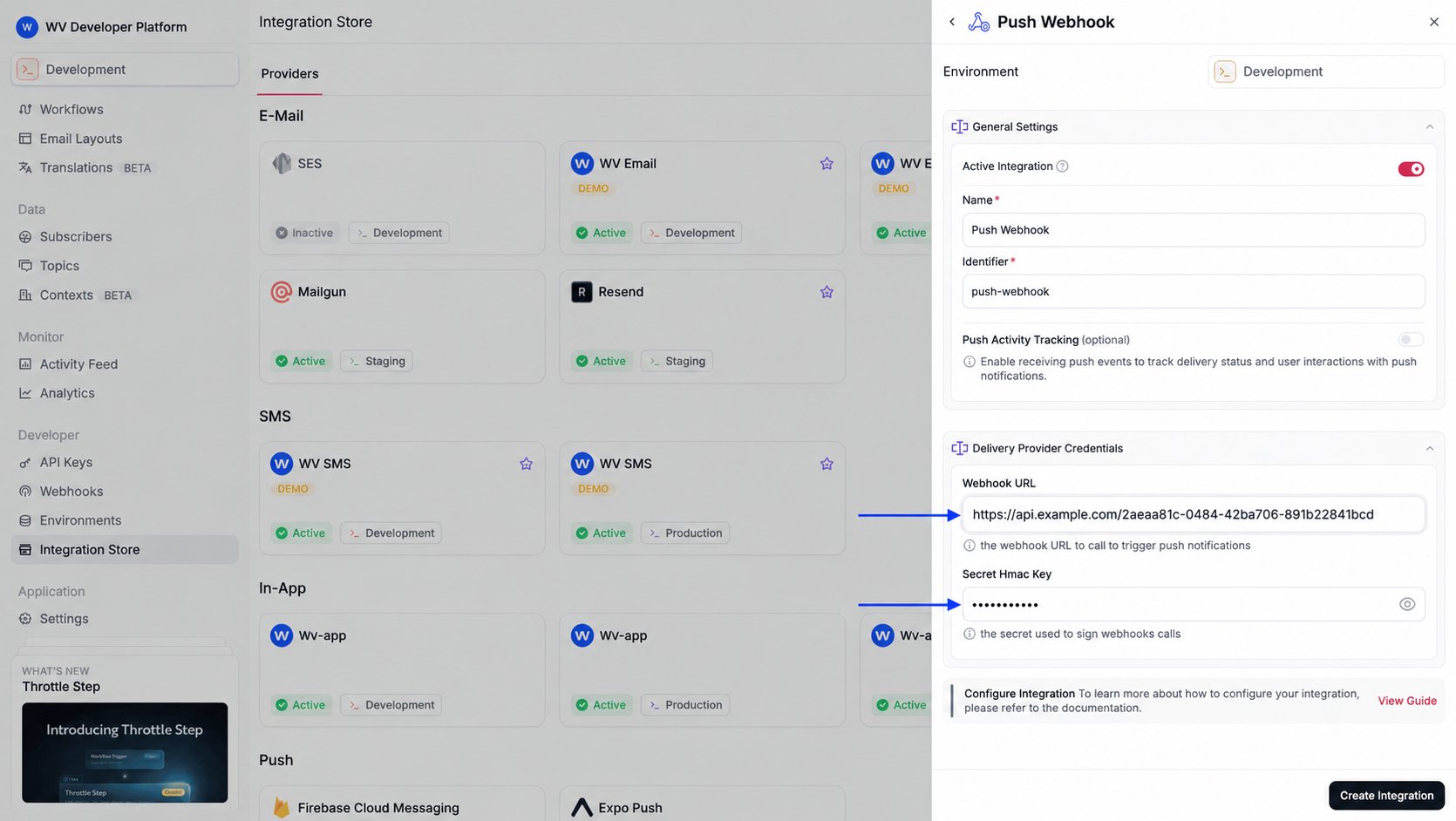
Fill in integration fields
- Webhook URL: The endpoint URL that you prepared in Step 1.
- Secret HMAC Key: The secret key used to sign webhook calls.
6
Create the integration
Review your credentials, then click Create Integration to save.
Using Push Webhook with WorldVisa
Once configured, you must register a device token for your subscriber and trigger a workflow.Step 1: Add subscriber device token
This step is mandatory. Unlike other push providers that generate a unique token, for the Push Webhook, you must provide your own identifier. Any random string can be used as a device token. This token is included in the webhook payload sent to your endpoint, allowing you to identify which user or device the notification is for.Step 2: Send a notification
Now you’re ready to send a push notification. Create a workflow with a Push step and trigger it. WorldVisa sends the notification payload to the webhook URL that you configured. The example below demonstrates a simple trigger using WorldVisa’s SDK.Payload sent by WorldVisa to webhook URL
When you trigger a workflow, WorldVisa sends aPOST request to your webhook URL with a JSON body similar to the one below.
The payload includes:
- The
titleandcontentfrom your workflow editor. - The
target(the device token you set). messageId, the WorldVisa message id. The same value is alsopayload.__nvMessageId. Use either value aseventIdwhen you forward activity events.- Your
overrides. - The full payload from your trigger.
- The subscriber’s profile.
Activity tracking
Push Webhook supports push activity tracking. Enable the Push Activity Tracking toggle on the Push Webhook integration. WorldVisa includes the message id twice on the POST to your webhook URL:messageId, and the same value as payload.__nvMessageId. Your endpoint delivers the push, so put that id on the notification the device receives. When the subscriber interacts with it, forward the id as eventId.
eventType values are delivered, opened, clicked, dismissed, and failed. Your backend then calls WorldVisa’s activity endpoint.
Checking authenticity
If you provided a secret HMAC key during configuration, then WorldVisa will include ax-wv-signature header in the request. You can use this header to verify that the request is from WorldVisa and not a malicious third party.
Here is an example of how to validate the hash: