
How to configure Expo with WorldVisa
Before you can send notifications, you must connect your Expo project to WorldVisa by generating an access token and adding it to your integration settings.Step 1: Generate your access token from Expo Push
Generate an access token from your dashboard. This token authorizes WorldVisa to send notifications on behalf of your project.1
Log in to Expo
Sign in at the Expo console.
2
Open Access Token
Navigate to the Credentials section in the project settings sidebar.
Click Access Token.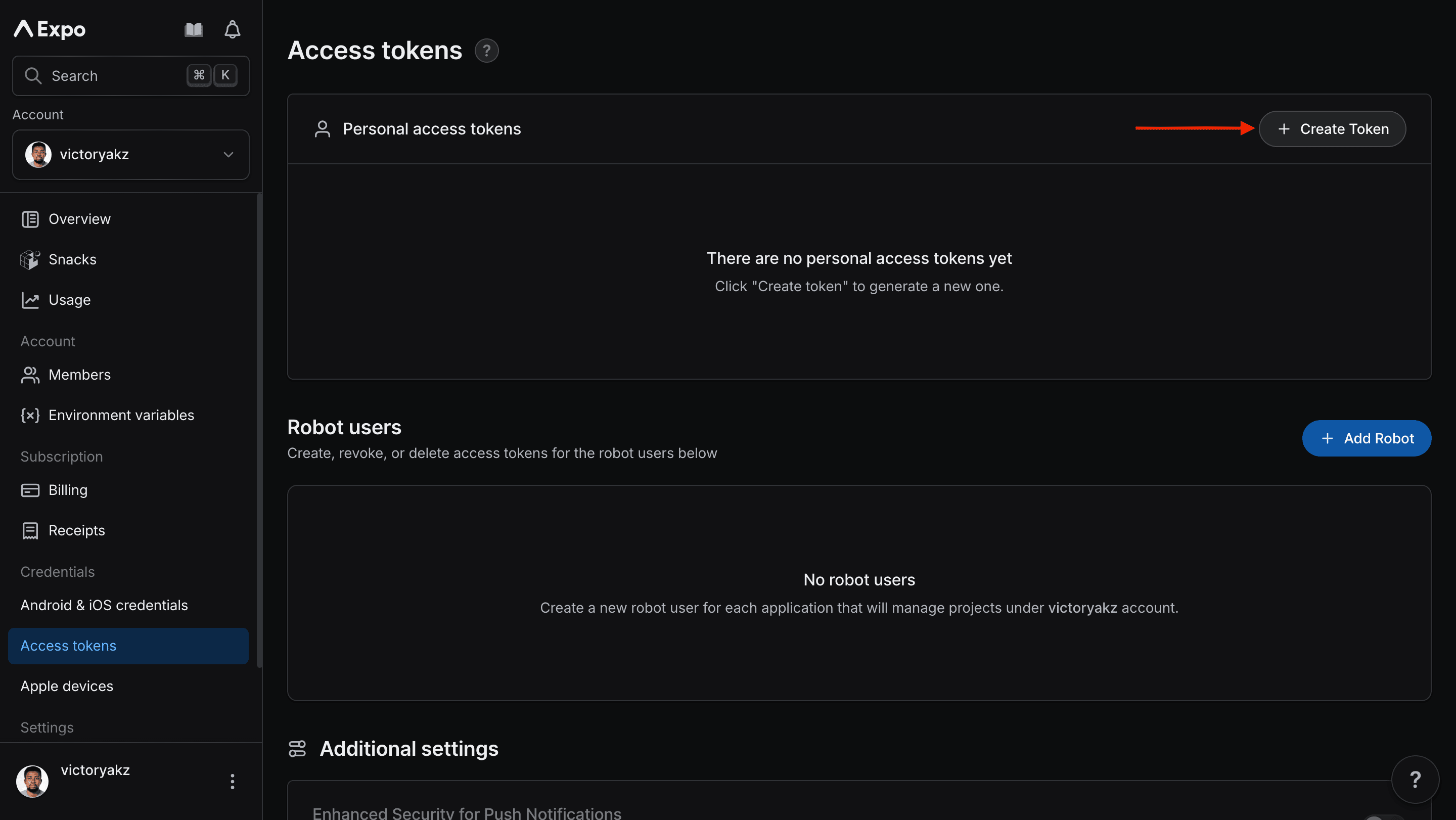
3
Create a token
A menu appears.
4
Generate the token
Give it a descriptive name, and then click Generate New Token.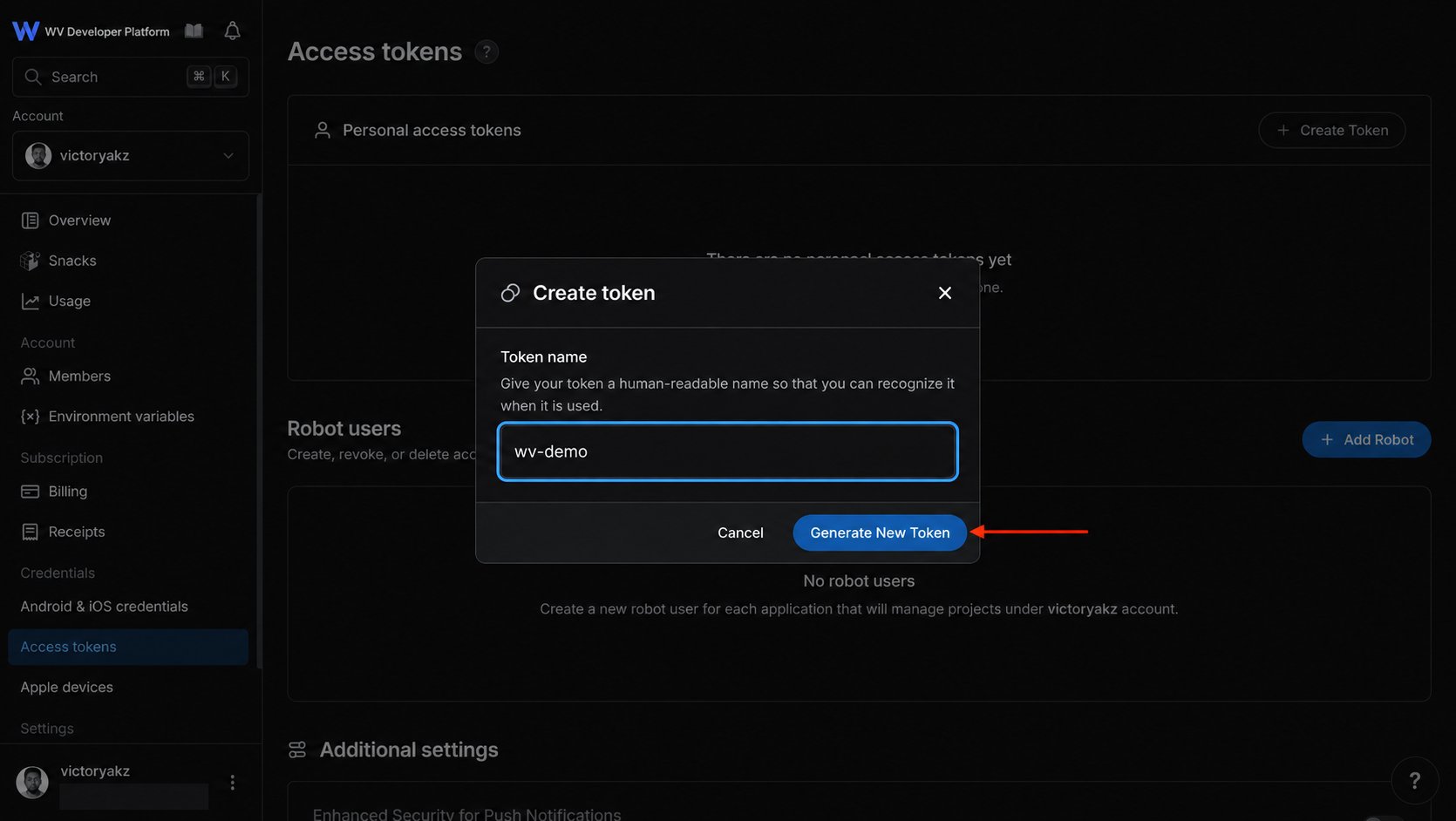
5
Copy the token
Copy and save the generated access token. You need it in the next step.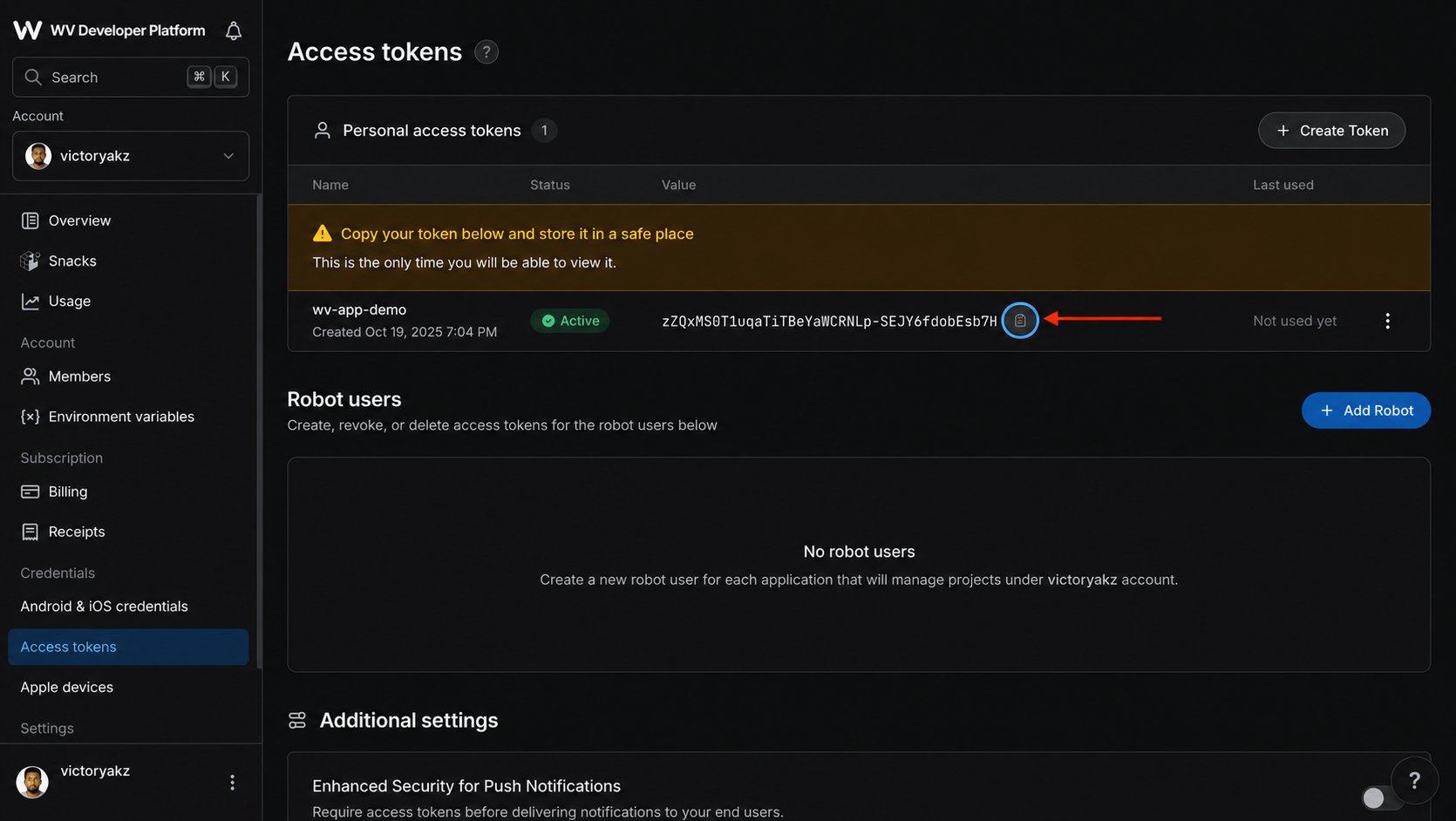
Step 2: Connect Expo Push to WorldVisa
Next, add the access token to your Expo integration in the WorldVisa dashboard.1
Log in to the WorldVisa dashboard
Open the WorldVisa Dashboard.
2
Open Integration Store
On the WorldVisa dashboard, navigate to the Integration Store.
3
Connect a provider
In the Integration Store, click Connect provider to begin setup.
4
Select Expo Push
In the Push tab, choose Expo Push from the provider list.
5
Paste the access token
In the Expo integration form, paste the access token that you copied from Expo into the Access Token field.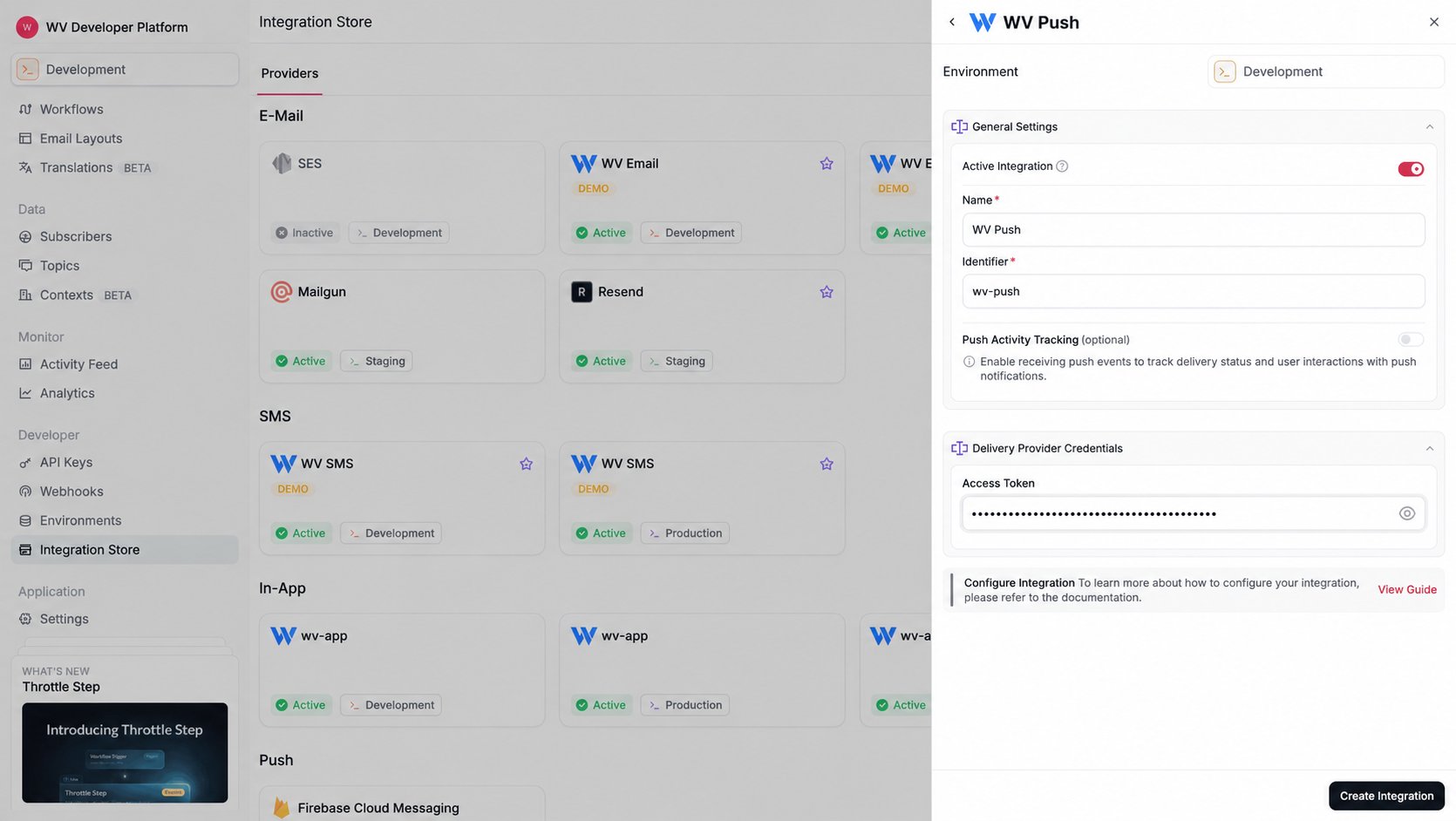
6
Create the integration
Review your credentials, then click Create Integration to save.
Using Expo Push with WorldVisa
Once your integration is configured, you can start sending push notifications by registering your subscribers’ device tokens and triggering a workflow.Step 1: Add subscriber device token
Before WorldVisa can send a push notification to a subscriber (user), you must associate their device’s unique push token with their WorldVisa subscriber profile. You can do this by making an API call to update the subscriber’s credentials.WorldVisa automatically removes invalid device tokens from a subscribers’ profile and then sends the failure details to the
MESSAGE_FAILED webhook.Step 2: Send a notification
Now you’re ready to send a push notification.Configure Expo overrides
Save an Expo override on the Push step when you need Expo Push fields beyond the step subject and body — for exampledata, sound, priority, or ttl. The override is stored on the step, so it is versioned and promoted with the workflow, and every trigger sends it without changing your trigger call.
Provider content overrides in the workflow editor are rolling out gradually and may not be available on your Push step yet. Overrides passed at trigger time work regardless. See provider content overrides.
tois managed by WorldVisa. WorldVisa fills device tokens from the subscriber’s credentials — do not settoin the override.bodyfalls back from the step. If your override omitsbody, WorldVisa uses the rendered Push step body.titleis not seeded. Settitlein the override when you want one; WorldVisa does not copy the step subject automatically.
Using overrides to customize notifications
Activity tracking
Expo supports push activity tracking. Enable the Push Activity Tracking toggle on the Expo integration. Your app reads the WorldVisa message id from the notification and forwards it aseventId.
WorldVisa sets Expo data to the trigger payload and adds __nvMessageId. A data override is merged into that object. Leave __nvMessageId in place.
delivered, opened, dismissed, or failed the same way when your app observes those events. Your backend then calls WorldVisa’s activity endpoint.