
How to configure Pusher Beams with WorldVisa
Before you can send notifications, you must get your credentials from a Pusher Beams instance and add them to your WorldVisa integration settings.Step 1: Get your Pusher Beams credentials
To enable Pusher Beams integration, you need to create a Pusher Beams Instance and use bothInstance ID and Secret Key from the Instance dashboard.
1
Log in to Pusher Beams
Open the Pusher Beams dashboard and sign in.
2
Create an instance
Name your Pusher Beams instance, then click Create instance.
3
Name the instance
Enter the instance name, and then click Create.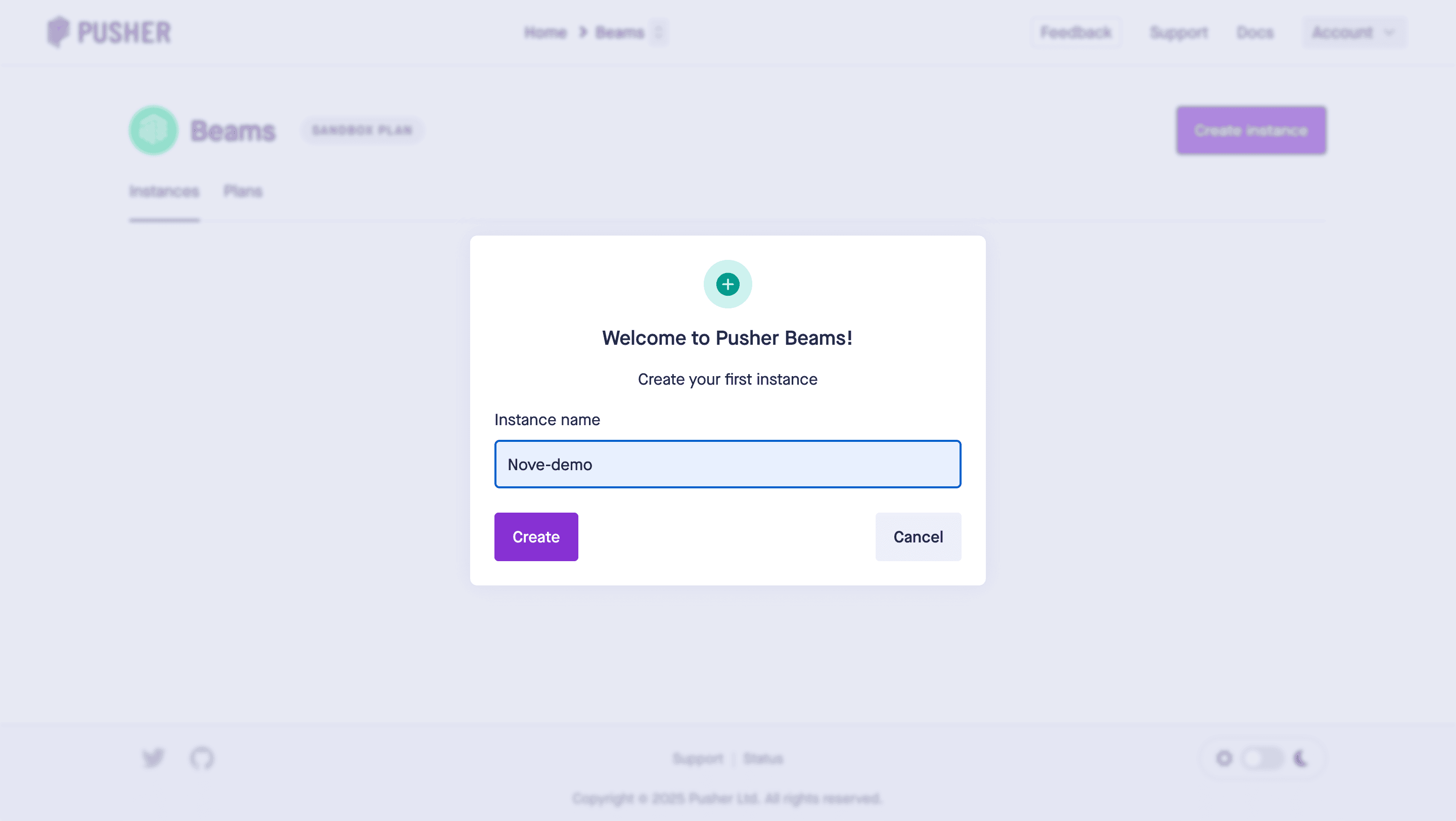
4
Copy credentials
In the instance dashboard, click Keys from the sidebar, then copy and store your Instance ID and Primary key you will need them in Step 2.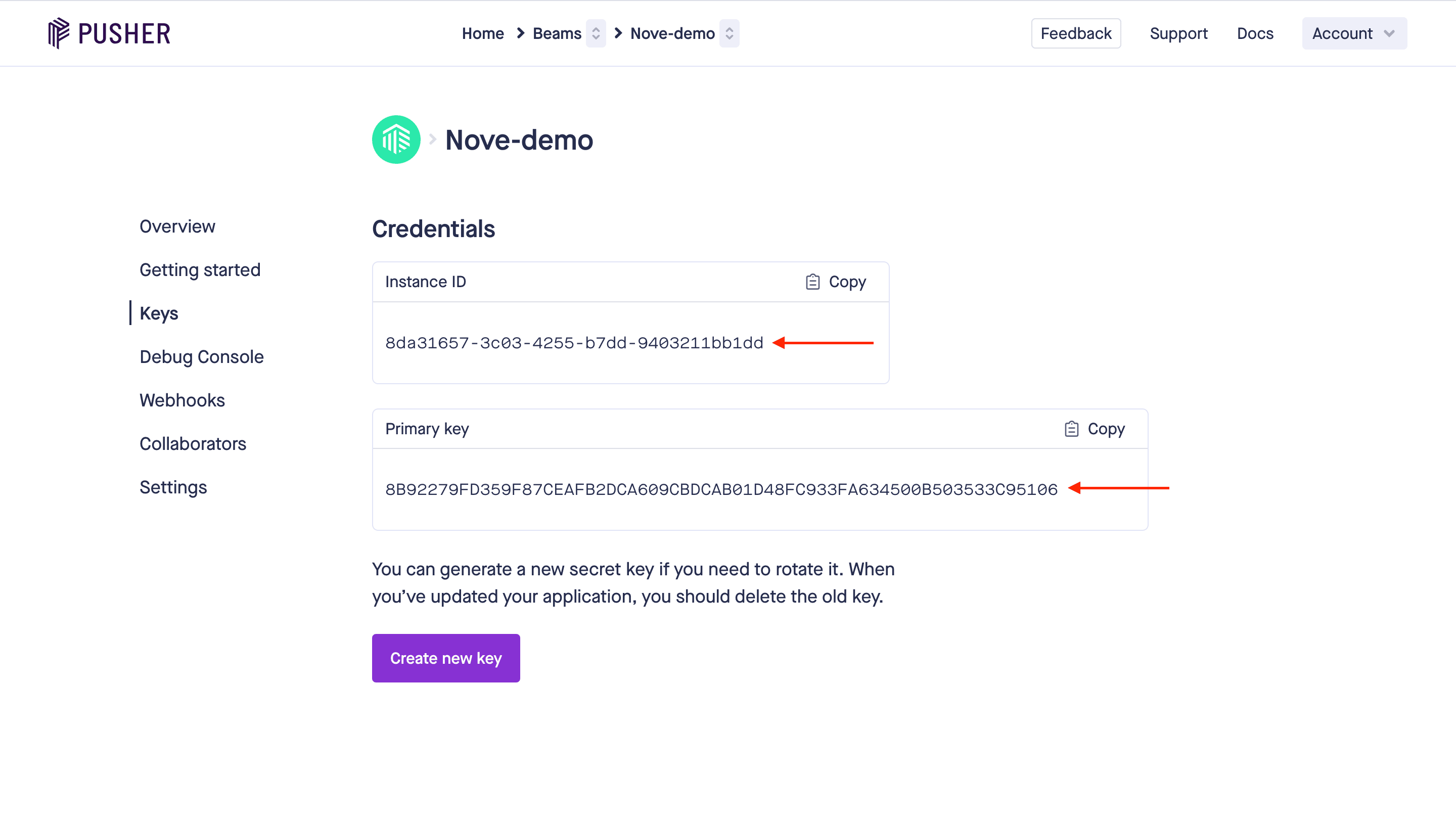
Step 2: Connect Pusher Beams to WorldVisa
Next, add these credentials to your Pusher Beams integration in the WorldVisa dashboard.1
Log in to the WorldVisa dashboard
Open the WorldVisa Dashboard.
2
Open Integration Store
On the WorldVisa dashboard, navigate to the Integration Store.
3
Connect a provider
In the Integration Store, click Connect provider to begin setup.
4
Select Pusher Beams
In the Push tab, choose Pusher Beams from the provider list.
5
Paste credentials
In the Pusher Beams integration form, paste your Instance ID and Secret Key into the corresponding fields.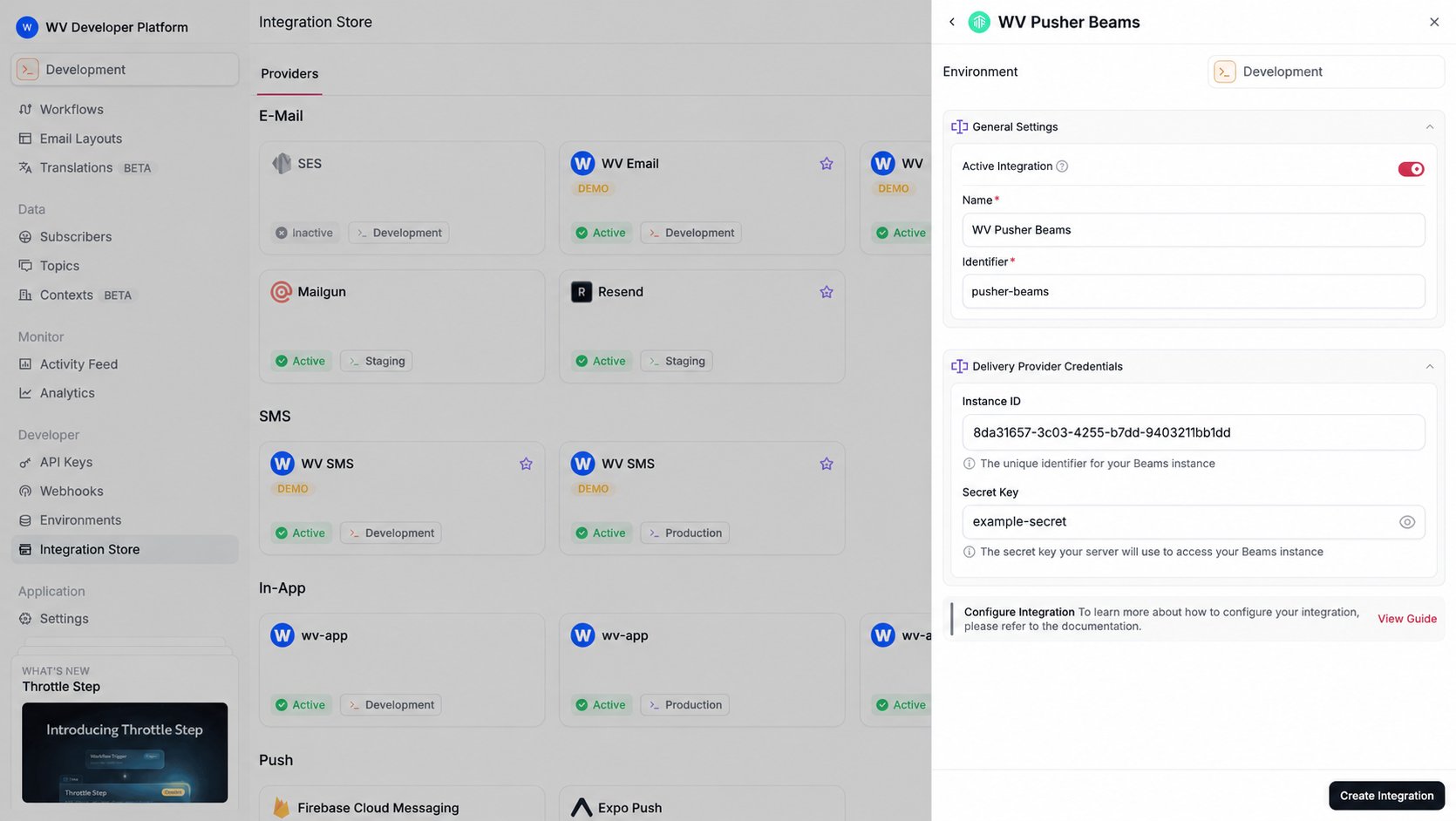
6
Create the integration
Review your credentials, then click Create Integration to save.
Using Pusher Beams with WorldVisa
Once your integration is configured, you can start sending push notifications by registering your subscribers’userId and triggering a workflow.
Step 1: Add subscriber device token
After setting up the Pusher Beams SDK in your application, you must associate users with their devices using Pusher Beams’ Authenticated Users feature. This assigns them auserId.
To target a Pusher Beams user from WorldVisa, you must register this userId as the deviceToken for their WorldVisa subscriber profile. You can retrieve this value using the getUserId() method from the Pusher Beams SDK.
You can do this by making an API call to update the subscriber’s credentials.
Step 2: Send a notification
Now you’re ready to send a push notification. Create a workflow with a Push step and trigger it. WorldVisa sends the notification to theuserId’s associated with the subscriber.
The example below demonstrates a simple trigger using WorldVisa’s SDK.
Activity tracking
Pusher Beams supports push activity tracking. Enable the Push Activity Tracking toggle on the Pusher Beams integration. Your app reads the WorldVisa message id from the notification and forwards it aseventId.
WorldVisa puts the trigger payload, including __nvMessageId, in the data object on all three platform blocks:
- Android: FCM
data.__nvMessageId - Web: the default Beams service worker stores the web payload at
notification.data.pusher.customerPayload. The message id isnotification.data.pusher.customerPayload.data.__nvMessageId. - iOS: the same
dataobject besideaps, so the id isdata.__nvMessageIdin the APNsuserInfo
data override on fcm, web, or apns is merged into that object. Leave __nvMessageId in place.
On web, read the id from the default Beams service worker shape:
delivered, opened, dismissed, or failed the same way when your app observes those events. Your backend then calls WorldVisa’s activity endpoint.