
<Inbox /> lets subscribers control when they want to receive notifications on email, SMS, push, and chat.
By defining their hours of availability from the <Inbox /> UI, subscribers skip those notifications outside the chosen time range. To hold a notification until the next open window instead of skipping it, use Extend to subscriber’s schedule on a Delay or Digest step. See Notifications outside the schedule.
If you don’t need the Schedule feature, you can hide it from the Inbox component UI using the appearance prop. To learn more, refer to the documentation on styling the Inbox UI elements.
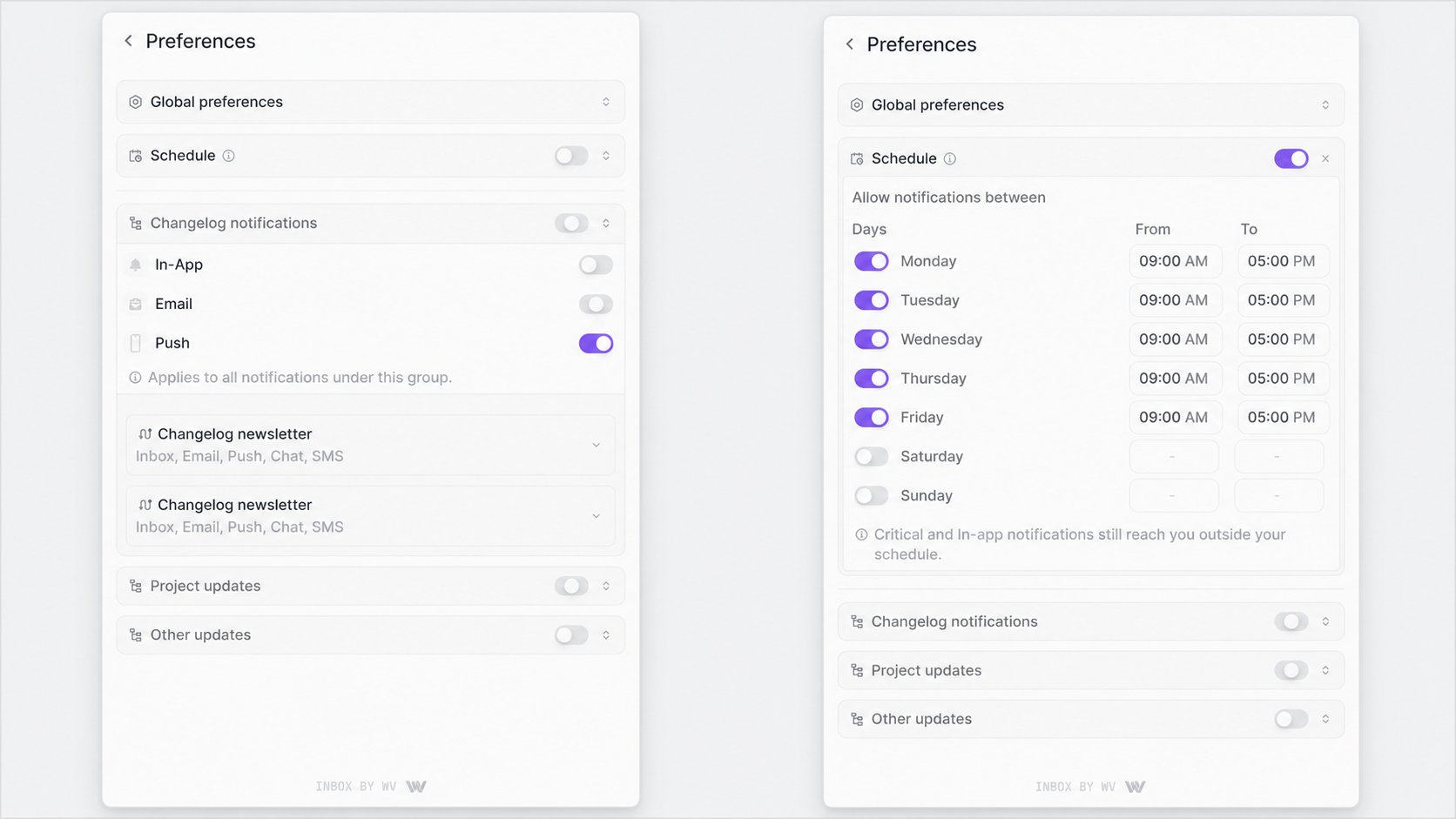
When the workflow reaches an in-app step, that notification is delivered even outside the schedule. Critical workflows are delivered on every channel, including outside the schedule. A Delay or Digest step placed before an in-app step still holds that in-app step until the delay or digest finishes.
How scheduling works
The schedule functionality is based on a clear set of rules controlled by the subscriber within the<Inbox />. When a subscriber enables their schedule, they can then manage their availability for each day of the week.
Daily availability
For any day that the main schedule is active, there will be two possible states:- Day is enabled: If a day is toggled on, then the subscriber must set a time range. Email, SMS, push, and chat send inside those hours. See Notifications outside the schedule for how to hold a notification that misses the window.
- Day is disabled: If a day is toggled off, email, SMS, push, and chat are skipped for that entire day. With Extend to subscriber’s schedule on, a Delay or Digest step can hold them until the next enabled day.
Automatic timezone handling
The schedule operates in the subscriber’s local timezone, detected automatically from their system settings. There is no need for manual configuration. For example, if a subscriber in Bengaluru sets their schedule from 9:00 AM to 5:00 PM, those hours use their local India Standard Time (IST) timezone.Notifications outside the schedule
With the schedule enabled, WorldVisa checks it when a channel step is ready to send. Email, SMS, push, and chat that are ready outside an open window are skipped. WorldVisa does not store them and send them when the window opens. A Friday 6:00 PM email, with Monday–Friday 9:00 AM–5:00 PM enabled, is not delivered on Monday unless a workflow step holds it. In-app notifications are still delivered when the workflow reaches the in-app step, including outside the window. Critical workflows are delivered on every channel, including outside the window. To hold email, SMS, push, or chat until the next window, add a Delay or Digest step before that channel and turn on Extend to subscriber’s schedule. Steps after that Delay or Digest step, including in-app, wait with it. In-app is only exempt from the schedule once the workflow reaches the in-app step. The schedule is weekly hours. Turn a day off to skip it, including weekends. There is no holiday calendar. If Monday stays on, Monday is a delivery day even when it is a public holiday. If every day is turned off, there is no window to wait for, and email, SMS, push, and chat are skipped.Examples
Schedule: Monday–Friday, 9:00 AM–5:00 PM. A workflow has a 1-hour Delay step, then email.
Schedule: Monday only, 9:00 AM–10:00 AM. The delay finishes Monday at 10:01 AM.
With the toggle on, WorldVisa holds the workflow until the next Monday at 9:00 AM, then sends. With the toggle off, the email is skipped at 10:01 AM.
WorldVisa waits until the start of the next open window. For example, a workflow held on Friday evening can resume on Monday morning.
Changing the schedule while a step is already waiting does not move that step. WorldVisa checks the updated hours when the chosen time arrives. See If the subscriber changes the schedule while waiting.
Manage schedule
Subscribers manage their weekly availability from the schedule controls in Preferences. You can access Schedule from the Preferences section of the<Inbox /> UI. By default, scheduling is turned off, and all notifications will be delivered normally.
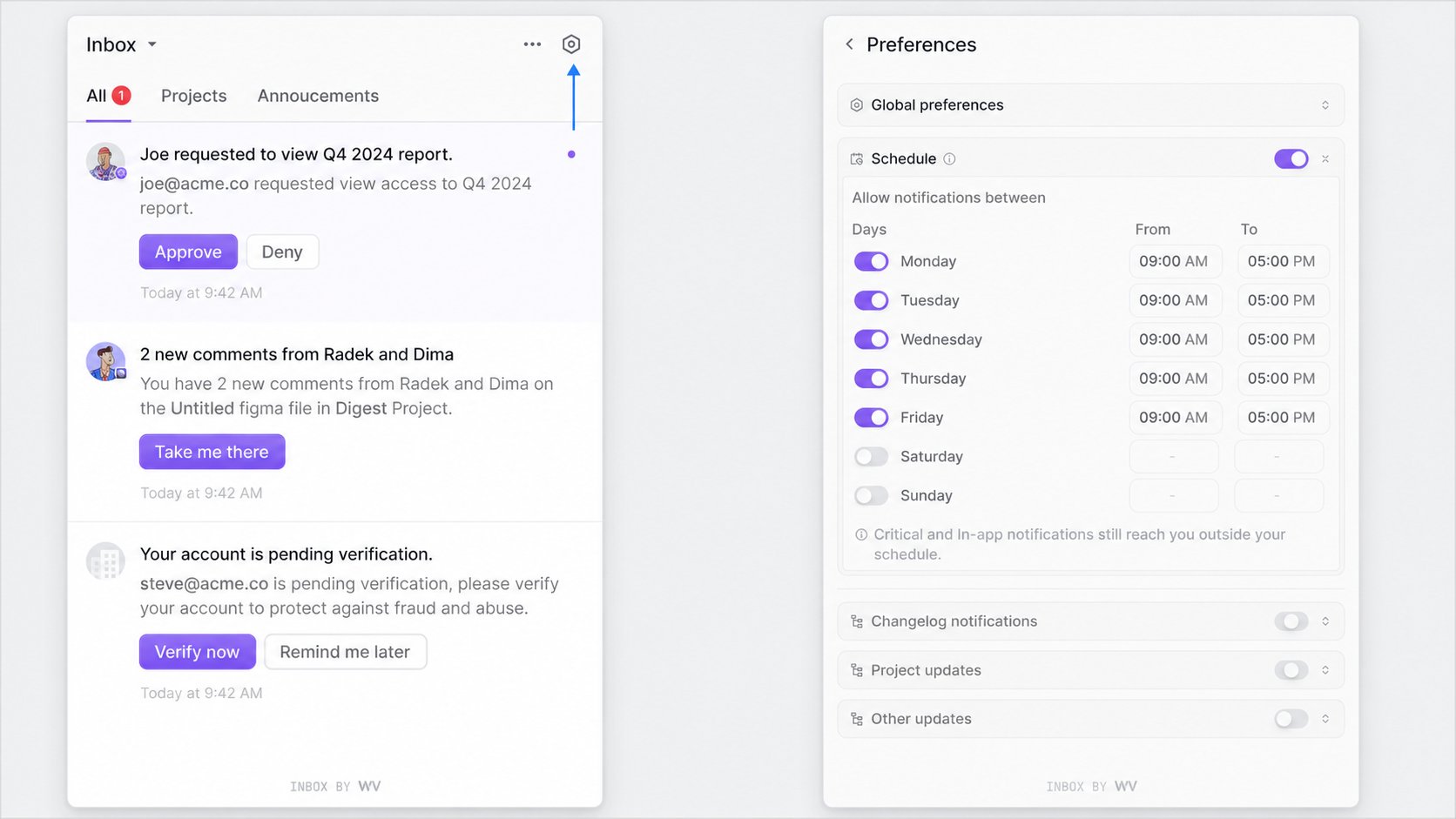
Enable the main schedule
The entire feature is controlled by a main schedule toggle. When a subscriber turns this on, they can begin configuring individual days. When it’s off, all other settings will be inactive, and notifications will be delivered normally.Setting daily availability
For each day of the week, the subscriber can:- Use the toggle next to the day’s name to activate or deactivate it.
- If activated, use the time-selector menus to set a “from” and “to” time. The time pickers are set to 30-minute increments for ease of use.
Edit or remove schedules
Existing availability can be adjusted at any time. Subscribers can:- Change the start and end times for a day.
- Re-enable a previously disabled day.
- Clear a schedule entirely to return to unrestricted delivery.
Copying times to multiple days
To make setup faster, subscribers can configure the time for one day and apply it to others in a few clicks:- Set the desired time range for a single day.
- Click Copy times to… associated with that day.
- In the menu that appears, select the other days of the week to apply this schedule to.
- Click “Apply.” The selected days will automatically be enabled and updated with the new time range.
Automatic saving
All changes made in the schedule interface will be saved automatically in the background. The UI updates optimistically, providing a seamless experience without requiring the subscriber to click save.Set a default schedule for subscribers
You can provide a default schedule for your subscribers by passing thedefaultSchedule prop to the <Inbox />. This is useful for pre-configuring a recommended schedule that your subscribers can then customize.
This default schedule only applies if a subscriber has not yet configured their own schedule. Once they make any changes, their custom schedule takes precedence.