
appearance prop, which allows you to apply custom styles at different levels of control from predefined themes to component-level overrides.
The appearance prop supports the following keys:
baseTheme: Apply a predefined theme (for example, light or dark).variables: Define global styling properties (for example, colors, fonts).elements: Style individual UI components.icons: Replace default icons with custom ones.animations: Enable or disable UI animations. They’re on by default. See Customize animations.
Understand style injection
When rendered, the Inbox component automatically injects its styles into the<head> of the HTML document. If the component is rendered inside a shadow DOM, styles are scoped and injected into the shadow root instead.
This ensures that:
- Styles remain encapsulated and do not leak into global stylesheets
- No additional setup is required to manage scoped styling
Use your application’s existing connection and authentication settings with these examples. Set up Inbox covers the application identifier, subscriber, API and WebSocket URLs, and subscriber credentials.
Apply base theme
You can apply a predefined visual style to the entire Inbox UI by passing thebaseTheme object inside the appearance prop. This is a quick way to implement a dark mode or any base look and feel without redefining every variable.
Dark mode
WorldVisa currently provides a built-in dark theme, which you can import from@wv/react/themes.
Define global variables
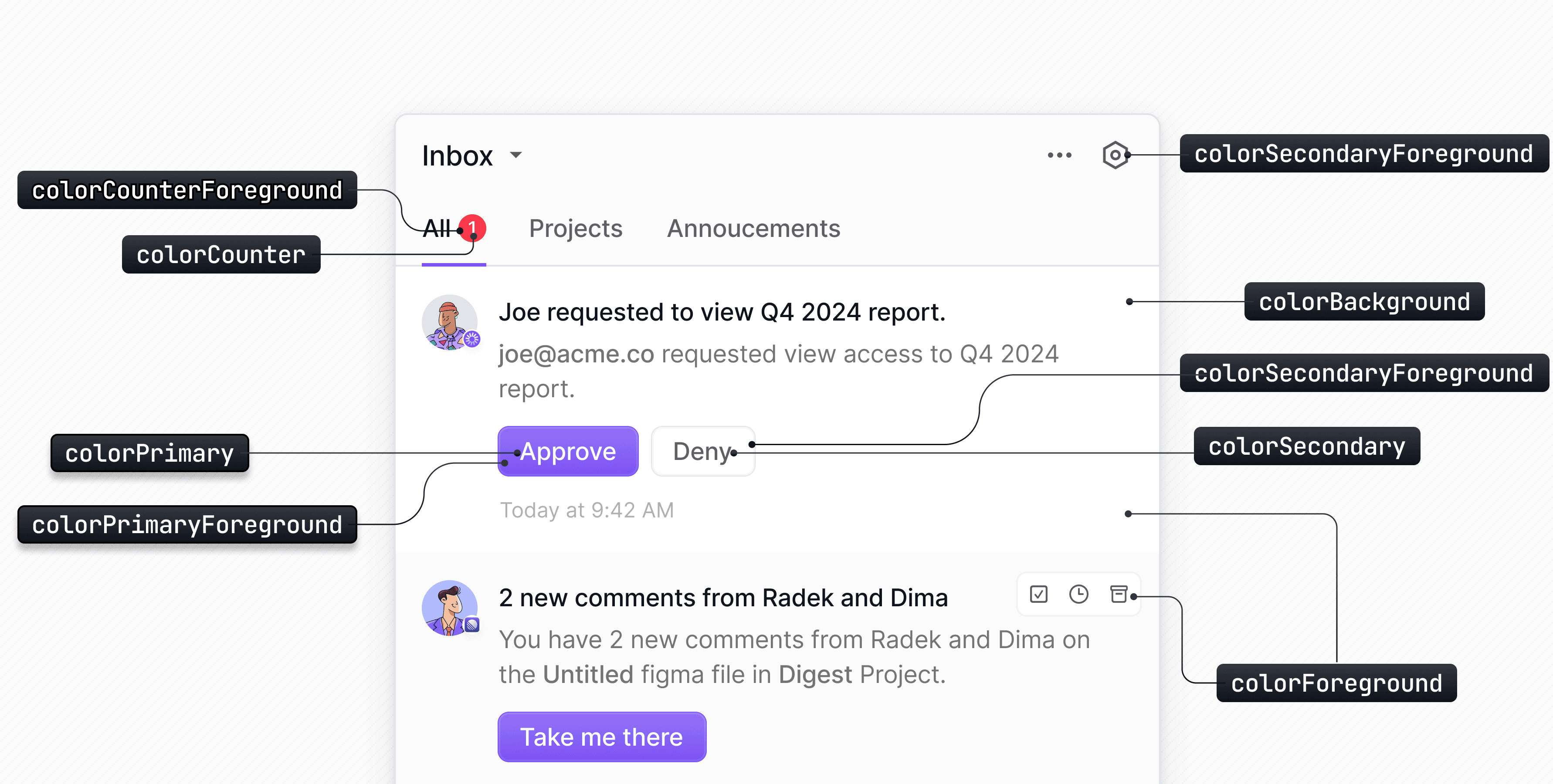
You can override the default styles in the Inbox component by passing avariables object inside the appearance prop. This is an efficient way to apply broad visual changes with minimal configuration.
When both
baseTheme and variables are provided, variables always take precedence over the base theme.List of available variables
Development mode footer
When the Inbox connects to a Development environment or runs in keyless mode, WorldVisa renders an animated striped gradient in the Inbox footer with a Development mode (or Keyless mode) label. WorldVisa doesn’t render this footer for Production environments. In Production, the development label is hidden. Branding visibility follows the integration configuration for your environment. To change the color of the striped footer, setcolorStripes in appearance.variables:
Style the Inbox UI elements
You can define styles for individual UI components within the Inbox UI by passing theelements object inside the appearance prop. Each key corresponds to a specific component, and the value can be either a style object or a set of CSS classes.
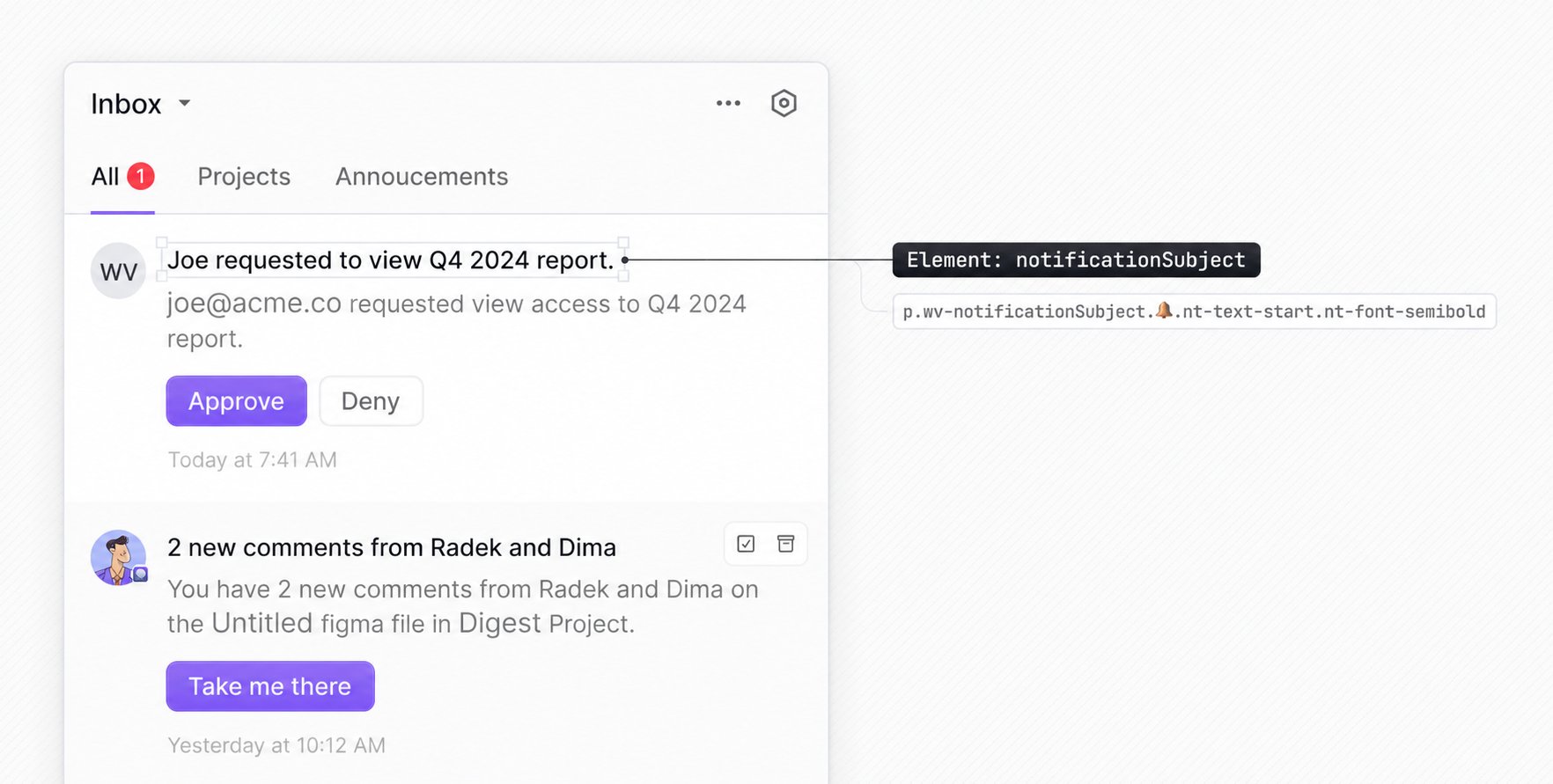
How to find other elements?Any selector that appears before the 🔔 emoji in the Devtools can be targeted via the
elements property in the appearance prop (stripping the wv- prefix). You can also use TypeScript autocomplete to find the available elements. For the complete list of Inbox element keys, see the React SDK appearance reference.- Style object
- Tailwind CSS
- CSS modules
You can pass inline styles to individual elements using the
elements object in the appearance prop. Each element accepts a style object.Apply styles dynamically using contextual callbacks
You can customize specific parts of the Inbox UI by providing callback functions for certain keys. This function receives contextual information such as unread counts, notification data, or preference details and lets you apply styles dynamically based on runtime values from your application.List of elements that can be customized using a callback function
List of elements that can be customized using a callback function
Style the bell icon based on unread count
You can change the bell icon color gradient based on the total number of unread notifications. The callback receives anunreadCount object, which is then used in the conditional logic.
Style notifications based on payload data
You can style individual notifications based on custom data in their payload. In the example below, the notification’s background color is changed if a specific field (foo) exists in the notification’s data object.Style notifications by severity
Notification severity comes with default visual styles, but you can fully customize how notifications look for each severity level using theappearance prop.
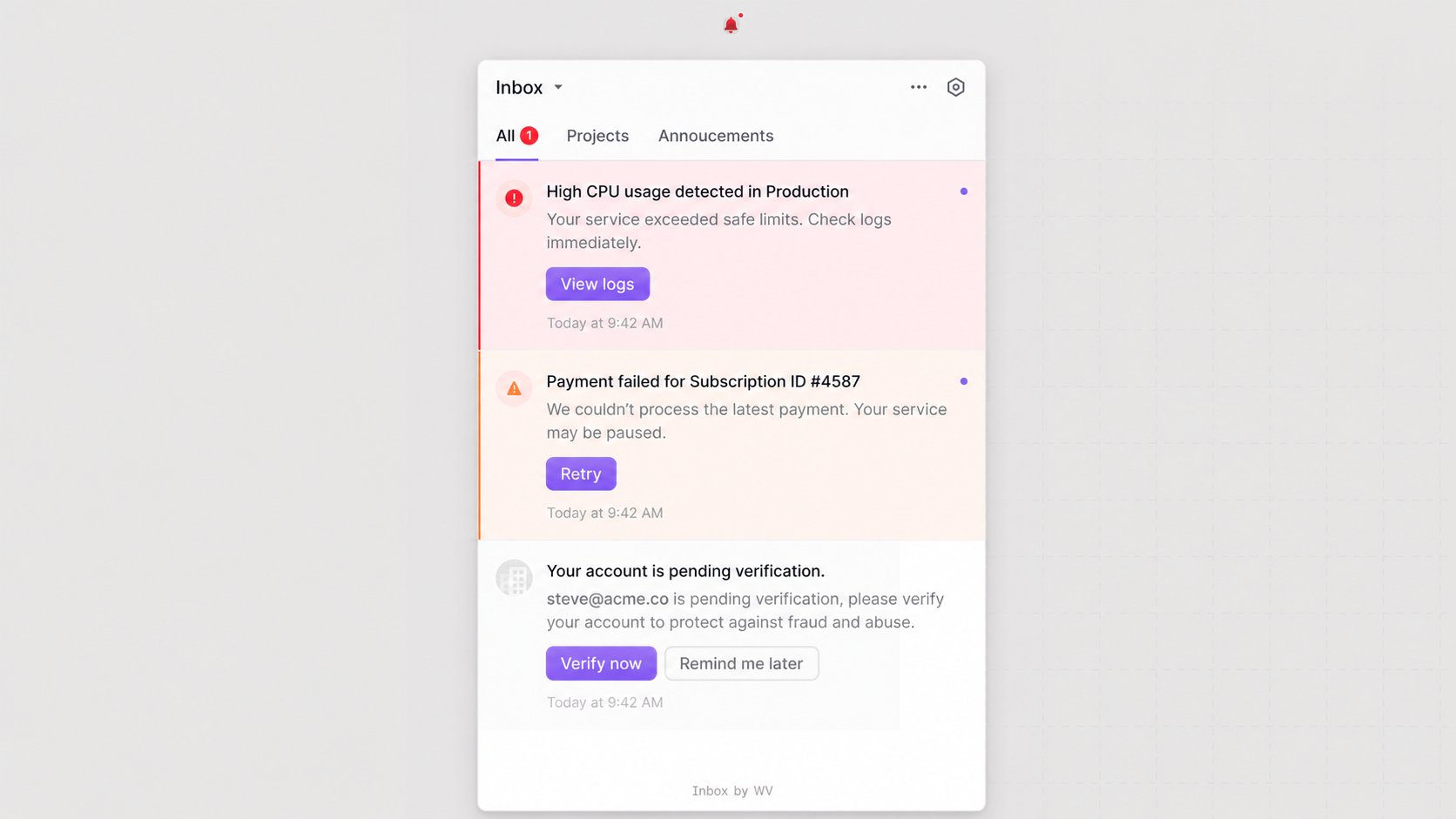
By default, the bell icon takes the color of the highest severity unread notification.
variables and elements objects to apply custom styling.
Customizing severity colors
You can override the default severity colors by setting new CSS custom properties in theappearance.variables object. Updating these variables automatically changes both the notification color and the bell icon color.
Customizing severity elements
You can apply specific styles to individual components using keys in theappearance.elements object. This lets you target components conditionally based on their severity state.
Customize animations
The Inbox enables animations by default. Setappearance.animations to false when your application should display supported transitions without motion.
Responsive Inbox using CSS media queries
On mobile and smaller devices, use theinbox__popoverContent element and apply a custom CSS class to it. Specify CSS media queries on this class and add the class in a global CSS file so that it takes effect. In the example below, media queries are applied to the portal-inbox-popover-content class in a global CSS file.
ResponsiveInbox.tsx
global.css