
<Inbox /> component includes built-in support for snoozing notifications, which can be used to temporarily dismiss notifications and have them reappear at a more convenient time.
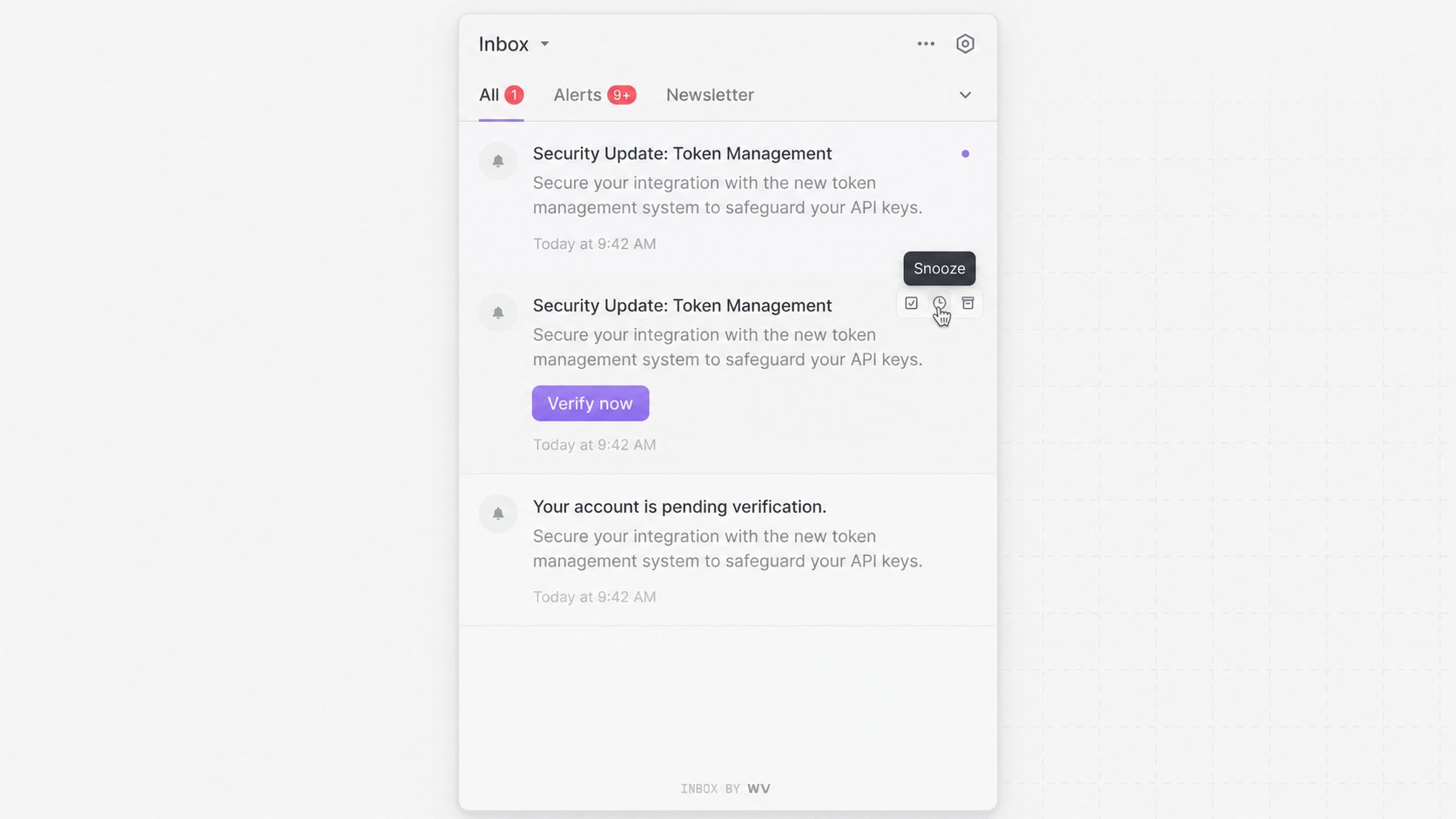
Snooze requires the feature to be enabled for your WorldVisa environment. The Inbox shows its controls when that environment supports snoozing.
Use your application’s existing connection and authentication settings with these examples. Set up Inbox covers the application identifier, subscriber, API and WebSocket URLs, and subscriber credentials.
How snooze works
When a subscriber snoozes a notification:- It is temporarily removed from the general list.
- It appears in the Snoozed tab.
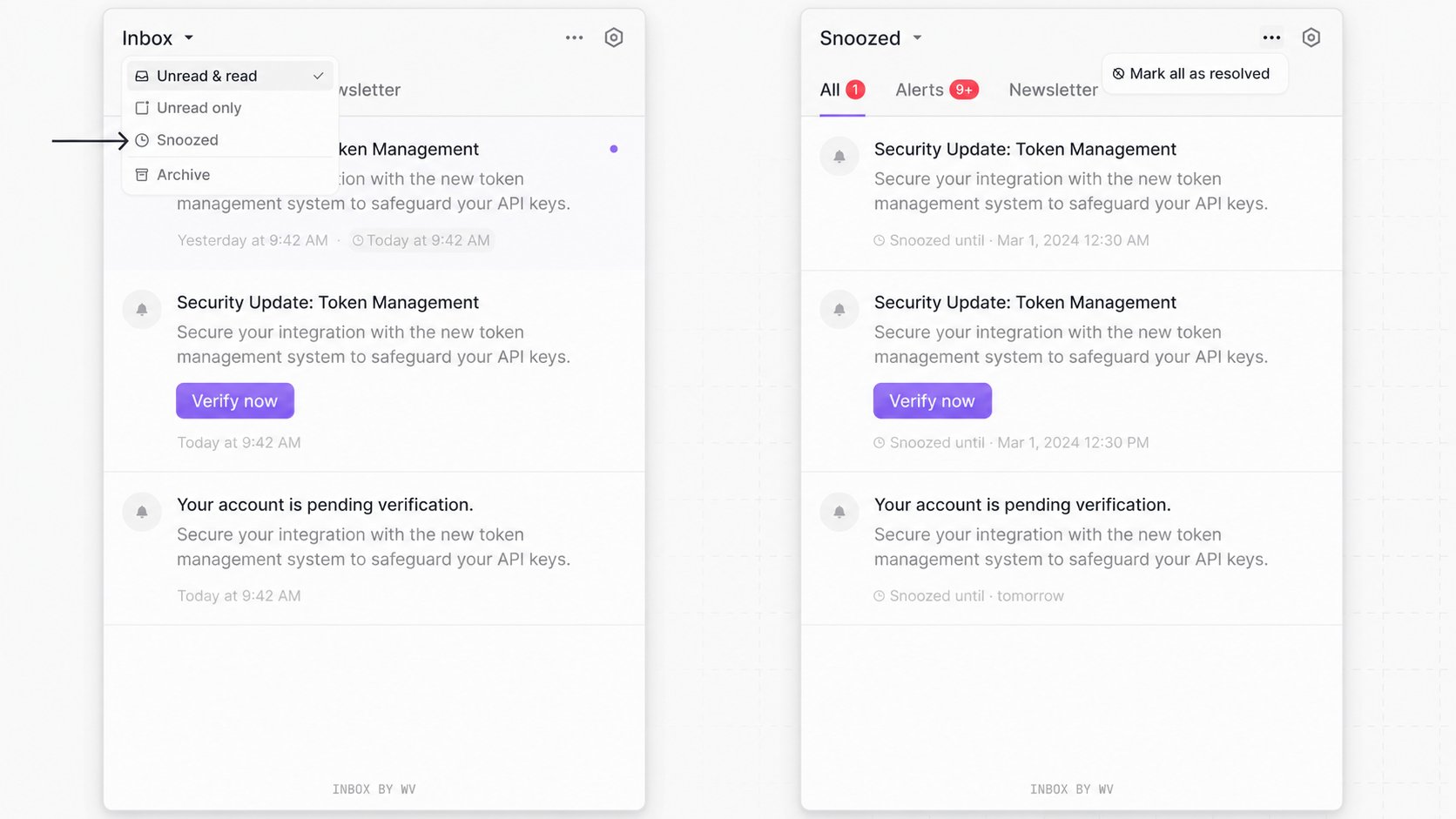
- It reappears in the general list after the specified time elapses.
How to snooze a notification
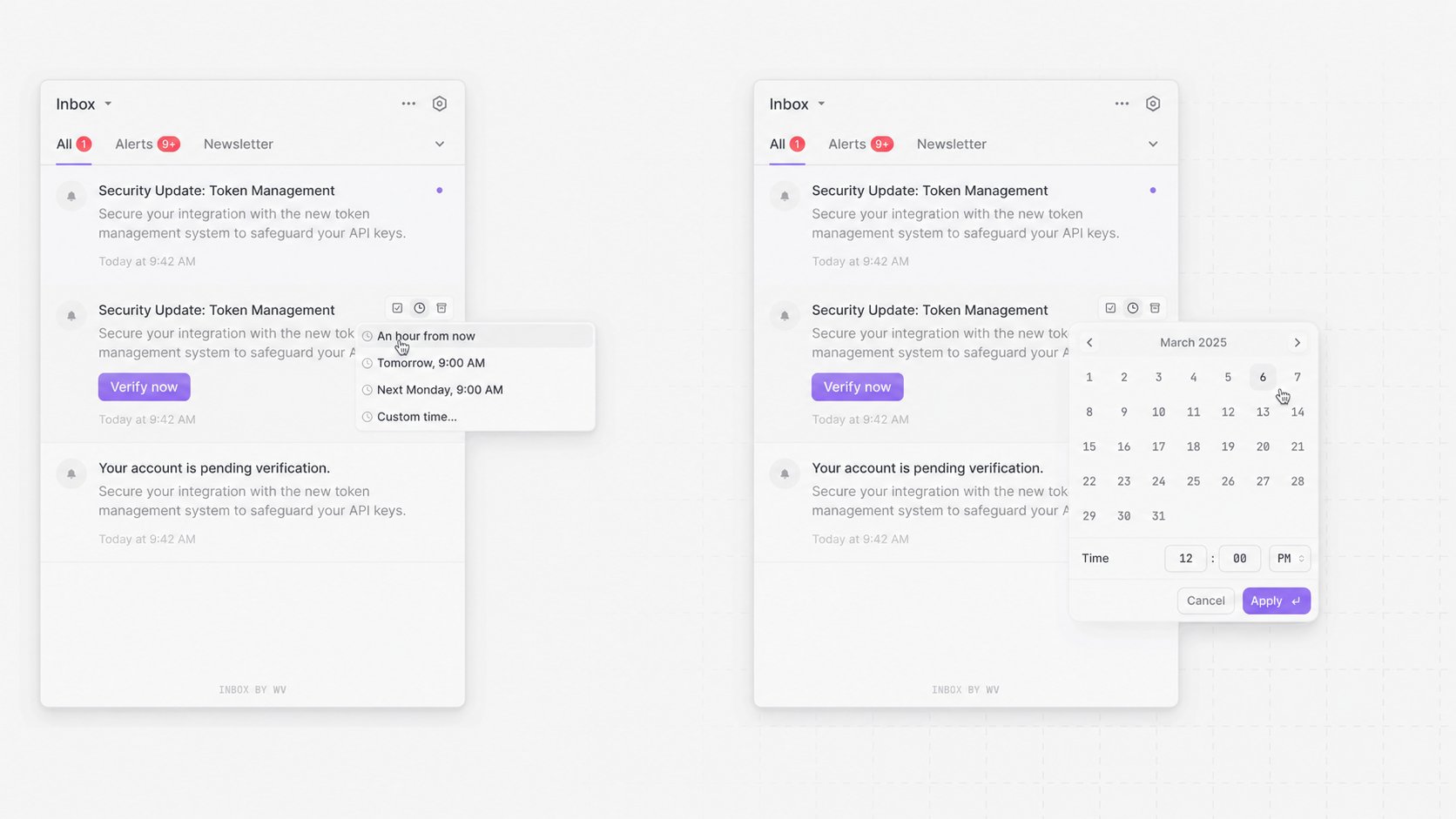
All dates and times are interpreted in your subscriber’s local timezone. They can snooze a notification directly from the Inbox using one of the following options:- Preset options:
- An hour from now
- Tomorrow
- Custom date and time:
- A built-in date and time picker allows users to select a specific future time.
.snooze() and .unsnooze() methods on the notification object to build custom snooze functionality.
This lets you create custom UI elements or workflows that trigger snooze actions outside of the default menu.
Managing snoozed notifications
The Inbox component includes a dedicated Snoozed tab that automatically displays notifications scheduled to reappear later. From this tab, users can review all snoozed notifications and take further actions as needed. Users can unsnooze a notification at any time, which immediately returns it to the All tab. Once unsnoozed, the notification regains its standard behavior. It can be marked as read, unread, or archived like any other item.
This logic is built into the component and does not require any additional configuration. Notifications automatically reappear in the All tab once their snooze duration elapses.