
To learn when to use Delay step in a workflow, refer to the Delay step overview.
Delivery behavior and scheduling
A Delay step can line up with a subscriber’s delivery schedule. Turn on Extend to subscriber’s schedule on the step when the workflow should wait for the next open window. With the toggle off, email, SMS, push, and chat steps that become ready outside the window are skipped. Delivery uses the subscriber’stimezone when that attribute is set. Otherwise WorldVisa uses UTC.
Changing the step content after triggering the workflow with delay step will affect the existing pending delayed notification content.
Adding a delay step
You can add a delay step anywhere in a workflow, before or after any other step. To add a delay before the email step, place the Delay step immediately above Email. When the workflow reaches the delay step, execution pauses for the configured duration and then resumes with the next step.Delay types
Delay types are used to define how long the workflow execution should be delayed before proceeding. These delay types are:Fixed delay
A fixed delay pauses workflow execution for a static duration. Use this when the delay length is known in advance and does not change. You can specify fixed delays in seconds, minutes, hours, days, weeks, or months.Scheduled delay
A scheduled delay pauses workflow execution until a specific date and time, based on the subscriber’s time zone. You can configure scheduled delays to resume execution:- Minute: Resume at a specific minute.
- Hour: Resume at a specific hour and minute.
- Day: Resume at a specific time of day.
- Week: Resume on specific days of the week at a given time.
- Month: Resume on specific days of the month at a given time.
Dynamic delay
A dynamic delay, also called a variable-based delay, determines the delay duration using a variable from the event payload. This allows the delay to change per workflow execution. The variable can be defined in one of the following formats:- ISO-8601 timestamp: Example:
2027-01-01T12:00:00Z. This value should be for future date and time. - Duration object: Example:
{ "amount": 30, "unit": "minutes" }. This value should be for future date and time. Here amount is the number of units to delay and unit is the time unit. unit can be seconds, minutes, hours, days, weeks, or months.
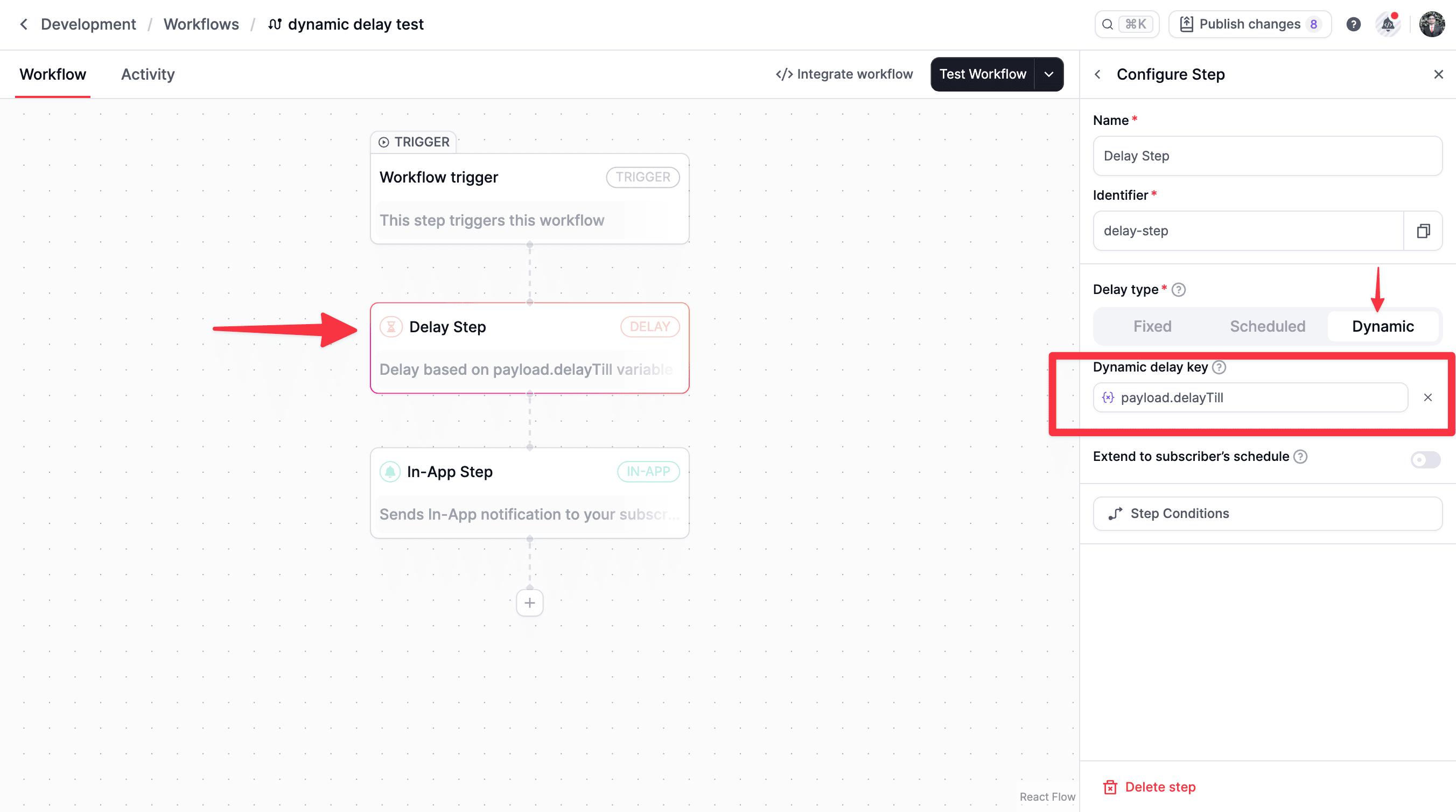
delayTill variable is used to pause the workflow until the future date and time specified in the delayTill variable.
- ISO Date
- Duration object
Extend to subscriber’s schedule
Extend to subscriber’s schedule is off by default. Turn it on when steps after the delay should wait for the subscriber’s delivery schedule instead of running as soon as the delay ends. The schedule is a weekly set of hours from the Inbox. It has no holiday calendar. A day the subscriber turns off, such as Saturday or Sunday, is skipped. A day they leave on is a delivery day, including public holidays. WorldVisa checks the schedule when the delay finishes. Times below are in the subscriber’s time zone (UTC when notimezone is set):
- The delay finishes inside an open window. The workflow continues immediately. The toggle adds no extra wait.
- The delay finishes outside the window, and the toggle is on. WorldVisa holds the workflow until the start of the next enabled window, then continues.
- The delay finishes outside the window, and the toggle is off. The delay ends on time. Email, SMS, push, and chat steps after it are skipped. WorldVisa does not retry them when the window opens. In-app steps, and every step in a critical workflow, are still delivered.
Examples
Schedule: Monday–Friday, 9:00 AM–5:00 PM. Delay: 1 hour. Toggle: on.
Schedule: Monday only, 9:00 AM–10:00 AM. The delay finishes Monday at 10:01 AM. Toggle: on.
WorldVisa resumes the following Monday at 9:00 AM. That is one wait, straight to the next open slot.
The same Monday-only schedule with the toggle off skips the following email, SMS, push, or chat step at 10:01 AM.
How long WorldVisa waits
WorldVisa waits once, until the start of the next enabled window. It does not step through each closed day. A delay that ends Friday at 6:00 PM resumes Monday at 9:00 AM. A delay that ends Monday at 10:01 AM, when the only window is Monday 9:00 AM–10:00 AM, resumes the following Monday at 9:00 AM. If the schedule is on and no day has an open window, there is no later slot to wait for. The delay ends, and email, SMS, push, and chat steps are skipped.If the subscriber changes the schedule while waiting
WorldVisa picks the next open slot from the schedule at the moment the delay finishes, and keeps that time. A later edit in the Inbox does not move a step that is already waiting. When that time arrives, WorldVisa reads the schedule again:- That moment is still inside the schedule. The workflow continues then. An earlier window the subscriber added in the meantime is not used. The step does not send early.
- That moment is now outside the schedule. WorldVisa waits again, until the next open slot in the updated schedule. This includes the first wait, and WorldVisa will do it at most 3 times. If the step wakes after the third wait and the time is still outside the schedule, the delay ends. Email, SMS, push, and chat steps that follow are skipped. In-app steps are still delivered.
- The subscriber turns the schedule off. The step still waits until the time already chosen. When it wakes, the schedule is off, so the workflow continues and sends.
FAQs
If delay step fails, will the workflow continue to the next step?
If delay step fails, will the workflow continue to the next step?
No, workflow execution will stop immediately if the delay step fails due to an error. Common errors are:
- Invalid ISO date format.
- Invalid duration object format.
- Past datetime is specified.
Does the schedule skip weekends and holidays?
Does the schedule skip weekends and holidays?
A weekend day is skipped when the subscriber turns that day off. There is no holiday calendar. If Monday is enabled, WorldVisa delivers on Monday even when Monday is a public holiday. WorldVisa waits once for the next enabled window, so Friday evening goes directly to Monday morning.