
subject and body of all in-app step notifications to ensure that they are safe to display. This process prevents security risks by removing suspicious HTML tags (like <script>) and escaping HTML entities (like &, <, >).
However, you can disable this feature to display richly formatted content with links, bold text, and more. The Inbox component supports this by letting you inject HTML using dangerouslySetInnerHTML into your notification content, providing control over layout, formatting, and design.
Enabling HTML formatting is a two-step process: you must first disable sanitization in your WorldVisa workflow and then use the appropriate render prop in your application to display the HTML.
Use your application’s existing connection and authentication settings with these examples. Set up Inbox covers the application identifier, subscriber, API and WebSocket URLs, and subscriber credentials.
Step 1: Disable content sanitization in your workflow
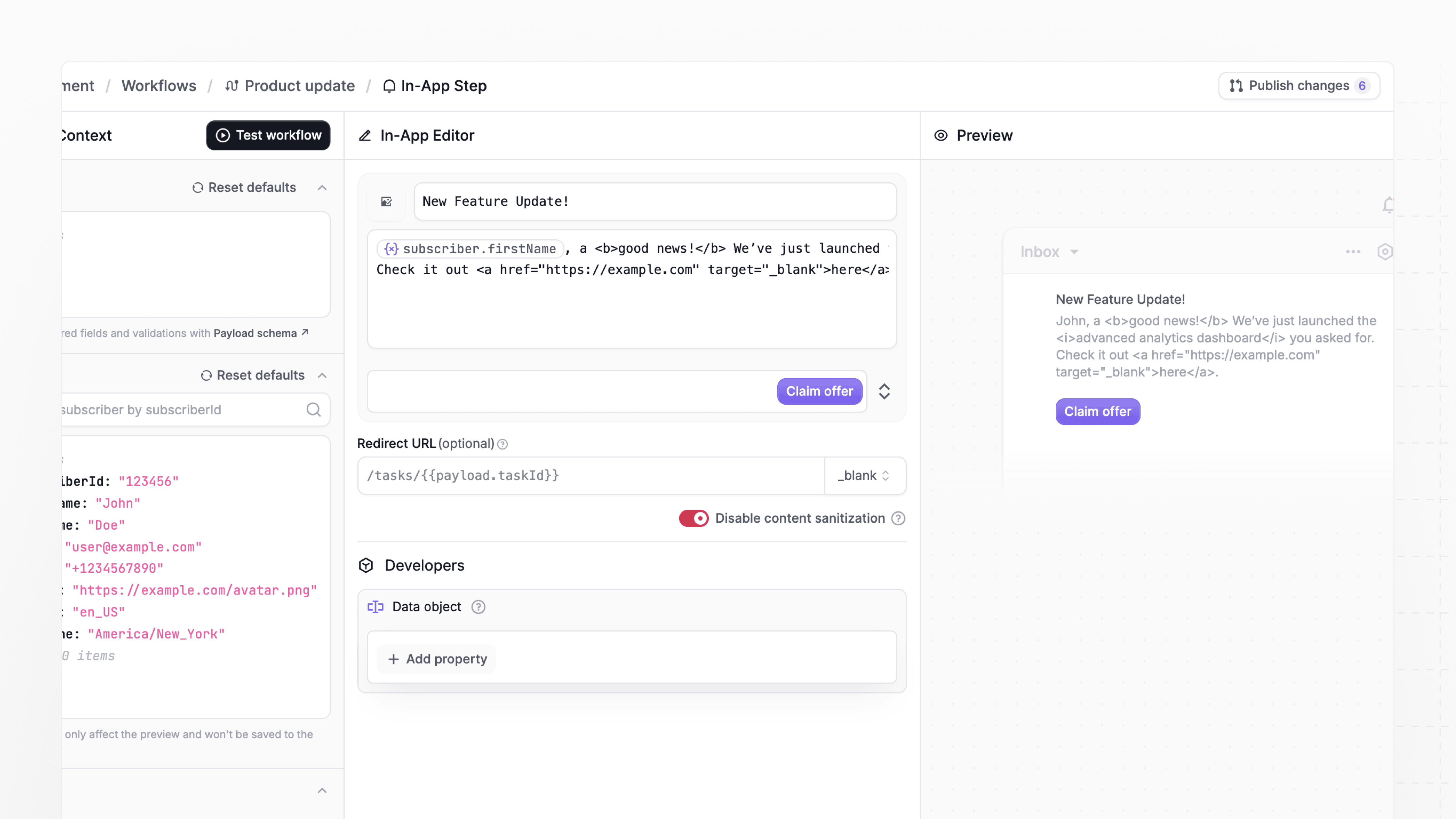
In your WorldVisa workflow:- navigate to the In-App editor.
- In the editor, find and turn on the Disable content sanitization toggle.
Step 2: Display the HTML in your app
Once sanitization is disabled, you must use arender prop in your application to correctly interpret and display the raw HTML. Sanitize the HTML in your application before rendering it. These examples use dompurify, which you must add to your application, together with React’s dangerouslySetInnerHTML property. This extra sanitization matters even when you control the workflow, because trigger payloads can contain client-provided values.
For the notification body
To display HTML in the notification’s body, use therenderBody prop.
Example usage
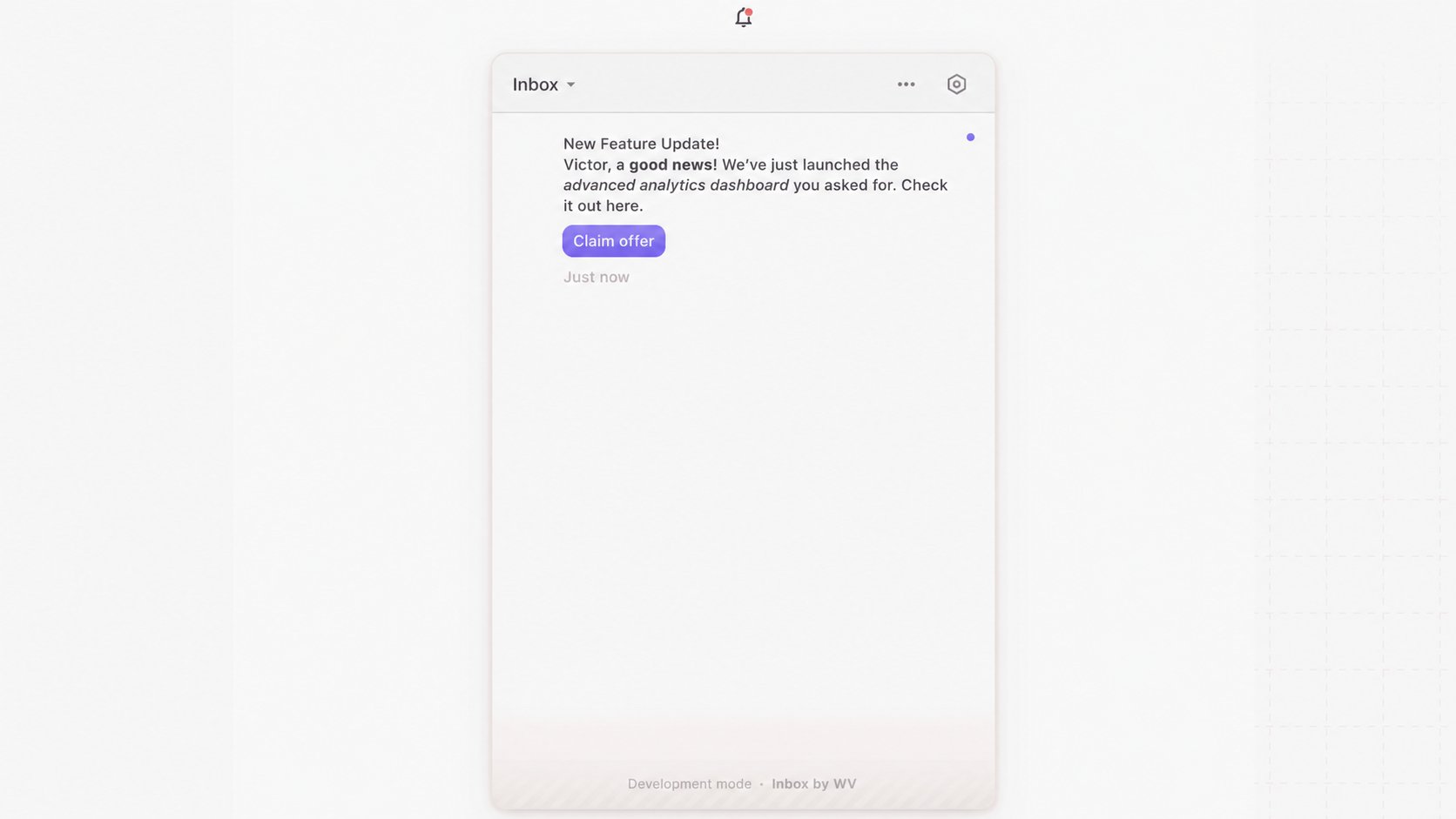
If your workflow’s in-app message body contains the following content with HTML tags and variables:html tags with dynamic values
For the notification subject
Similarly, to display HTML in the notification’s subject, use therenderSubject prop.
For the notification subject and body
If you need to display HTML in both the subject and body, use therenderNotification prop.